

Search & Navigate
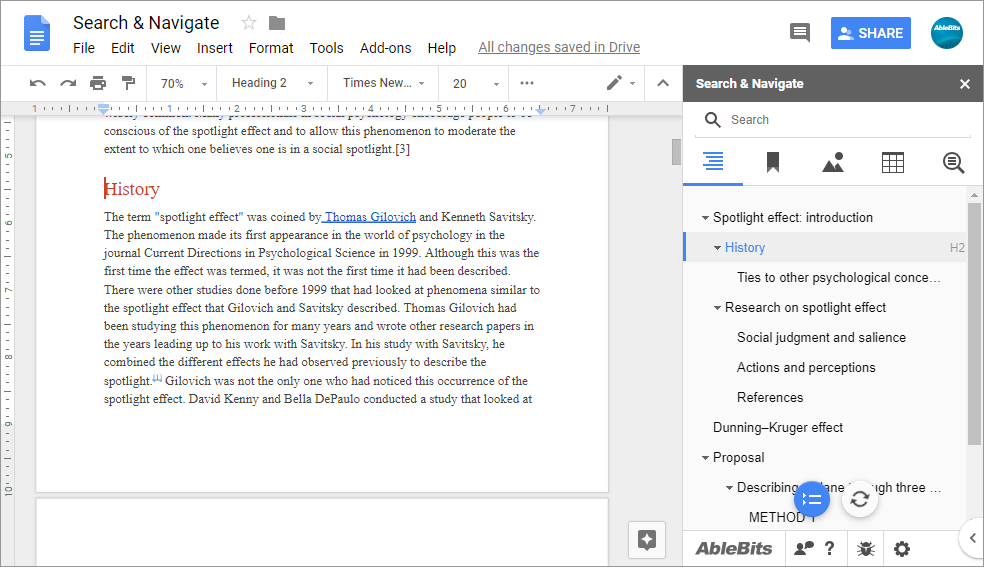
This add-on sidebar organizes your document content into several tabs. Browse the text by headings, bookmarks, images, and tables, or filter data using advanced search capabilities. You can explore all instances of a certain word or phrase by looking at the list of all matches, or see the results right in context.

With Search & Navigate you will
How to use Search & Navigate for Google Docs

Frequently asked questions
What is Search & Navigate and what do I need it for?
The add-on simplifies your document navigation by offering 4 tabs that organize data by type: table of contents (headings), bookmarks, images and tables, and text. It not only provides a nice overview of the document, but also serves as a good guide for searching text and reviewing the results for each data type.
I saw the same features in Google Docs, am I wrong?
You are perfectly right. However, Google standard features are quite limited. Its table of contents can be placed to one page of the document only. You'll have to go back to that page each time you want to go to a new paragraph. Besides, the table of contents won't update automatically. You could use document outline, but it's a separate sidebar on the left that doesn't show the exact heading levels, cannot collapse them, and won't let you work with bookmarks. So, as for Google bookmarks, you can jump from one to another only in the order of their appearance. The same goes for the Find feature.
Our add-on provides lists of all headings, bookmarks, images, tables, and found words on its sidebar. This lets you make the most of your document structure by accessing and managing any element from any page. What's more, the add-on can update its sidebar according to the changes made in your file.
How to use Search & Navigate in Google Docs?
Run the tool from Extensions › Search & Navigate › Start and pick the tab for your task:
- To browse the document by headings, choose the 1st tab.
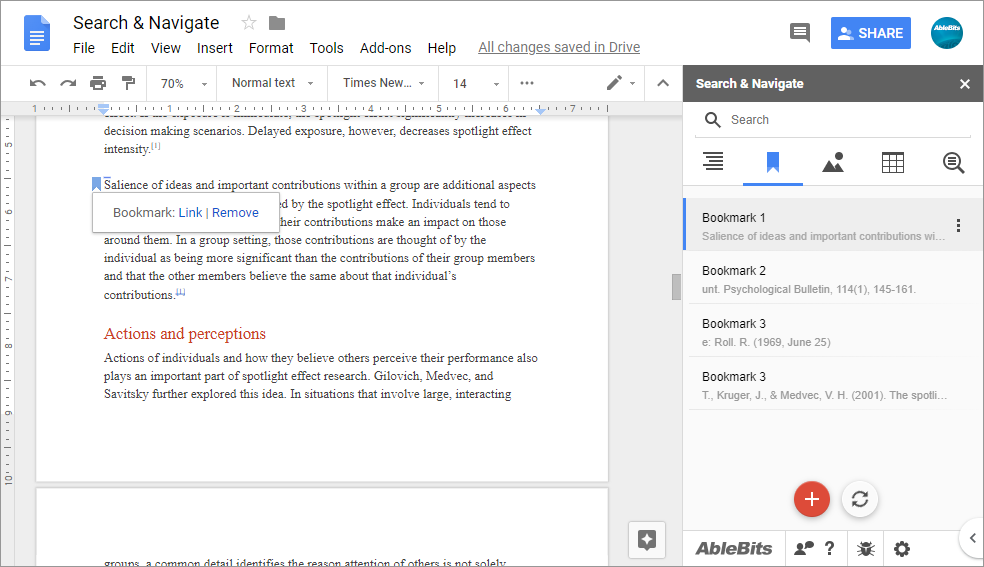
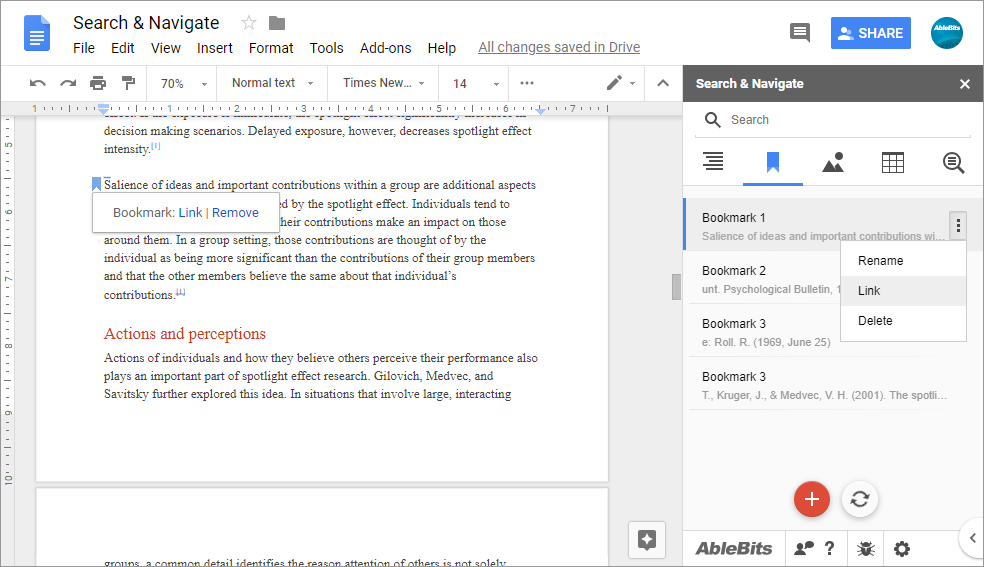
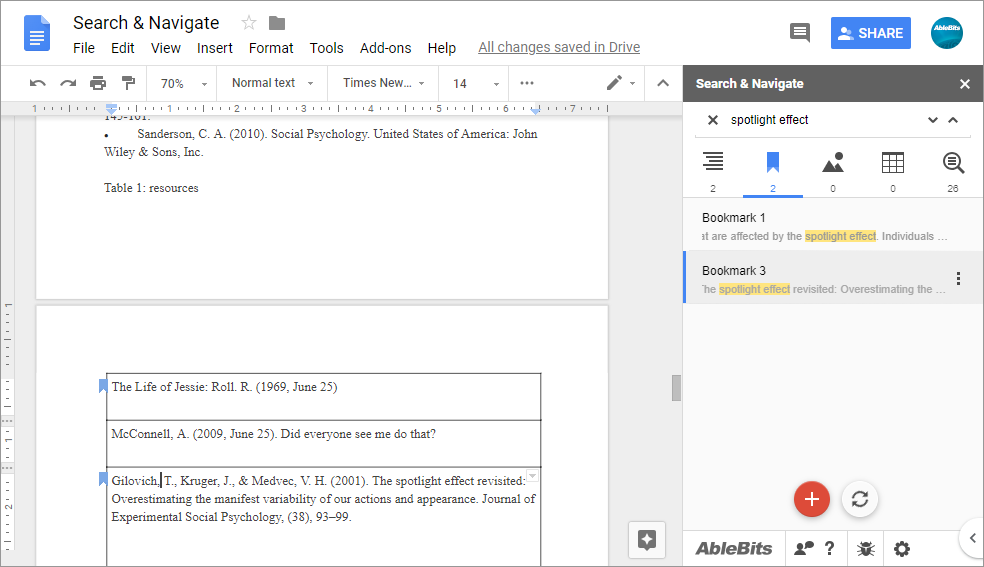
- Go the 2nd tab to navigate between bookmarks.
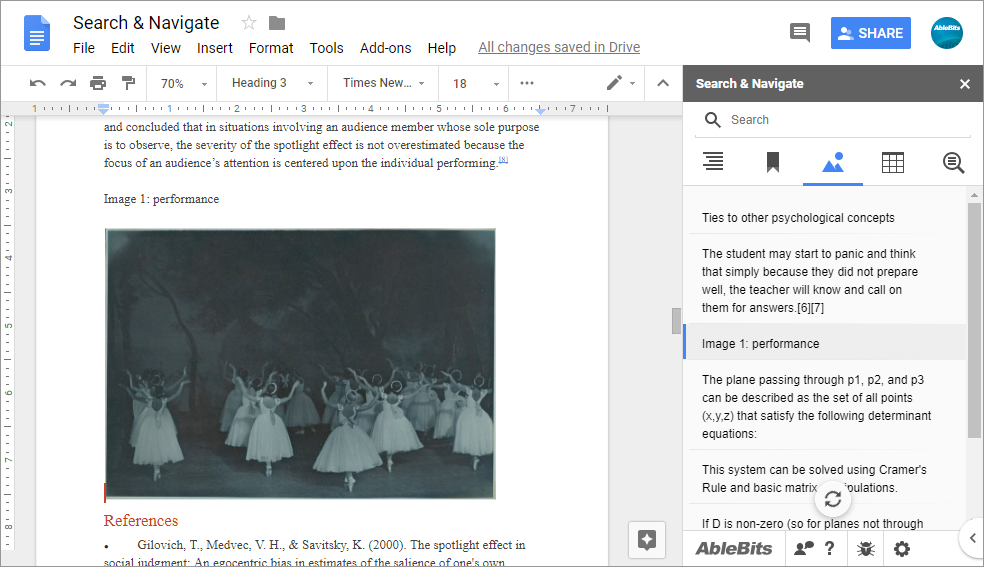
- The 3d tab lets you manage images.
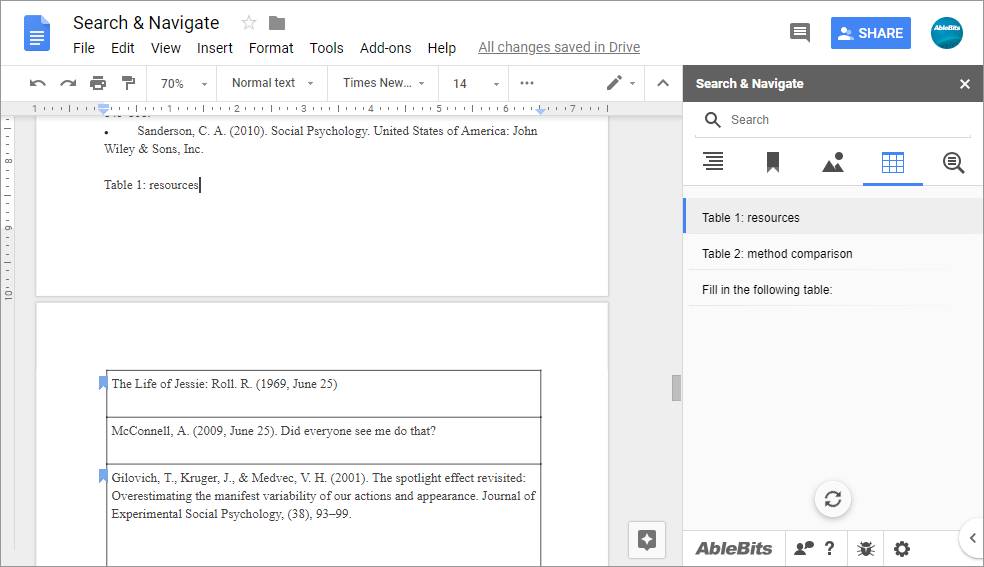
- To jump between tables, use the 4th tab.
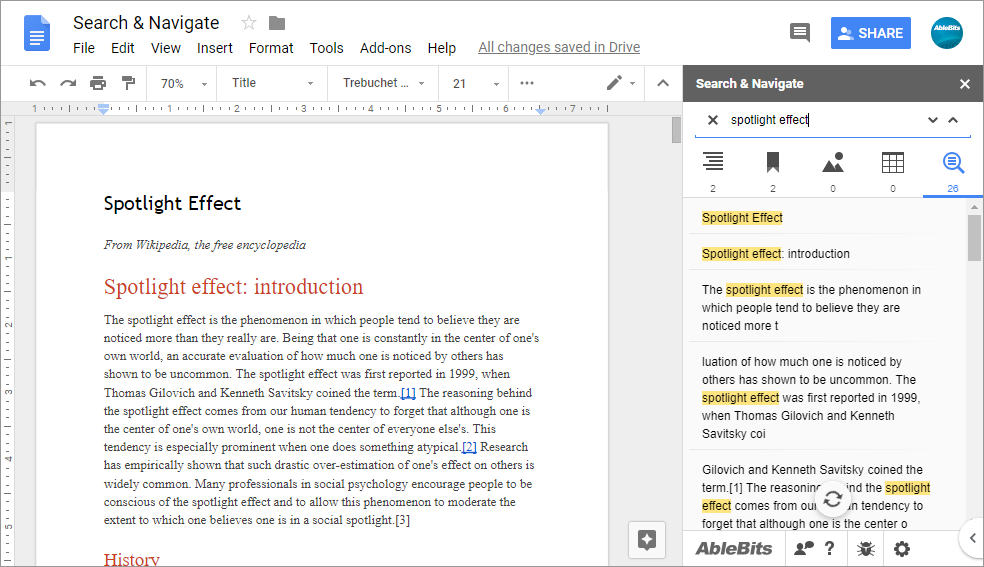
- The last one shows all the mentions of the word you're looking for.
How does your bookmarks management differ from Google standard one?
When you collaborate on a document, not only does this add-on let you see all bookmarks in one neat list and move between them no matter their order, but also gives the options to rename, add, remove, or get a link to them from the same sidebar. This can become the tool you really needed for bookmarks.
What's so special in finding data with your add-on?
Our tool serves as a guide for looking at the search results. Entering your keyword into the search field makes the add-on filter the lists on all tabs simultaneously. You will see the number of matching headings, bookmarks, images, and tables right under the tab icon. Switch to any tab to work with the results, or see all the found paragraphs on the last tab.
System requirements
- Windows: Windows 10 and up
- Mac: macOS Catalina 10.15.7 and up
- Chrome OS™
- Chrome™
- Firefox
- Safari (Mac only)
- Edge