

Styles
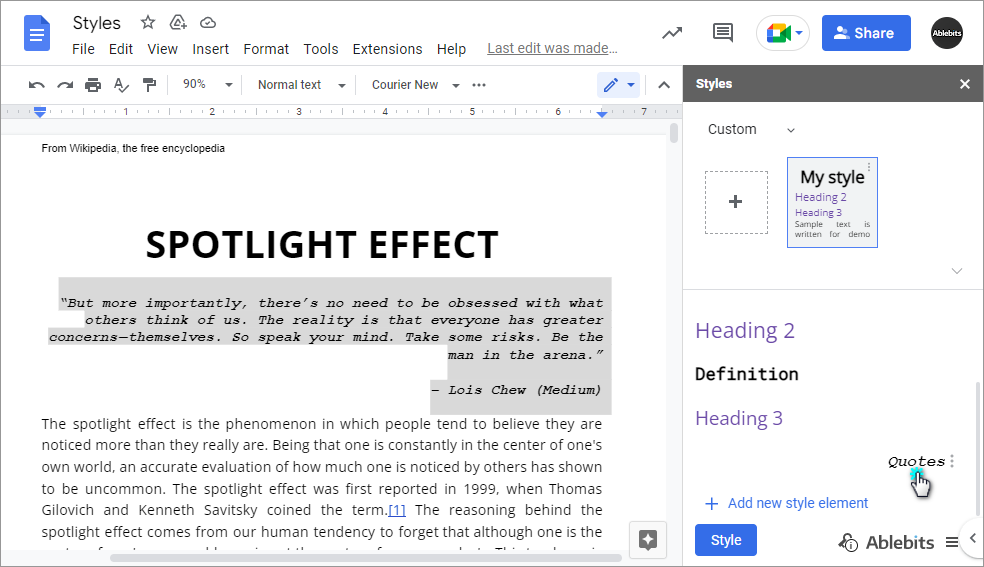
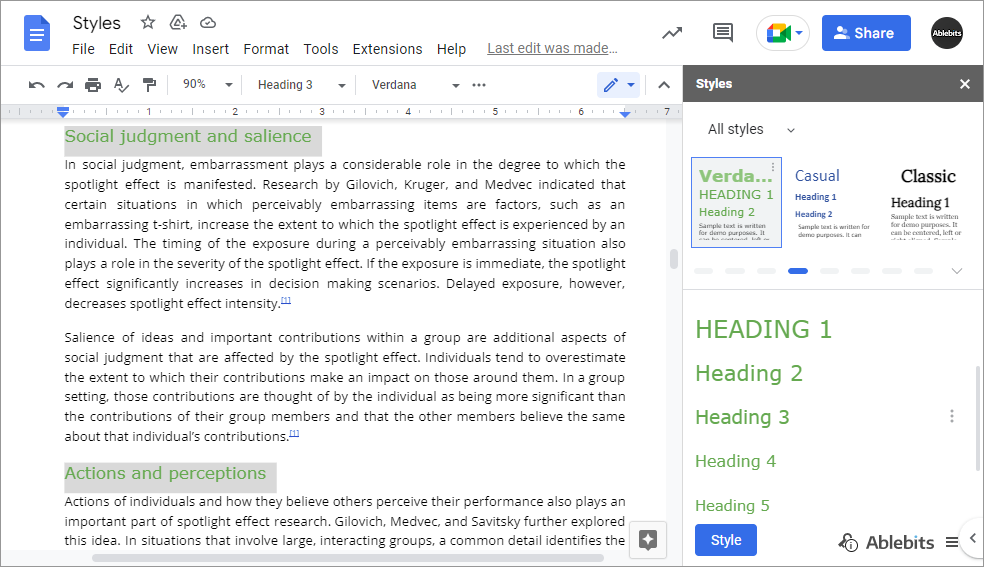
This add-on takes your dull-looking documents to the next level. Create new or pick existing styles from the documents for later use. Add & customize numerous style elements so they fit every part of the text: titles, quotes, headings, definitions, etc. Apply any element to any paragraph, or format the whole Doc in a click. This is the easiest way of changing the appearance and style of your text.
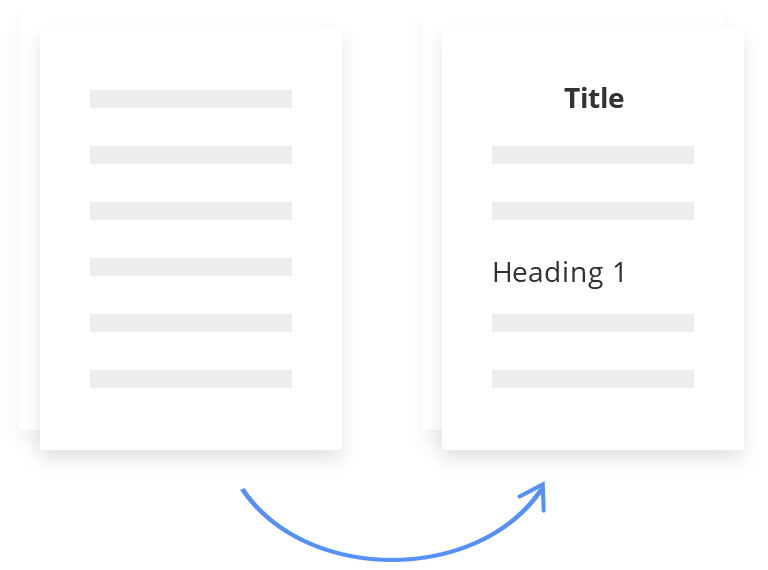
With Styles you will
How to use Styles for Google Docs
Frequently asked questions
What is Styles and what do I need it for?
As the add-on name suggests, it makes your Google document look uniform. Each style set consists of all the necessary elements with a unique combination of font, size, color, formatting, alignment and spacing. Just like with standard styles that you get in Google Docs, you can apply these elements to any paragraphs you select or to the entire Doc. Besides, you are free to adjust these standard styles to your liking and create your own ones.
How does it differ from styling tools in Google Docs?
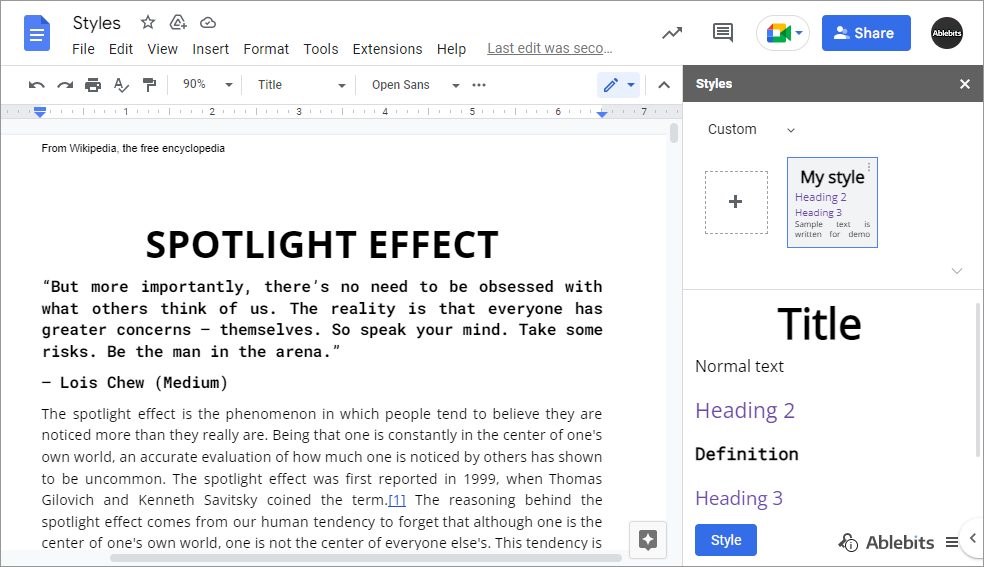
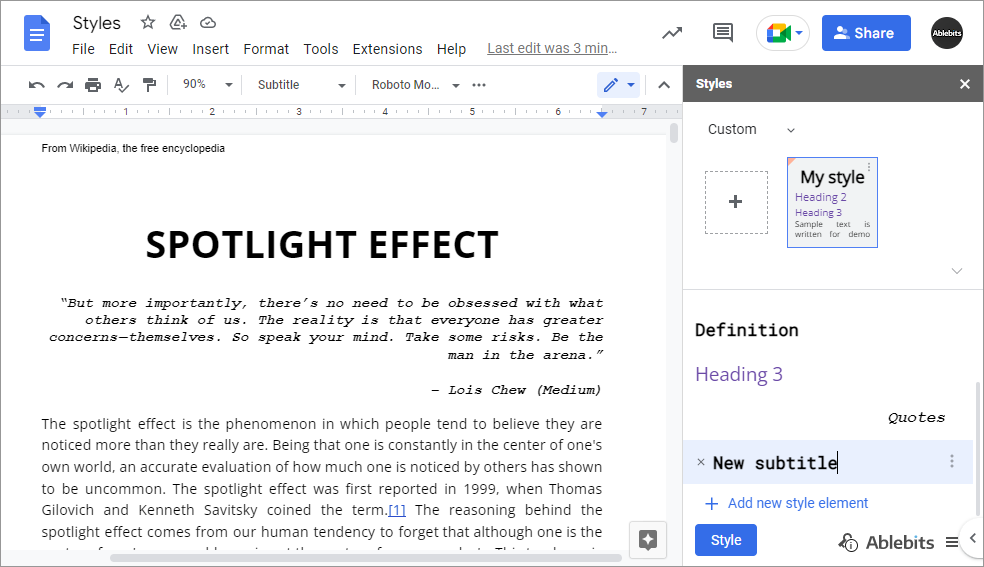
The standard styles help with the basic document structure: create a title and headings of different levels. Our add-on not only supplements this structure with a choice of design but also lets you add as many custom elements as you need. For example, you can have several different looks for the normal text within one style, create looks to format quotes, descriptions, lists, etc.
How to use Styles in Google Docs?
- Run the tool.
- Pick the style you'd like to use in your document or create your own.
- Click Style.
Can I preview what my data will look like before applying the style?
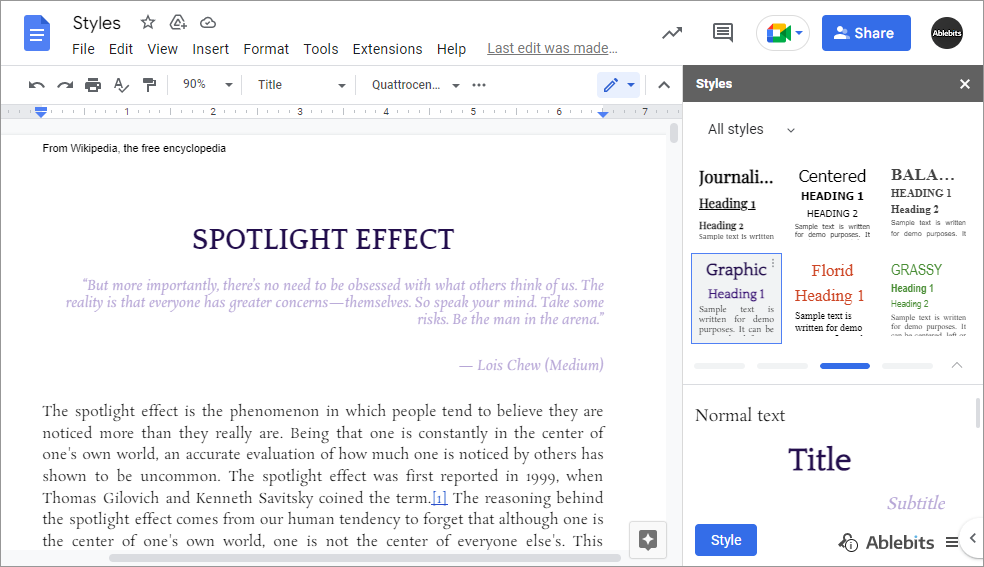
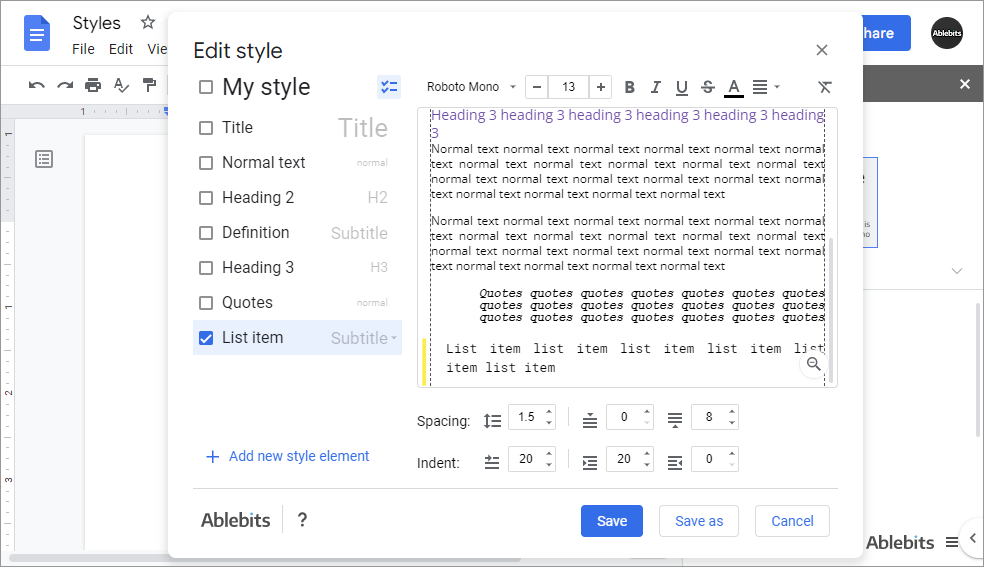
Sure! Just click on any provided formatting set, and you'll see the preview of all its elements in the sidebar. Or go to style editing to tweak more options and preview how all elements work together in a document. You can also try it on your document by clicking Style. Undo if you decide to try something else, or apply a different set of formattings right over it.
Can I save the style from the document into the add-on?
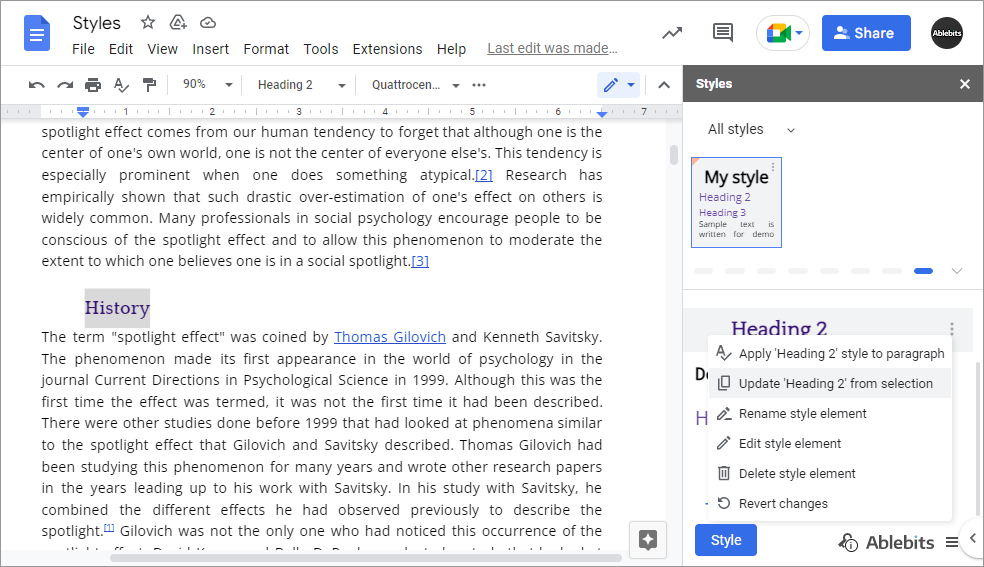
Sure. Instead of creating your style set from scratch, you can pick it from the document using a special setting. Besides, there's an option to update only certain elements of the styles with the formatting used in your Docs.
Can I export my styles and share them with my teammates?
Yes, you can! You can export either only the selected style or all styles altogether. They will be saved in the root of your Drive. Those whom you share the file with will be able to import your styles to their add-on and customize their docs the same.
I don't want to change the entire document, I just want to alter some parts.
The tool lets you apply formatting to specific paragraphs only. Simply place the cursor in any line or select several paragraphs you'd like to change, and click on the desired heading or any other element on the sidebar.
Will I be able to format only all headings at once?
Yes. Right-click any heading and pick Select all matching text from the context menu. Now, all headings in your document are selected and ready to be changed.
Choose your plan
- All updates for free for good
- 1 subscription for 1 Google account
Not ready to buy? Install from the Marketplace and test paid features for 30 days for free.
System requirements
- Windows: Windows 10 and up
- Mac: macOS Catalina 10.15.7 and up
- Chrome OS™
- Chrome™
- Firefox
- Safari (Mac only)
- Edge