
How to Mail Merge in Gmail with Attachments and Google Drive Links

To send personalized emails with unique attachments or Google Drive links in Gmail, organize your recipient data and file URLs in Google Sheets, write your email template with {{placeholders}}, and run Easy Mail Merge to automatically personalize each email and pair recipients with their individual attachments. The add-on lets you send files either as direct attachments or as secure Drive links.
Quick Guide: Direct Attachments vs. Google Drive Links
| Use Case | Delivery Method | Best For | Key Feature |
|---|---|---|---|
| Case 1: Sales Proposals | Direct Attachments | B2B sales proposals, custom quotes, pitch decks | Attach unique files to each recipient based on spreadsheet column data. |
| Case 2: HR Documents | Secure Drive Links | Job offers, performance reviews, onboarding materials | Insert personalized Google Drive links and set custom access permissions. |
| Case 3: Financial Reports | Multi-Format Direct Attachments | Monthly budgets, reports, invoices, legal contracts | Attach and convert Google Docs/Sheets to PDF, Excel, or Word files in a single run. |
Case 1: How to mail merge PDF proposals with custom attachments in Gmail
Scenario:
You are a sales manager, account executive, or agency director sending customized proposals to potential clients. To maximize conversion rates, your email should look like a polished B2B letter with custom branding. You also need to attach a personalized proposal file stored on your Google Drive.
Problem:
- Gmail limitations: Native Gmail mail merge doesn’t support unique personalized attachments per recipient, so you have to attach each file manually.
- Manual attachment risks: Attaching the wrong proposal PDF to a high-value client can destroy trust and expose competitor pricing.
- Poor design: Gmail’s built-in editor offers fairly basic design capabilities, making it hard to build the visually polished B2B letter templates.
Solution:
Design a visually polished email template in Google Docs, organize your client database and Google Drive file references in Google Sheets, and use Easy Mail Merge to automatically personalize emails and pair each recipient with their custom proposal.
Depending on file size and recipient preference, you can deliver the file either as a direct PDF attachment or via a shareable Google Drive link.
How it works:
Step 1: Prepare your recipient list in Google Sheets
Set up your spreadsheet with all the dynamic fields required for your sales email and file references:
- Columns for recipient details: Add columns such as First Name, Email, Company Name, so you can automatically insert these values as personalized mail merge tags in your emails.
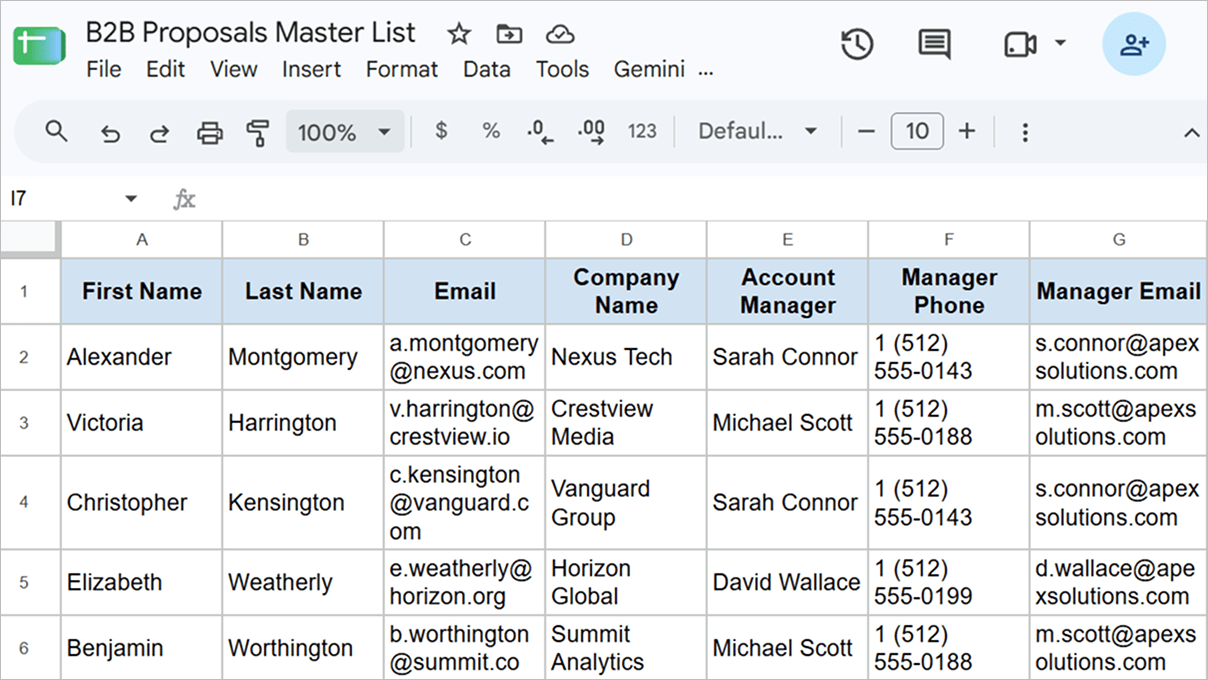
- A dedicated column for your custom proposal file: Copy and paste the Google Drive link or file name of each recipient’s specific proposal PDF into its corresponding row in your spreadsheet.
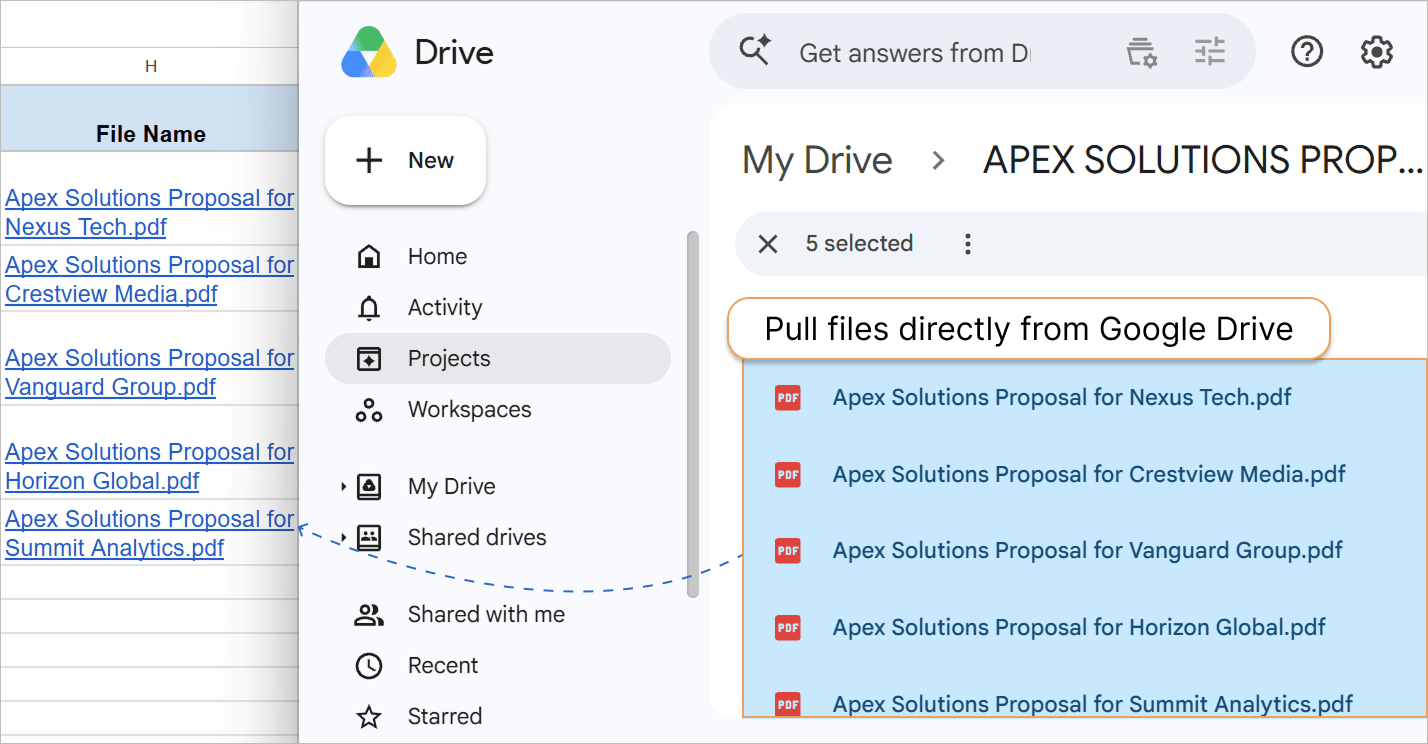
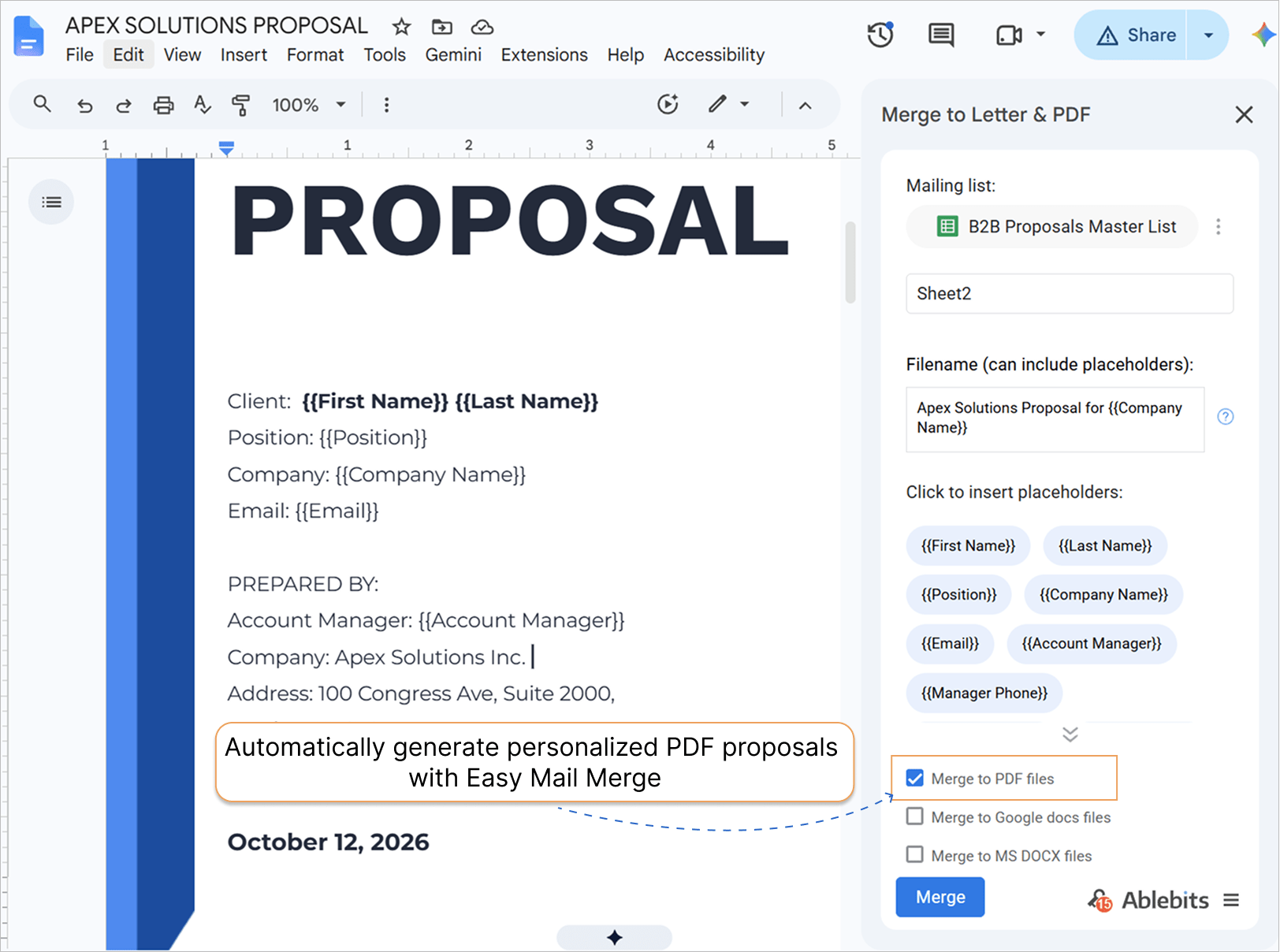
You can also generate these personalized PDF proposals automatically using Easy Mail Merge before sending your campaign. Learn how to create custom PDFs in bulk in our step-by-step guide (opens in a new tab).
Step 2: Create your email template in Google Docs
Open a new Google Doc and design your B2B letter layout:
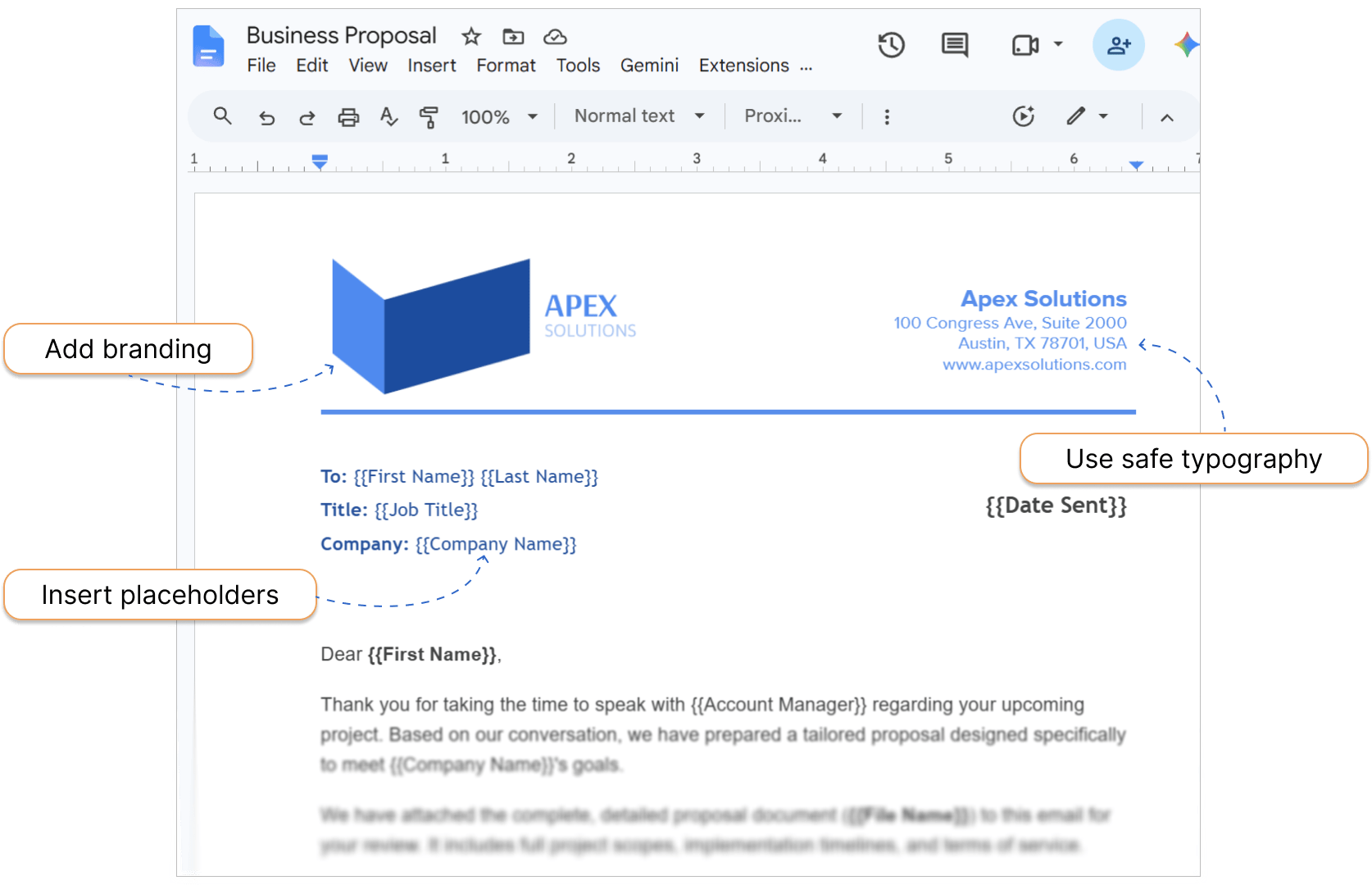
- Add branding & structure: Add your company logo, images, and content blocks.
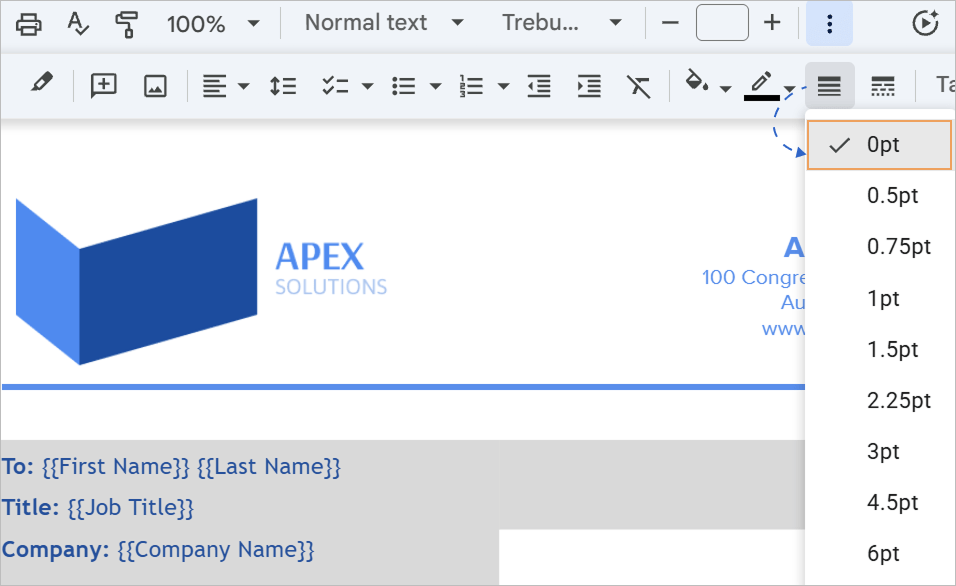
To prevent your email layout from breaking across different email clients, organize your text and images using borderless Google Docs tables (opens in a new tab).
- Use safe typography: Stick to standard email-safe fonts (like Arial or Helvetica). Non-standard custom web fonts will likely be overridden by Gmail and other email clients upon delivery.
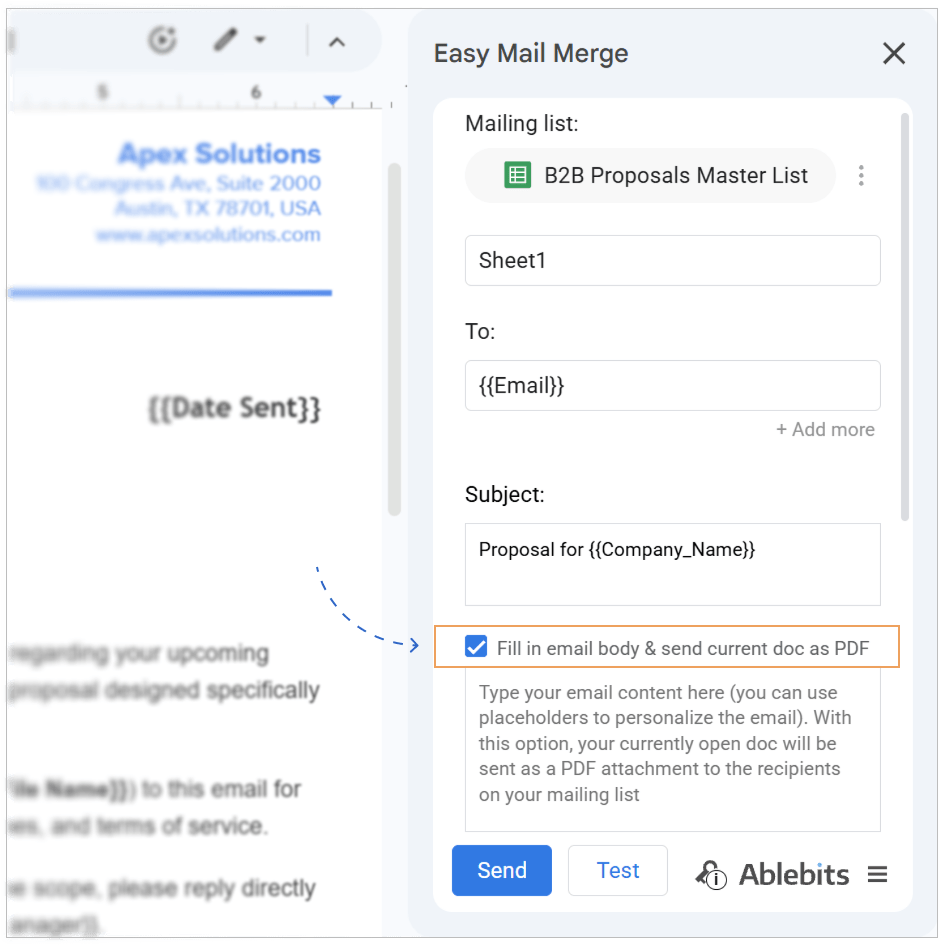
If you want to strictly preserve custom typography and complex formatting, consider sending the document as a PDF attachment (opens in a new tab). You can easily do this using the Send current doc as PDF feature in Easy Mail Merge.
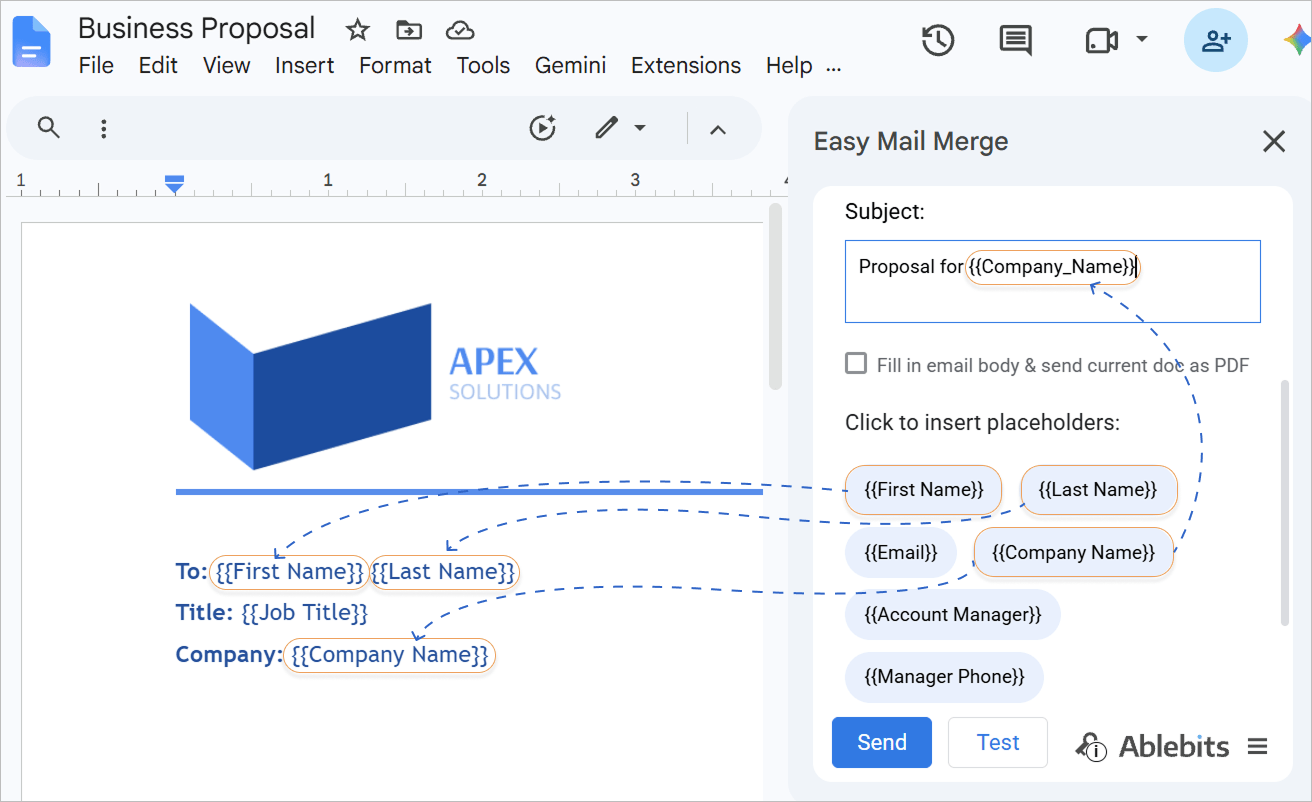
- Insert placeholders: Write your email text and insert dynamic mail merge tags like
{{First Name}},{{Date Sent}}.
Go to and insert placeholders directly from the Easy Mail Merge sidebar to prevent manual typing errors.
Step 3: Send different attachments to different recipients in Gmail
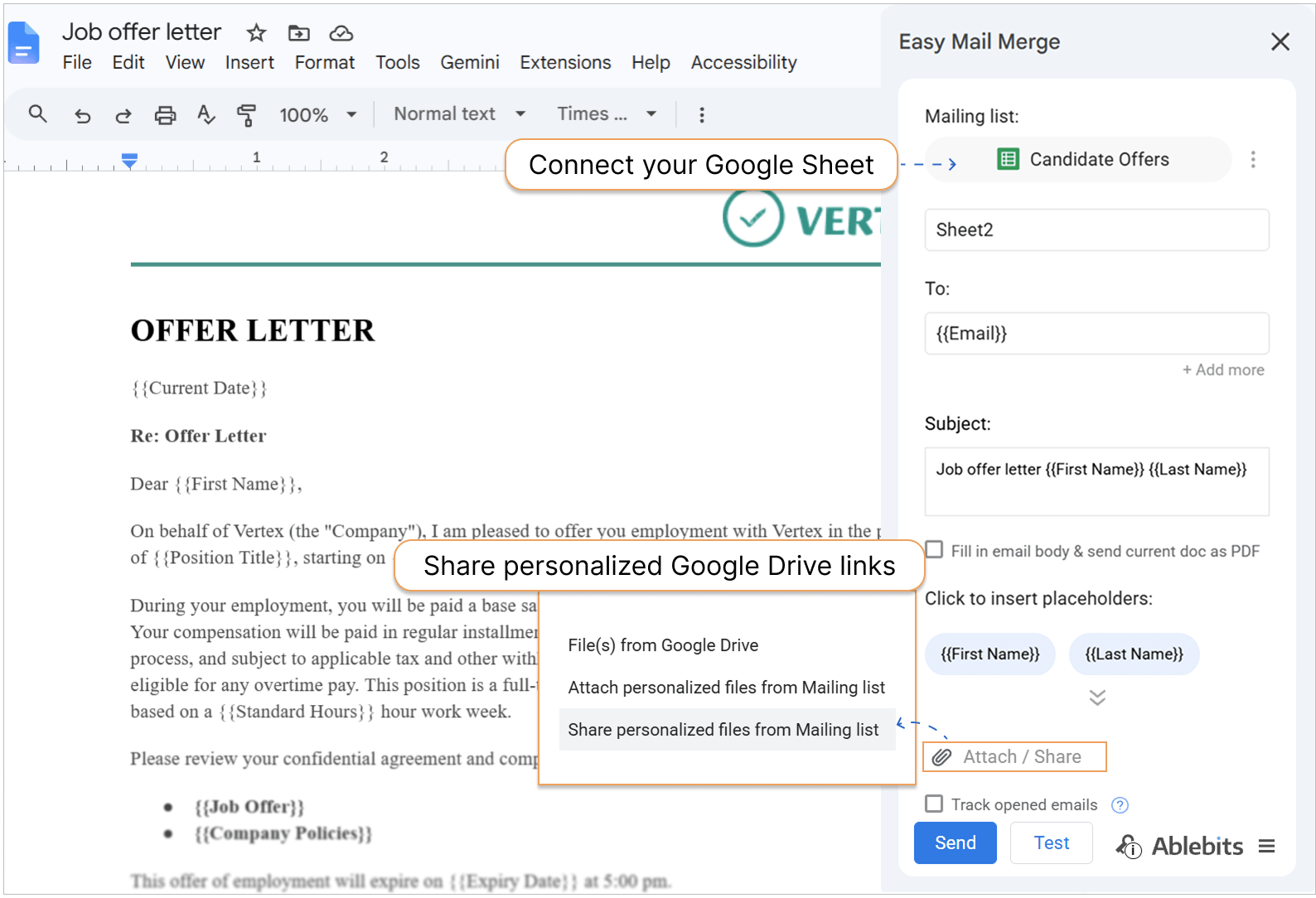
- In your Google Doc, open the Easy Mail Merge sidebar: .
- Connect your Google Sheet containing your recipient data.
- Click on the Attach / Share button.
- Select Attach personalized files from Mailing list.
- Choose the column from your spreadsheet that contains your custom proposal files.
- Click Send.
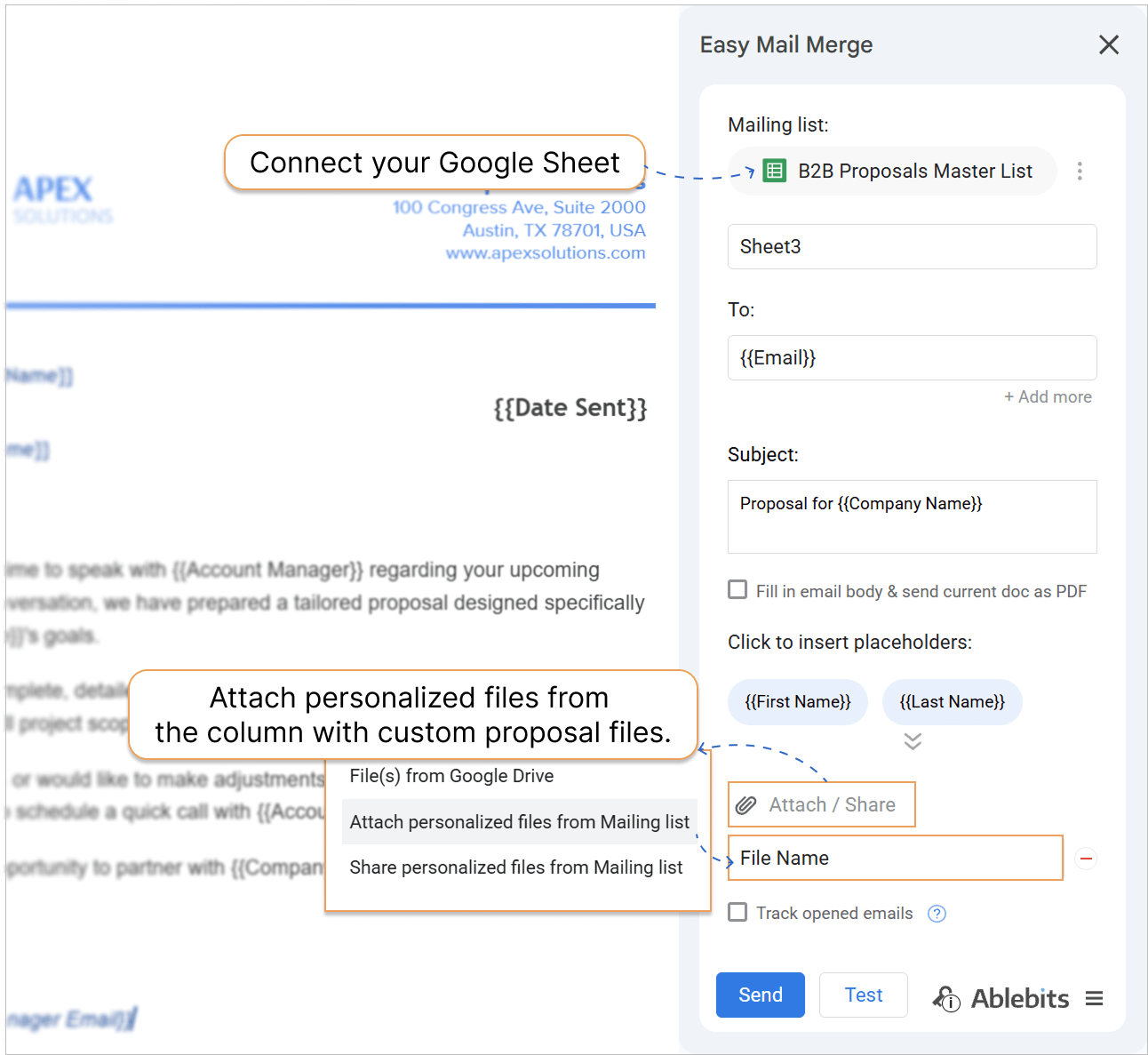
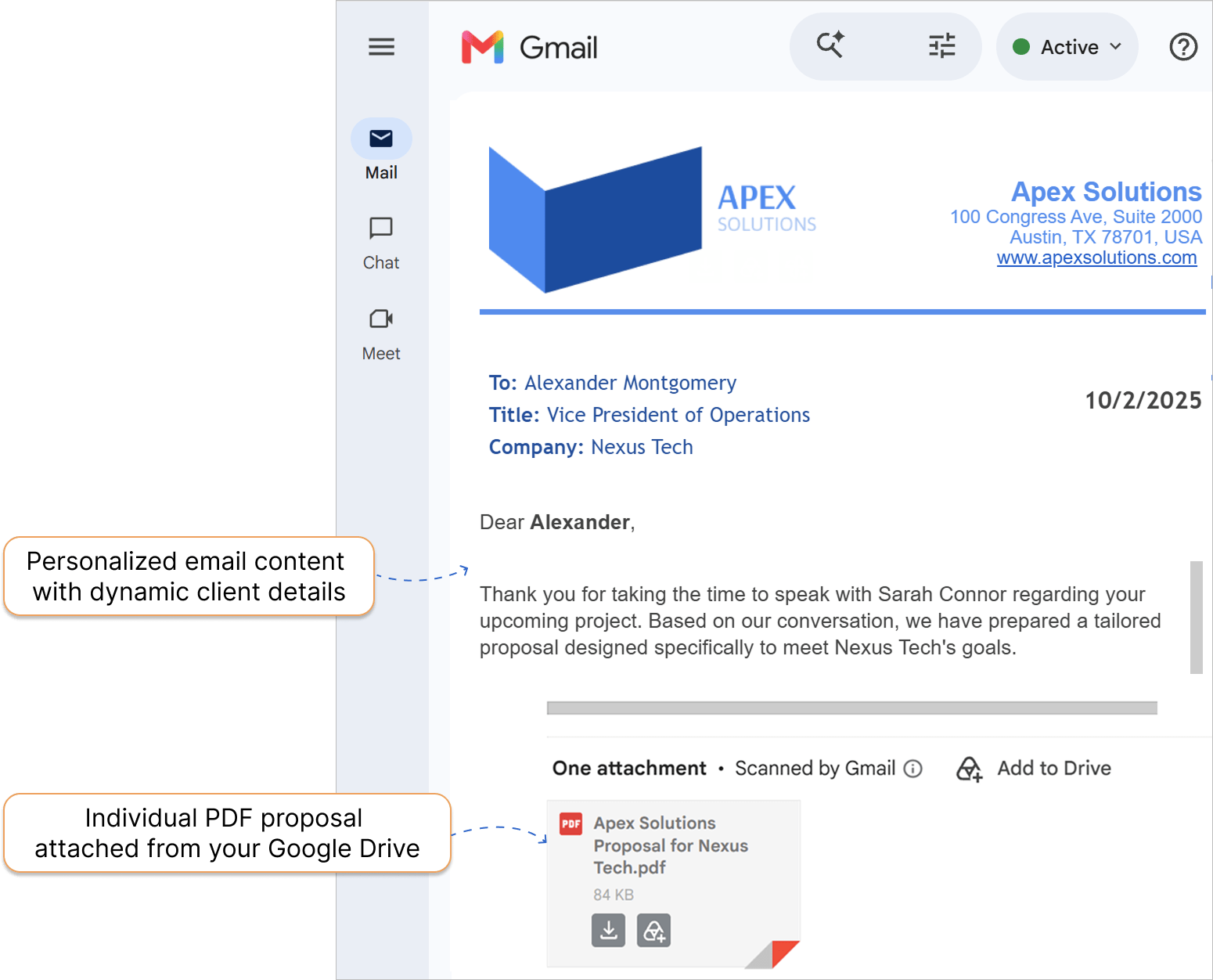
Easy Mail Merge will automatically pair each recipient with their specific PDF proposal from Google Drive and attach it directly to their personalized email:
Key Benefit:
You can send beautifully formatted personalized emails generated in Google Docs while automatically attaching each client’s specific proposal file from Google Drive. This eliminates hours of tedious manual attaching.
Case 2: How to send confidential documents with custom access permissions
Scenario:
You are an HR manager sending confidential documents (e.g., job offer letters, performance reviews, or onboarding tasks) to new hires or employees. To ensure data privacy, each candidate must receive an email with a secure link to their specific Google Drive document with the exact access permissions required.
Problem:
- Confidentiality risks: Manually changing Google Drive sharing permissions for dozens of individual candidate documents is time-consuming and error-prone. One wrong click can expose personal data.
- Email attachment size: Sending large sensitive files directly as email attachments can trigger spam filters.
Solution:
Store your individual HR documents in Google Drive, link them in your Google Sheets recipient list, and use Easy Mail Merge to share personalized files with exact sharing permissions and clickable hyperlink text in each email.
How it works:
Step 1: Prepare your HR data and Google Drive links in Google Sheets
Set up your employee spreadsheet with dynamic tags and exact document links:
- Recipient fields: Add columns such as First Name, Last Name, Position Title, and Email.
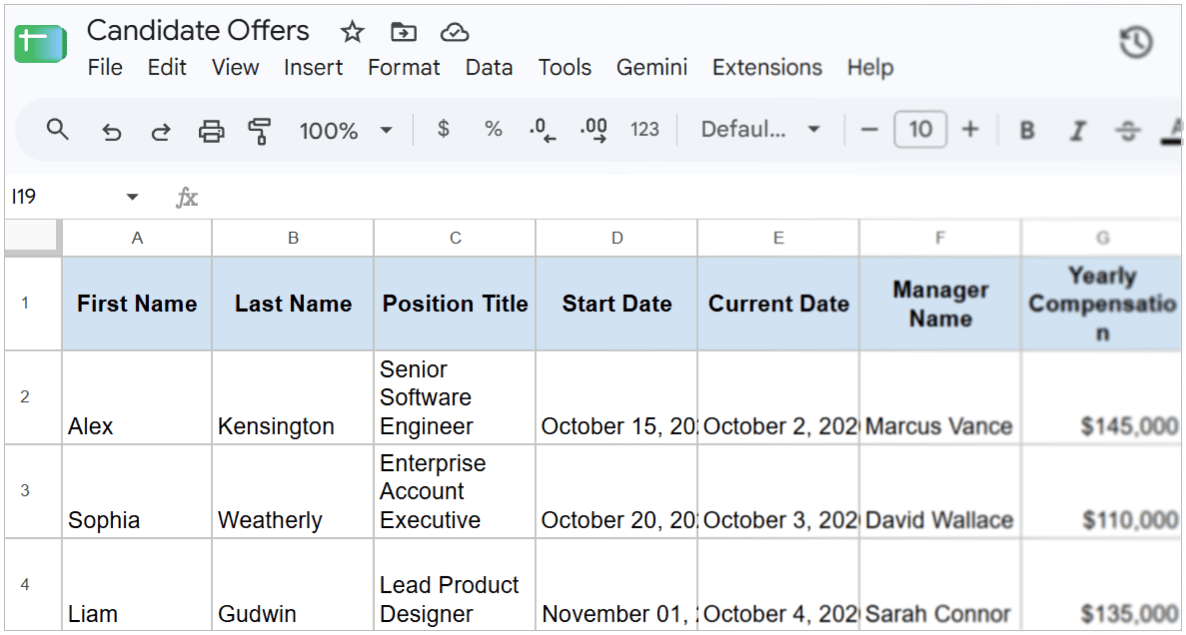
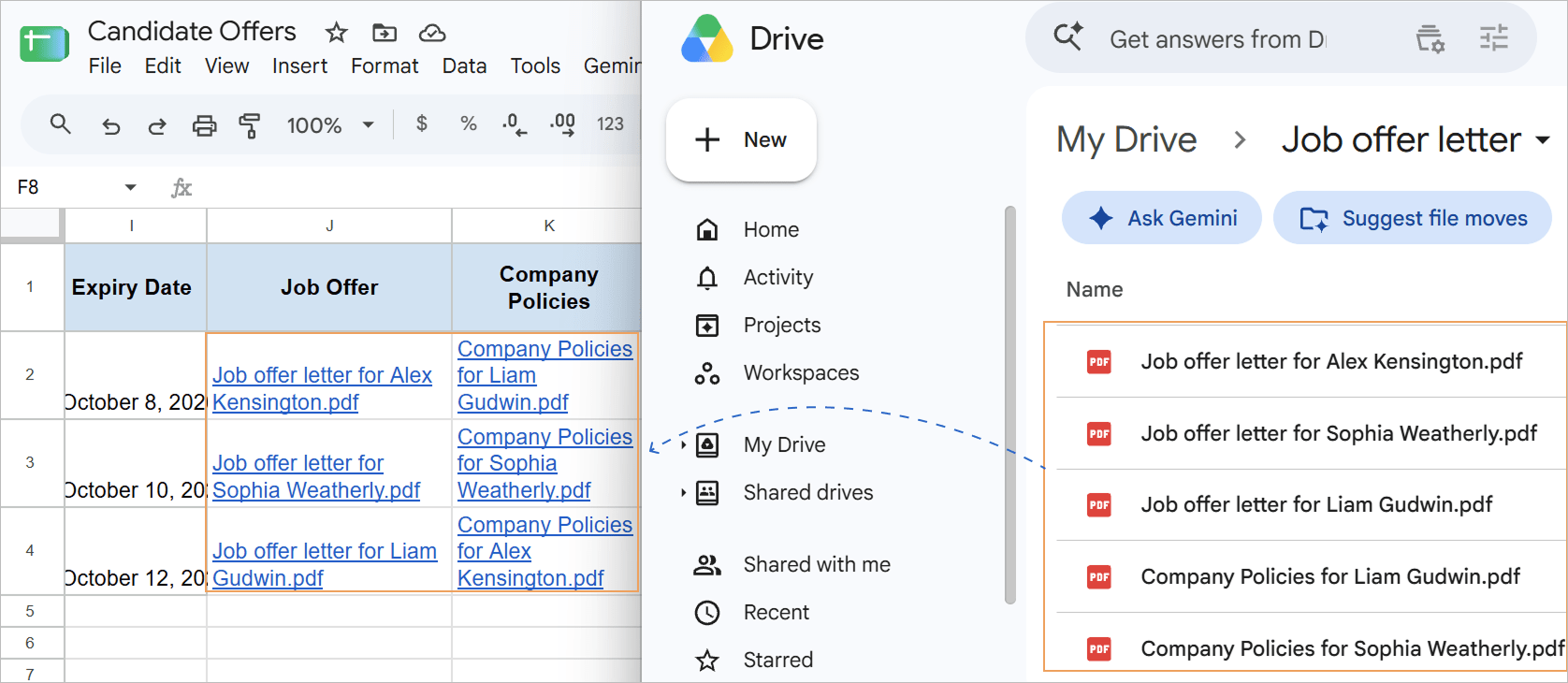
- A dedicated column for Drive file links: Insert the Google Drive link to each employee’s personalized document into a dedicated column.
Step 2: Create your HR email template in Google Docs
Design a clean and professional email body in Google Docs:
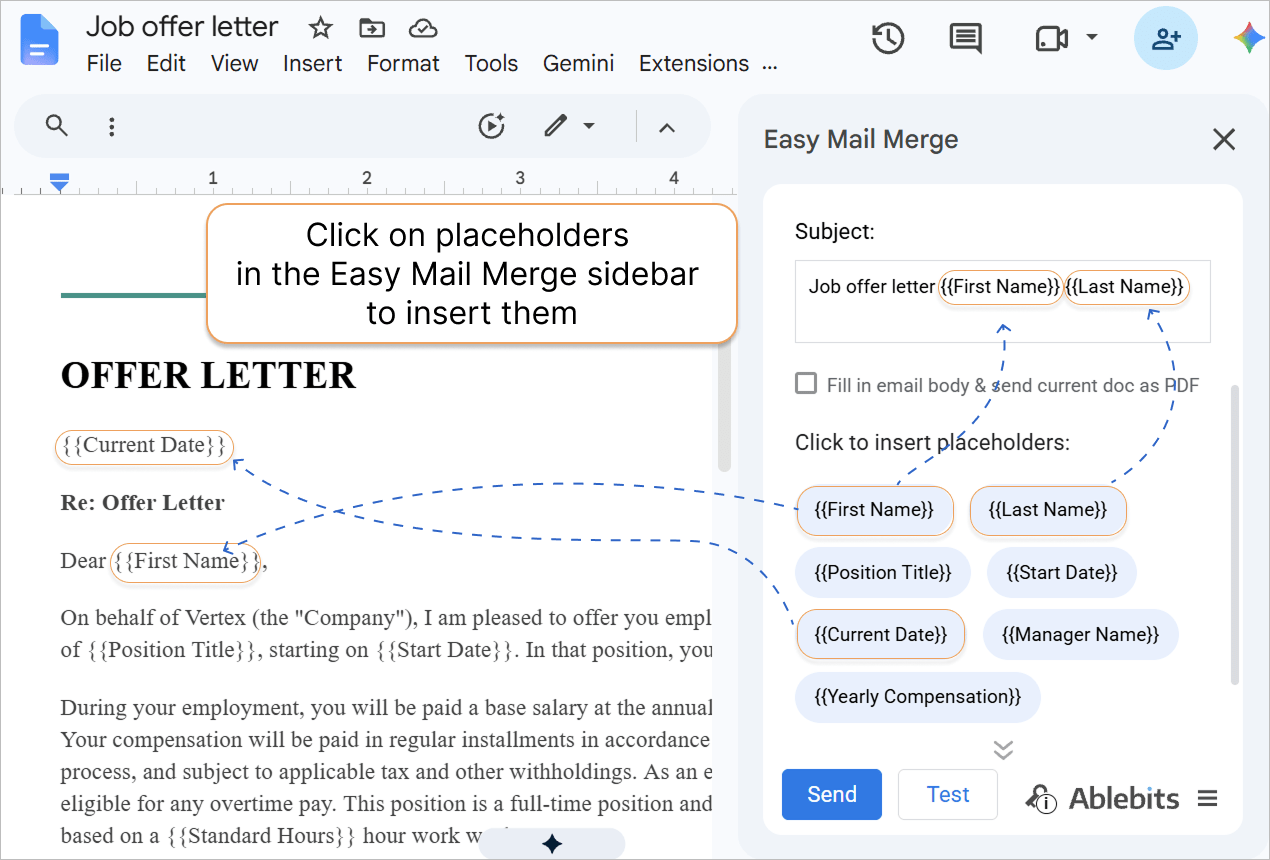
- Open the Easy Mail Merge sidebar in Google Docs: .
- Write your email text and add tags like
{{First Name}}and{{Position Title}}using the Easy Mail Merge sidebar.
Use simple, professional fonts and borderless tables for structured signature blocks.
Step 3: Configure Google Drive sharing permissions and send personalized Google Drive links
- Connect your Google Sheet with candidate data.
- Click the Attach / Share button and select Share personalized files from Mailing list.
- Configure the sharing settings in the popup menu:
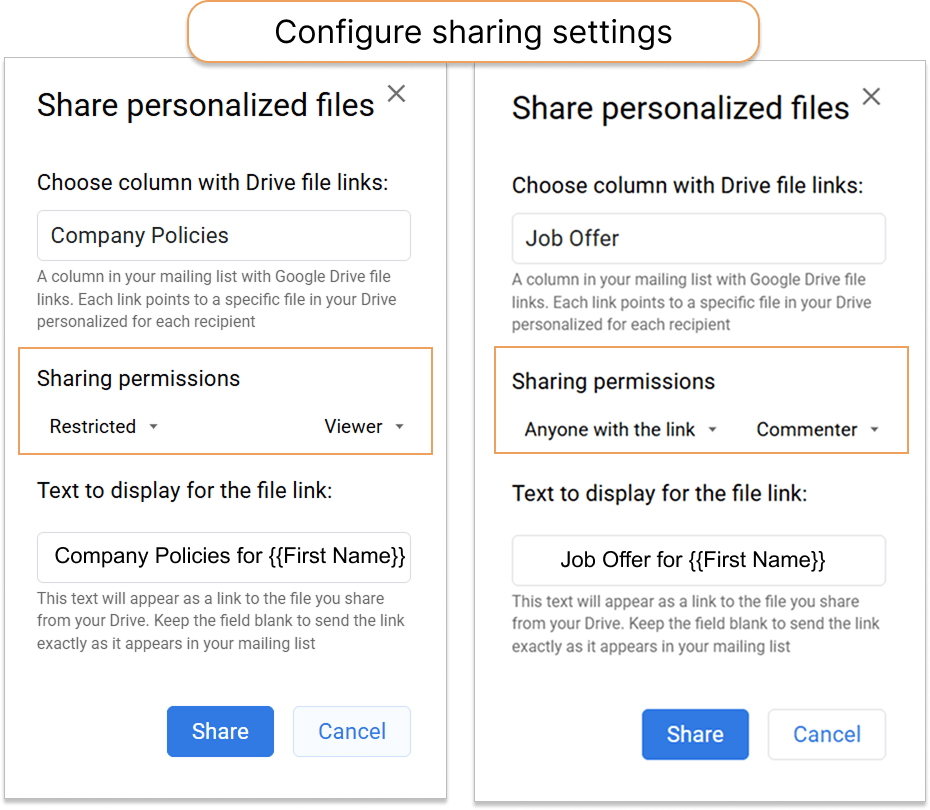
- Choose column: Select your spreadsheet column with Drive file links.
- Sharing permissions: Set the required access rule according to document sensitivity:
- General access: Choose Restricted (only specified recipients can open) or Anyone with the link.
- Role: Choose Viewer (for view-only contracts/offers), Commenter, or Editor (if the recipient needs to fill out details).
- Text to display for the file link: Type a custom text for the anchor link.
- Click Share for each column separately.
- Click Send.
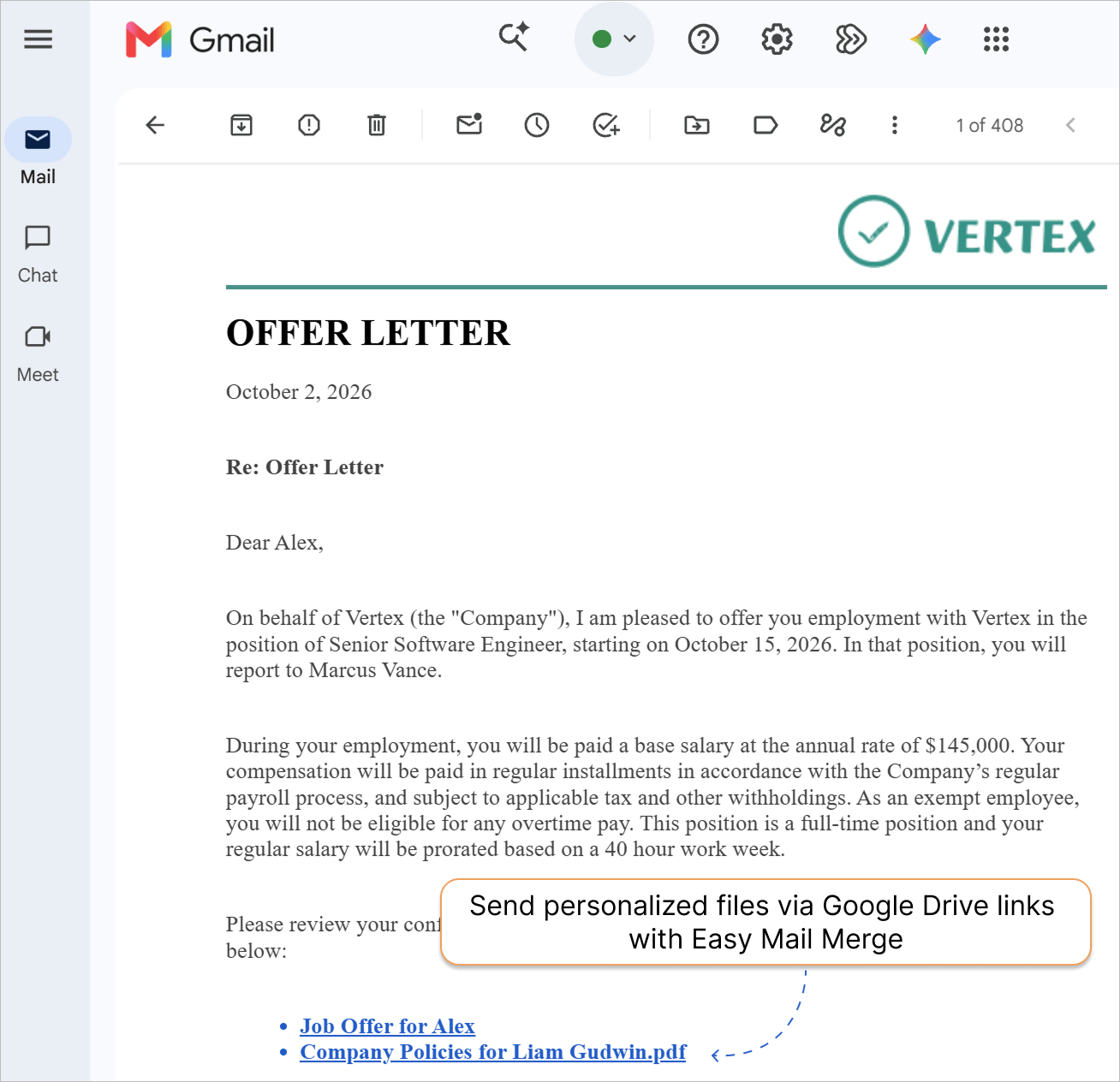
Key Benefit:
Easy Mail Merge automatically delivers secure Google Drive links to each employee without risking data privacy, exposed permissions, or email attachment limits.
Case 3: How to attach PDF, Excel and Word files in Gmail mail merge
Scenario:
You are an operational accountant sending monthly financial packages to clients or business partners. Some documents must be delivered as fixed PDFs, while interactive files need to be sent in Excel (.xlsx) format so recipients can check formulas or fill out data.
Problem:
- Manual hassle: Converting Google Sheets/Docs into Excel (.xlsx) or Word (.docx) files and attaching them manually may take hours.
- Format rigidity: Standard mail merge tools often automatically convert files into PDFs without giving you a choice, making it tedious or impossible to send, for example, MS Office formats (like .xlsx or .docx) without manually converting and uploading them beforehand.
Solution:
Launch Easy Mail Merge from your recipient spreadsheet in Google Sheets, pick any Google Drive files via a built-in file picker, and choose whether each file should be attached as a PDF or native MS Office document.
How it works:
Step 1: Open your client sheet and launch Easy Mail Merge
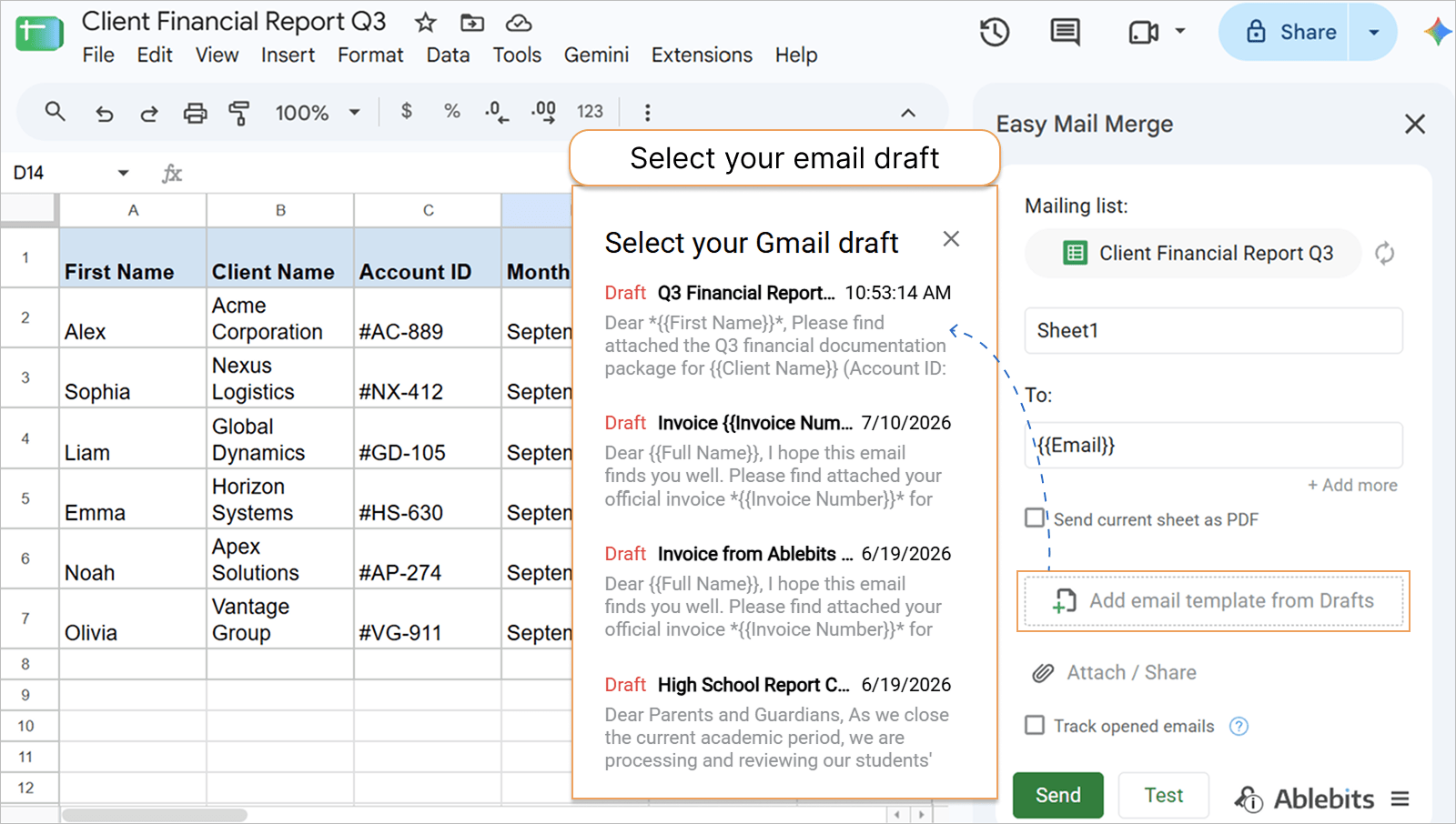
- Open your recipient list in Google Sheets containing the clients’ info.
- Go to .
- Click Add email template from Drafts, then choose your saved Gmail draft in the pop-up window.
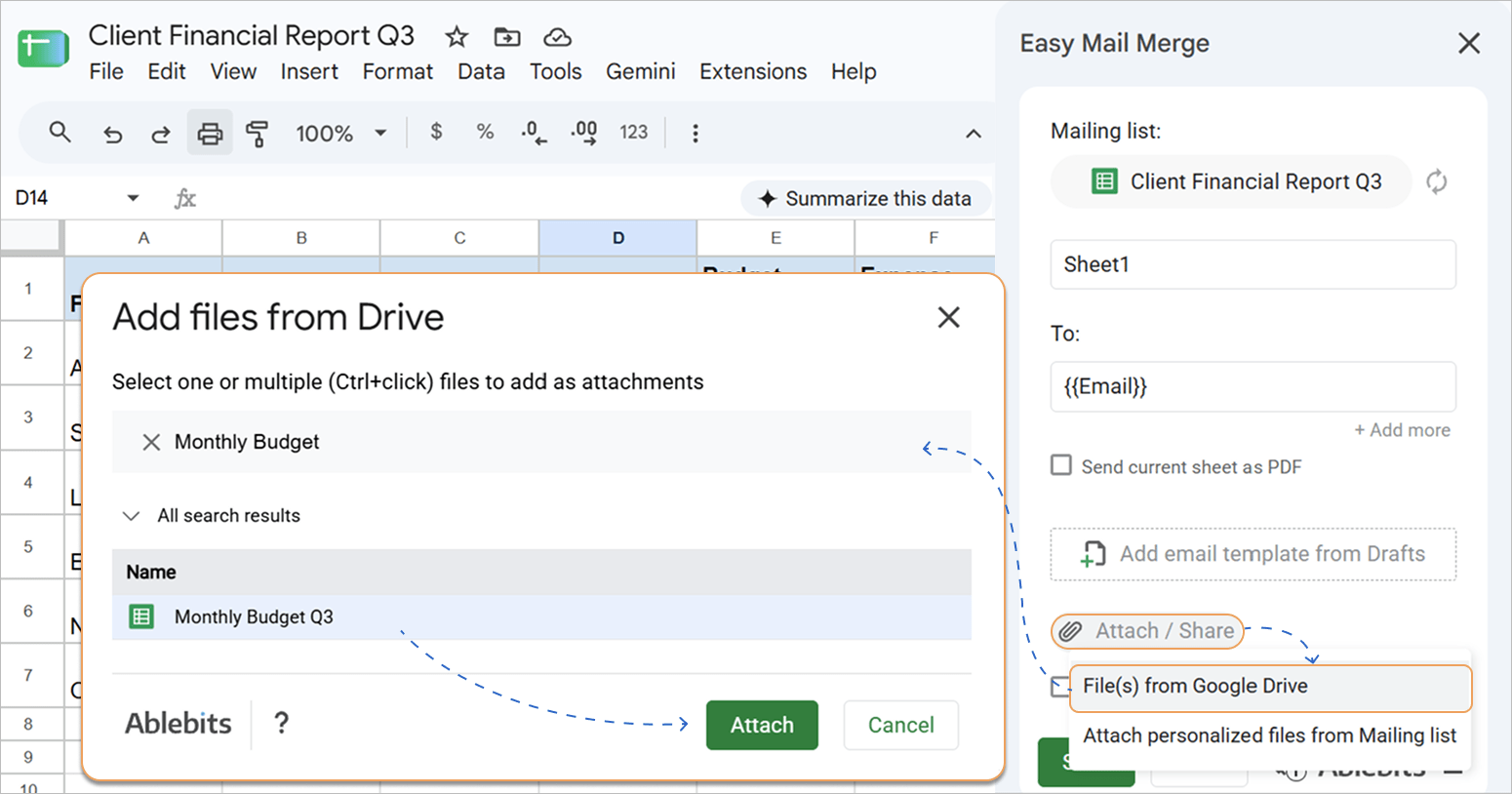
Step 2: Attach files from Google Drive using the file picker
- In the Easy Mail Merge sidebar, click Attach / Share.
- Select File(s) from Google Drive to open the file picker popup.
- Choose the required financial documents from your Drive.
Step 3: Choose attachment format
Google Spreadsheets, Documents, and Slides are attached as PDF files by default. To send an editable spreadsheet or document instead:
- Locate the selected file in the attachment list.
- Click the small dropdown triangle next to the file icon and name.
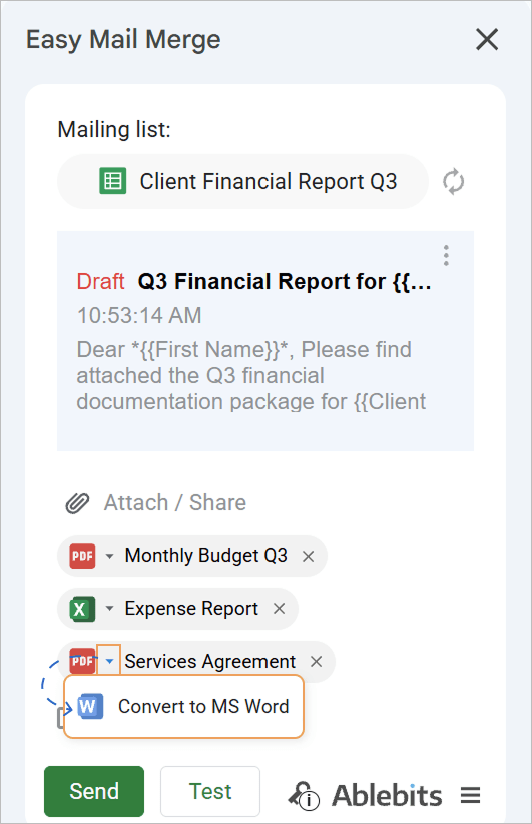
- Change the output format:
- Select XLSX for Google Spreadsheets (ideal for financial models with active formulas).
- Select DOCX for Google Docs (ideal for editable contract drafts).
- Keep PDF for finalized invoices, signed statements, or summary reports.
Step 4: Run the Mail Merge
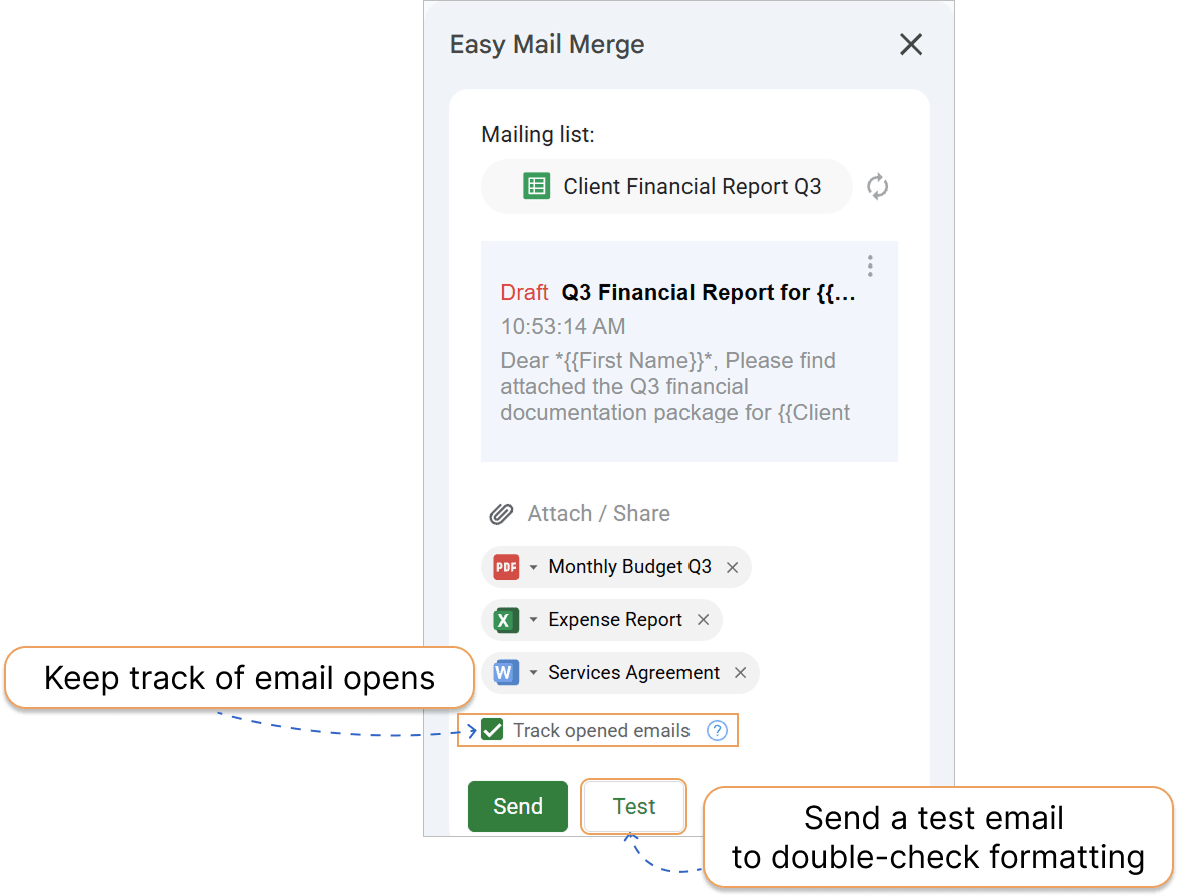
Review your attachment configuration, verify your recipient merge tags, click Test to preview your email, and then click Send.
Check Track opened emails to monitor when recipients open your messages in real time.
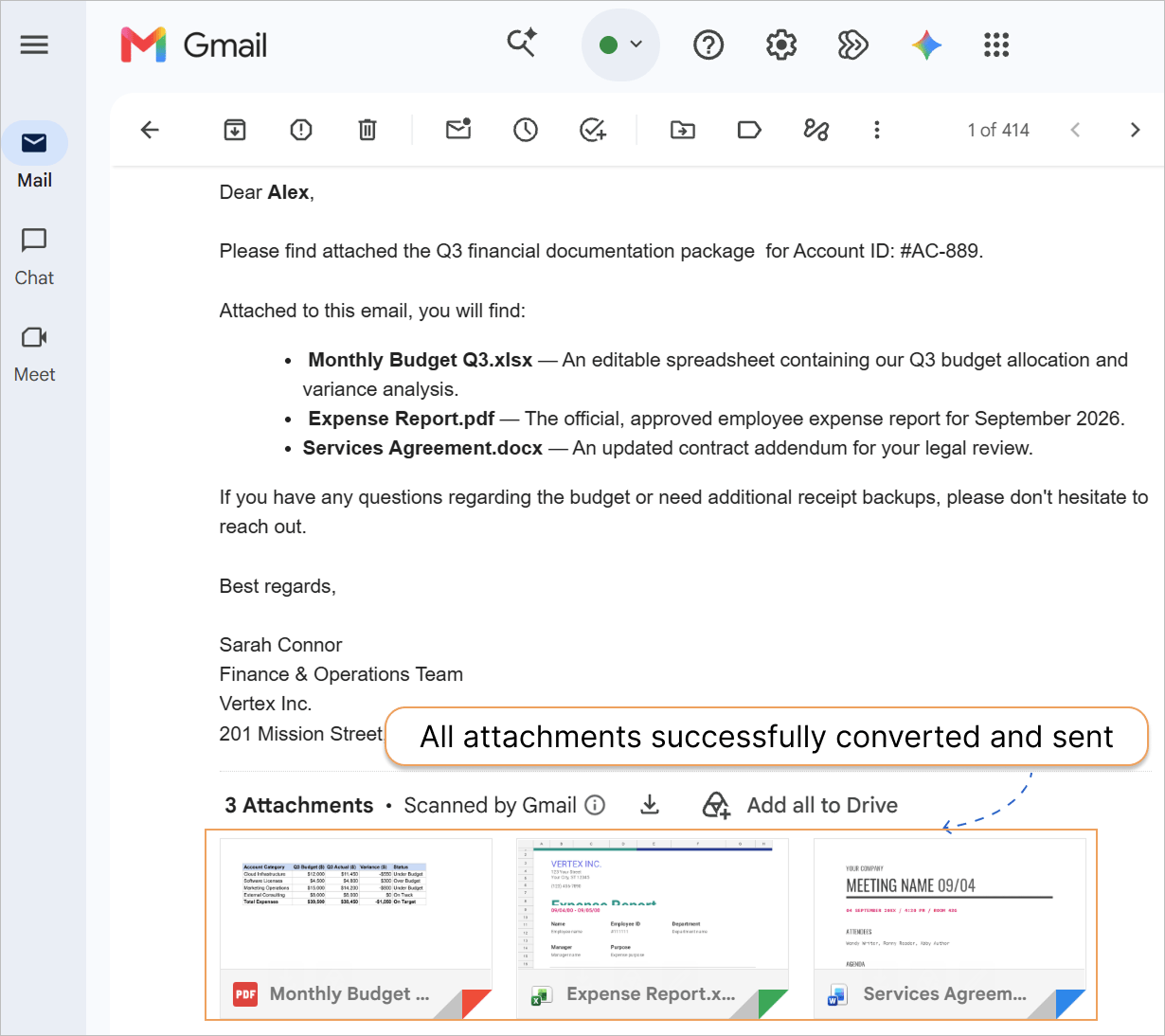
Easy Mail Merge automatically converts your Google files into the chosen formats and sends every email out with the right attachments.
Key Benefit:
Send personalized financial packages directly from Google Sheets. Combine non-editable PDF statements with editable Excel and Word files in a single run to simplify client communication.
Frequently Asked Questions (FAQ)
How do I send attachments through Gmail?
To send basic attachments directly in Gmail, click the paperclip icon at the bottom of the compose window and select files from your computer. If you want to automatically attach dynamic files or Google Drive documents to a mass mail merge, use Easy Mail Merge to attach specific files to each recipient.
What is the difference between attaching a file and sharing a Google Drive link?
Direct attachments send the actual file within the email, which works best for smaller files. Google Drive links send a clickable URL to a file stored in the cloud, allowing you to bypass Gmail attachment size limits and control access permissions.
Can I send multiple attachments or Drive links to a single recipient?
Yes. You can add multiple link columns in your Google Sheet or select multiple files from Google Drive in the add-on sidebar to include several attachments in one outgoing email.
How can I send personalized attachments or Drive links to different recipients?
To deliver unique files to different people in a single mail merge campaign, set up your recipient list in Google Sheets and use Easy Mail Merge to automatically match each recipient with their specific file.
How do I send large attachments in Gmail?
Gmail enforces a strict 25 MB limit for direct file attachments. To send larger files, upload them to Google Drive and insert them as links instead. With Easy Mail Merge, you can attach Google Drive links automatically from your spreadsheet column.
How do I send confidential attachments in Gmail?
To send sensitive files securely, avoid plain file attachments that can be easily forwarded or downloaded. Instead, share your files via Google Drive links with Restricted access set to Viewer-only. Easy Mail Merge automates this by assigning specific access roles to individual recipients.
