
How to Explore and Navigate a Google Doc

Search & Navigate displays all your document’s headings, bookmarks, links, images and tables on separate tabs in the sidebar. Its instant search filters data by keyword on all tabs at once, and a separate tab lists every text match so you can jump to any part of the document.

Start the add-on
Open the add-on from:
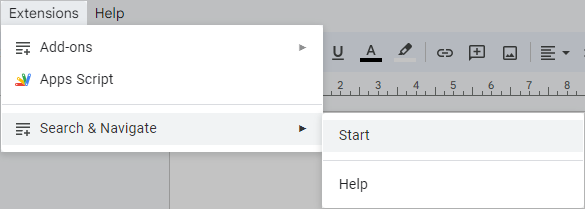
You’ll see the sidebar with 6 tabs for navigating the document.
Browse the document by headings
Open the first tab and the entire structure of your document appears as a tree. Expand or collapse any heading to see the levels beneath it:
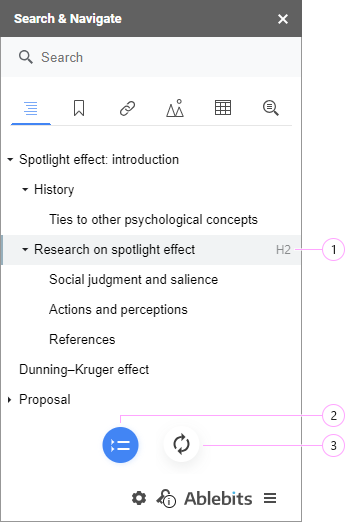
The numbers below match the markers on the screenshot above.
1. Jump to a chapter
Point at any heading to see its level, or click it to jump to that chapter of the document.
2. Collapse
To see only first-level headings (H1), click Collapse. Click again to expand the list.
3. Refresh
To refresh the list, press Refresh at the bottom of the sidebar.
You can also switch on auto-update for headings in Options.
Work with bookmarks
The Bookmarks tab lists every bookmark in the order it appears in the document. Click one to jump to the place it refers to.
All bookmarks carry the same name by default, so each row shows the text it points at and you can tell them apart:
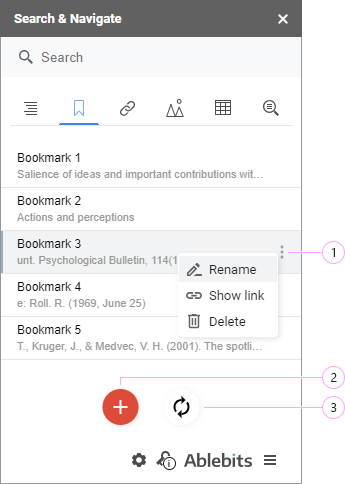
The numbers below match the markers on the screenshot above.
1. Manage a bookmark
The three-dots button gives you three ways to manage a bookmark:
-
Rename — type a new name in the editable field and press Enter to confirm:

-
Show link — get a link to the bookmarked place in the document:
 Tip
TipPress Esc to close the link view.
-
Delete — remove the bookmark.
2. Add a bookmark
Select the paragraph you want in the document and click Add at the bottom of the sidebar.
3. Refresh
Refresh at the bottom of the sidebar updates the list of bookmarks.
Handle links from the Google document
This tab is currently available in the Doc Tools collection only. It is coming to the standalone Search & Navigate add-on.
The Links tab lists every hyperlink in your document. Click any of them to jump to it in the text.
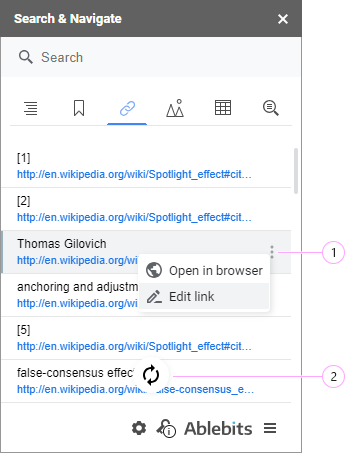
The three-dots button lets you open the URL in a new browser tab, or edit and copy it:

Press Enter to confirm the edit, or Esc to cancel.
Refresh scans your document and updates the list of links.
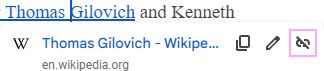
To remove a link, click it in the add-on to jump to it in the document, then use the standard Remove link option:
Manage images or tables
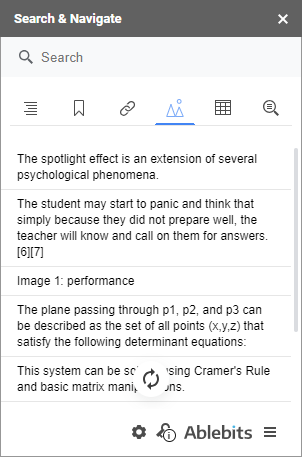
Every image and table in the document is listed on its own tab, with the title taken from the text above it.
You can switch to the text from under the images in Options.
Select an image or table in the list and you jump straight to it in the document:
Find text
The Search field at the top finds a specific piece of text, bookmark, link, picture or table quickly. Enter a word and the add-on looks for matches across all tabs — all types of data — at once:
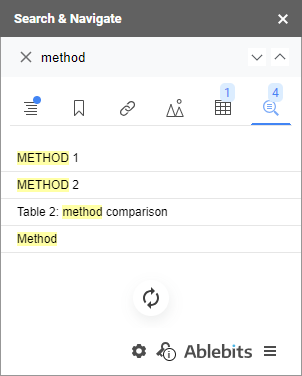
The number of matches appears under each tab icon.
You can make the search case-sensitive in Options.
Switch between the tabs to see the results in context:
- The headings tab highlights the searched text in yellow, and lists the found items within each section.
- The bookmarks, images and tables tabs show only the titles that contain the keyword.
- The links tab shows every URL containing the text.
- The last tab lists every occurrence of the word in the document text. Click a result to navigate to that sentence.
Set additional options
Four options let you adjust how the add-on works:
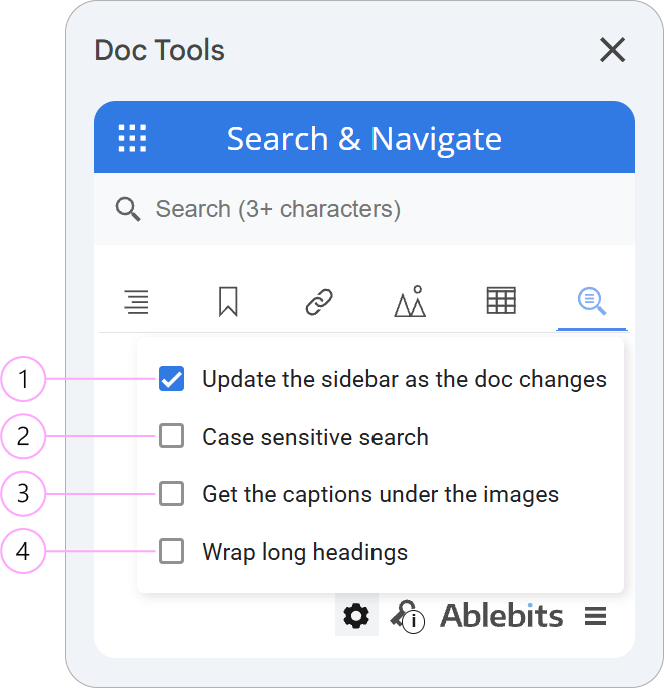
The numbers below match the markers on the screenshot above.
1. Auto-update
Automatically synchronise and update the list of headings, bookmarks, links, images and tables as the document changes.
2. Case-sensitive search
Take letter case into account when searching the document.
3. Titles from below the image
Use the text under an image, rather than above it, as the title shown in the list.
4. Wrap long headings
Wrap long heading titles across multiple lines in the sidebar list so they remain fully visible.
