How to Use Doc Tools for Google Docs

Doc Tools is a collection of 5 add-ons that make working with text in Google Docs more efficient.
Perform daily operations with 12 one-click tools: change case, highlight and sort text, turn words into numbers and back, or save and export selected document tabs as separate PDF, Word, or Google Doc files. Gain complete control over the formatting of your text by creating custom styles for your documents. Quickly search for and navigate to bookmarks, pictures, headings, tables, links and found text within your document. And finally, mail merge straight from your email template in Google Docs, and even generate personalized letters as PDF files.
Start Doc Tools
Run the collection from:
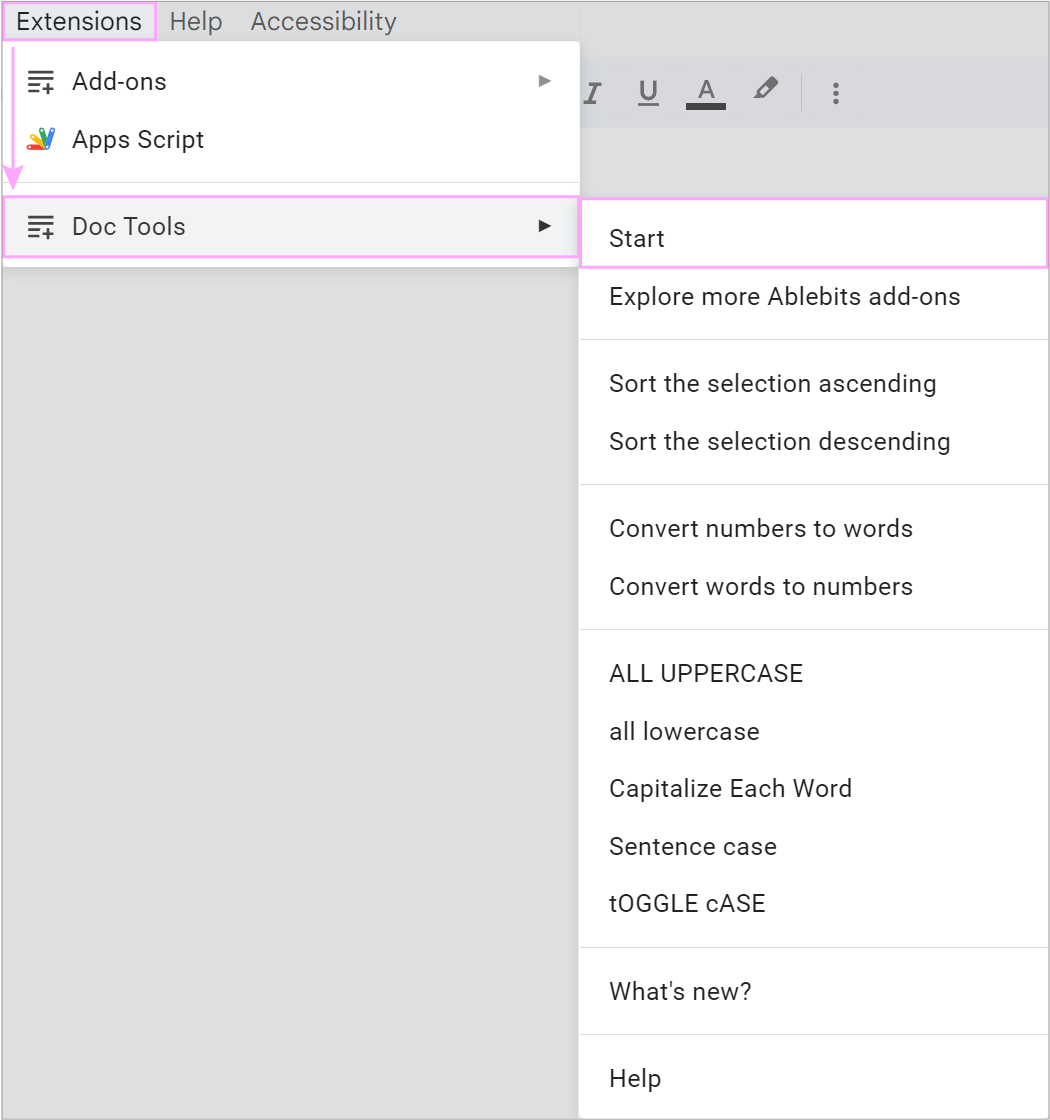
The add-on appears to the right of your document. To switch between the tools, click the waffle icon at the top:
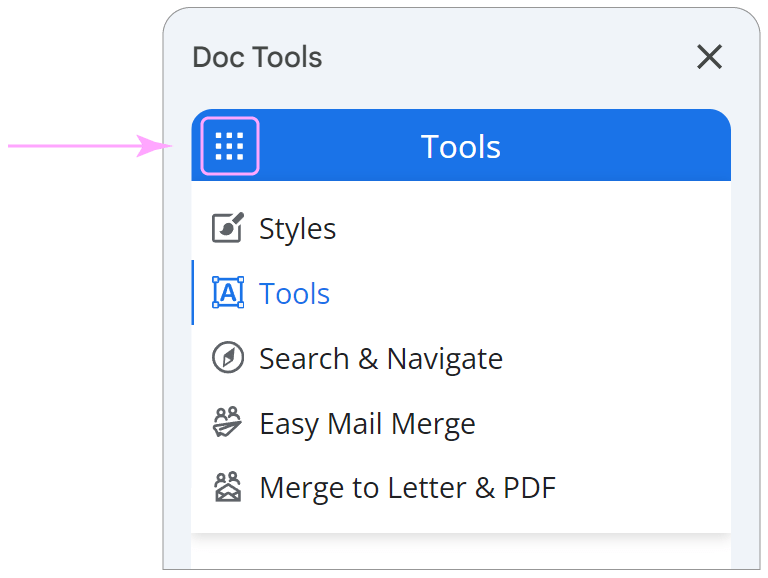
Then pick Styles, Tools, Search & Navigate, Easy Mail Merge or Merge to Letter & PDF, and its options appear on the sidebar.
How to work with Tools
The Tools add-on is 12 one-click utilities that quickly alter your text and manage document tabs. Select the text or tabs you’d like to work with, decide what you need to do, and click the corresponding button:
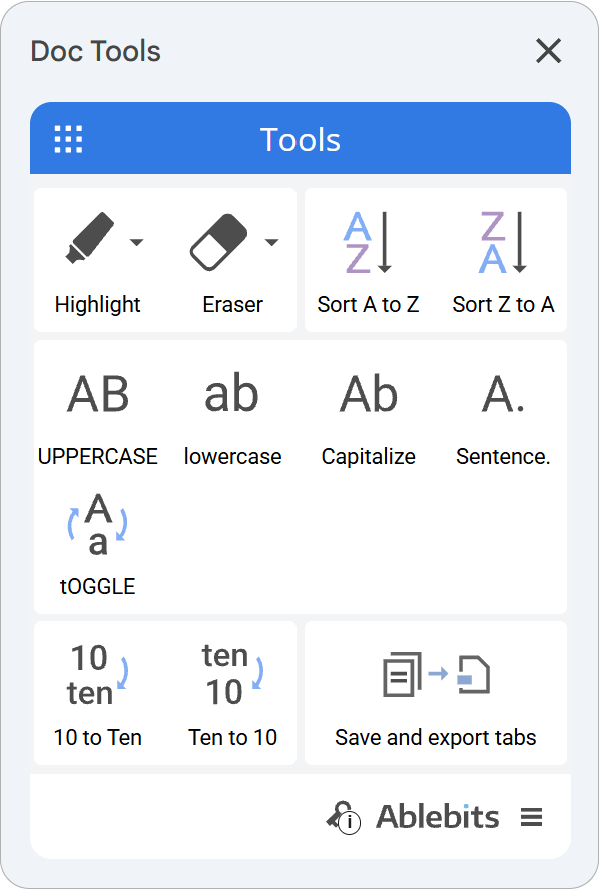
Some of the tools sit directly under the Extensions menu. Click there to change text quicker.

Highlight text or erase color
The highlighter marks the most important blocks of text. Select what you want to accentuate and click Highlight on the sidebar:

The little arrow next to the icon lets you choose from 5 colors. The tool always remembers the last color you chose:
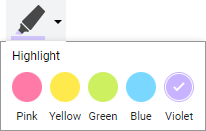
The highlighter also removes any of the selected colors, or clears them all:
-
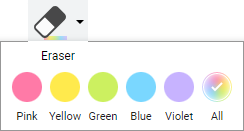
Click the little arrow next to Eraser and pick the color in the list:
-
Select the paragraphs where you want to remove that highlighting and click the Eraser icon itself.
Sort your data
How to alphabetize lists
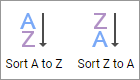
To organize a bibliography list alphabetically, select the items and click Sort A to Z or Sort Z to A to arrange them in ascending or descending order:
If the selected list items contain additional text, they are moved together to avoid corrupting your data.
How to sort paragraphs
To sort paragraphs, select them separately — without headings or list items.
How to organize tables
You can organize records in a table by any of its columns.
Place the cursor at the beginning of any cell in the table and click one of the Sort icons. A small dialogue asks you to pick the column or columns holding the key records:
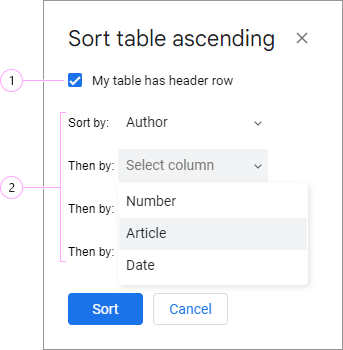
- Tick My table has header row to leave the top row intact.
- Select the column or columns to sort on — for example sort a reference list by author’s name, then by article title.
Once you’ve said how you want the text arranged, click Sort.
To organize just part of your table, select the rows you need and run the Sort tool to define the key columns.
Spell numbers
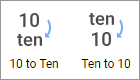
The number-to-word converter replaces integers with words and back in one click. Select the number you need to spell and click 10 to Ten. To turn words back into numbers, use Ten to 10:
The current version of the add-on does not work with decimals.
Change case
The add-on offers 5 common ways to change the case of your selection. Place the cursor on a word, or select the block of text you want to change, and click the case you prefer:
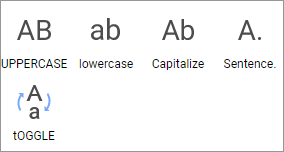
- UPPERCASE — change all selected text to capitals.
- lowercase — apply lowercase to the selection.
- Capitalize — start all words with a capital and make the other letters small.
- Sentence case. — start every selected sentence with a capital letter.
- tOGGLE cASE — invert the case in the selection.
Before using Capitalize, apply lowercase to any words that are in all capitals. This avoids corrupting acronyms.
Sentence case changes only the first letter of a sentence, so acronyms and names that start with a capital stay intact.
Save and export tabs
The tool saves and exports selected document tabs as separate files in various formats:
To save and export tabs:
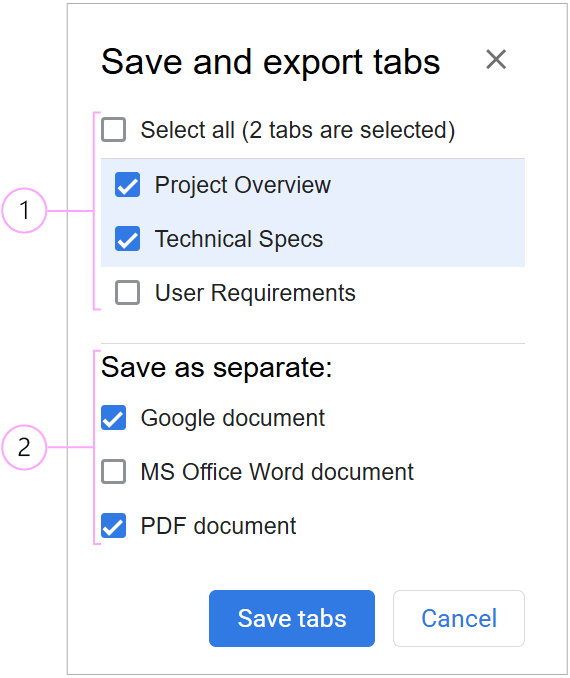
- Check the targeted tabs in the list or tick the Select all checkbox to choose all of them.
- Under Save as separate, choose the file formats:
- Google document — saves selected tabs as separate Google Docs in your Drive.
- MS Office Word document — exports selected tabs as individual
.docxfiles. - PDF document — exports selected tabs as individual
.pdffiles.
You can select multiple formats at once.
Once you’ve selected the export settings, click Save tabs.
How to work with Styles
Styles lets you create and apply your own custom styles for Google Docs, customize the 20+ pre-supplied styles or use them as they are, and edit each style element to your liking.
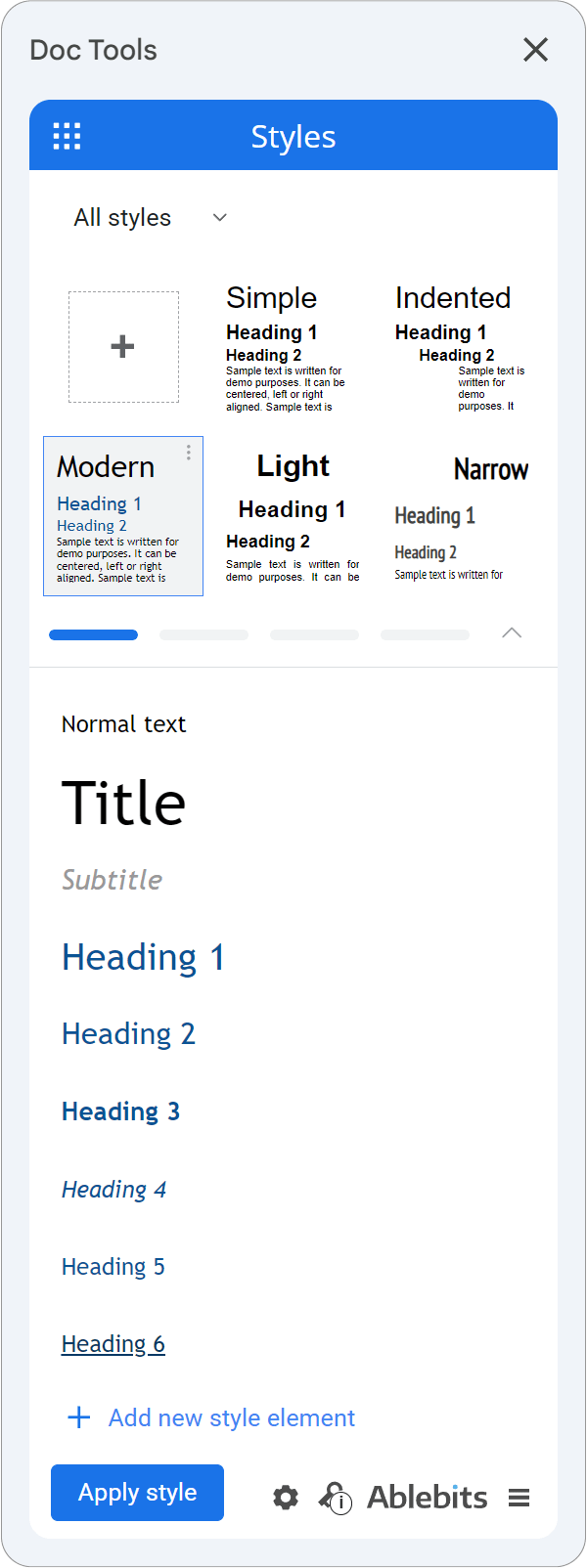
How to create and apply styles in Google Docs

How to work with Easy Mail Merge for Docs
Easy Mail Merge runs email campaigns straight from Google Docs. You upload a mailing list — a Google Sheets table — and create your email template. The add-on sends bulk emails from your Gmail, tailored for each recipient.
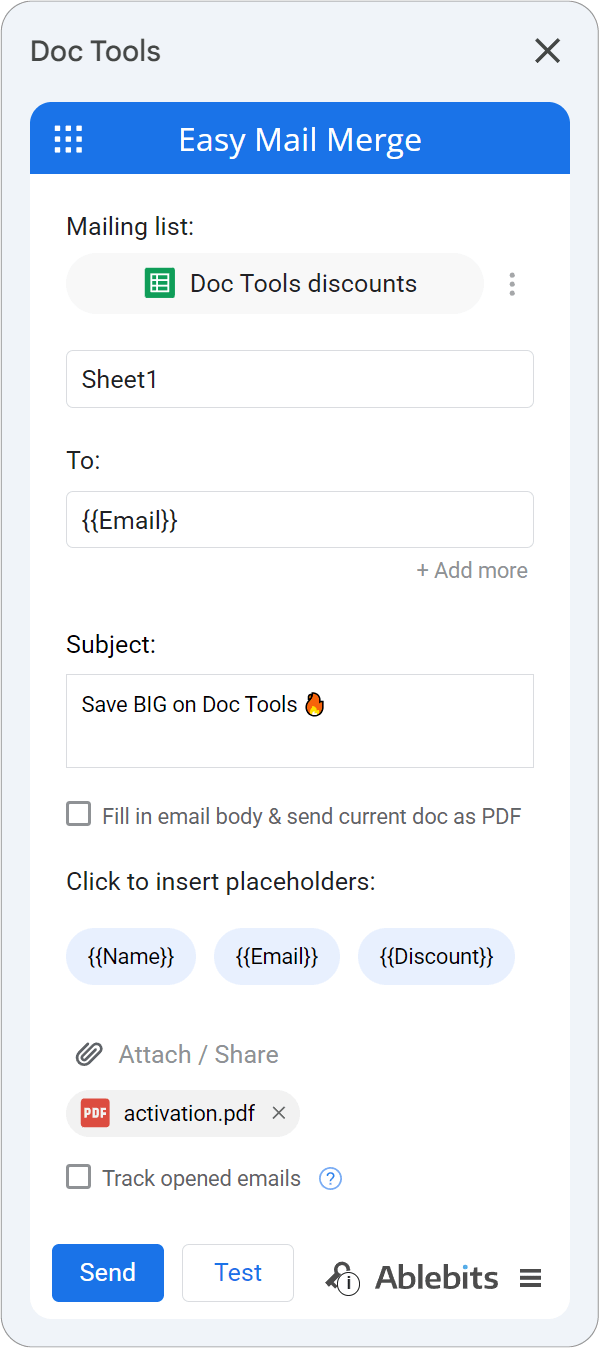
Learn how to mail merge from Google Docs (opens in a new tab)
How to work with Merge to Letter & PDF for Docs
Merge to Letter & PDF creates personalized letters and merges them into individual PDF, Google Docs or MS DOCX files from a single template. You connect your template to Google Sheets data, then generate and save the documents straight to Google Drive.
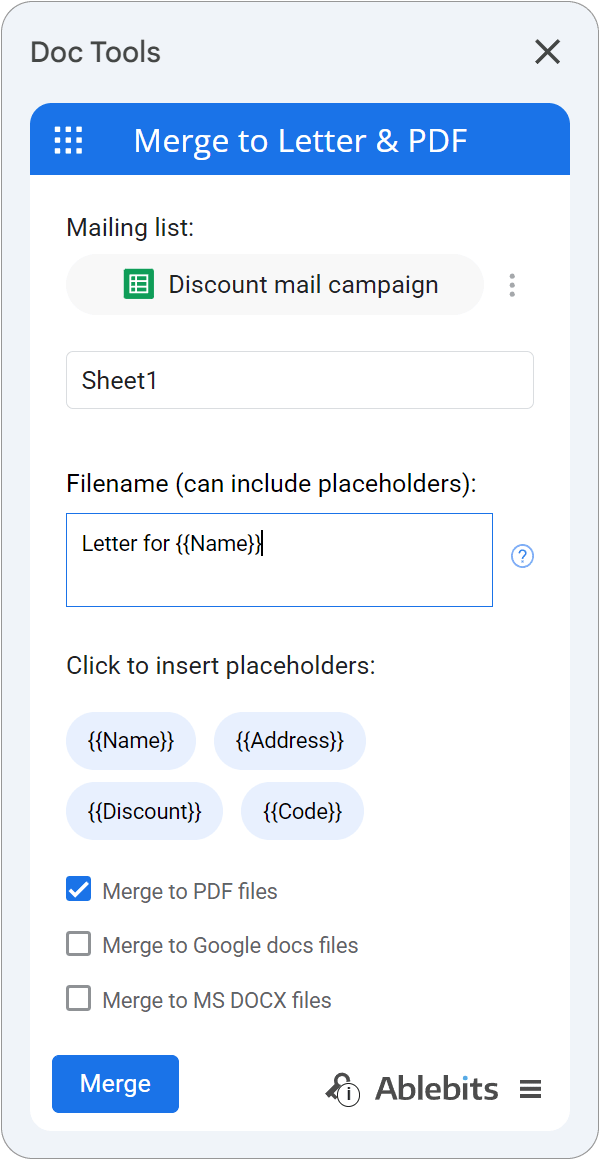
Learn how to create custom letters, invoices, and PDFs (opens in a new tab)
How to work with Search & Navigate
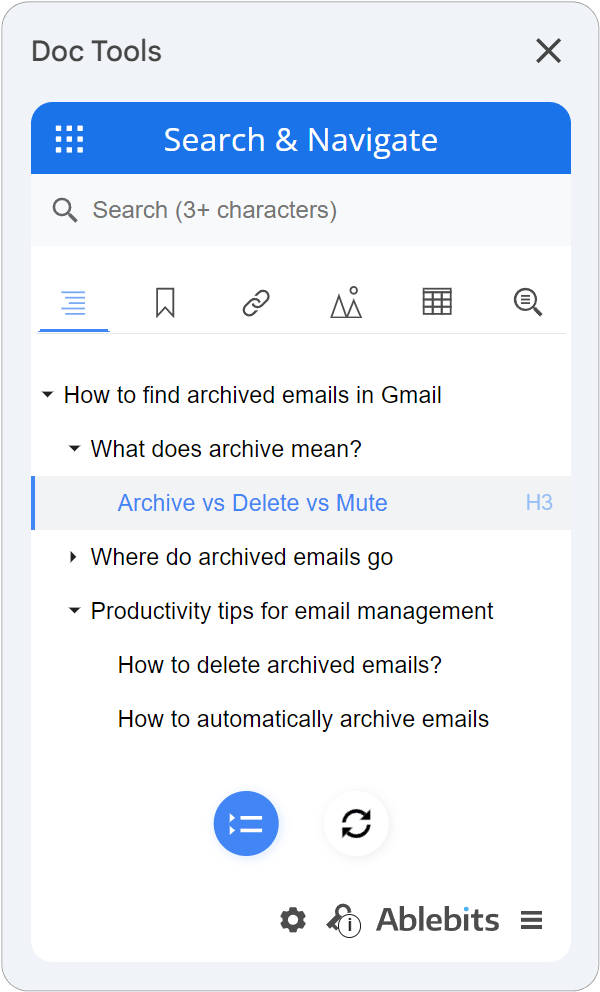
Search & Navigate builds lists of all the headings, links, tables, images and bookmarks your document contains, and lets you search the text and jump to any part of the document.