
How to Change Case in Google Sheets: Use Cases

Learn how to quickly change text case in Google Sheets to uppercase, lowercase, proper, or sentence case, and fix messy capitalization. See real-life examples how Power Tools transforms text directly in place without helper columns or formulas.
How to change text case in Google Sheets
To change case without complex formulas or helper columns, use the Change Case (opens in a new tab) tool (from the Power Tools add-on):
- Select the range.
- Pick your casing option:
- Sentence case.
- Capitalize Each Word
- lower case
- lower & Capitalize
- UPPER CASE
- tOGGLE tEXT
- Click Modify.
Why the Change Case tool is better than standard formulas:
| Feature | Standard Formulas | Change Case (Power Tools) |
|---|---|---|
| Setup speed | Slow: Requires creating helper columns, dragging formulas down, and pasting values over originals | Instant: Transforms text directly in place in seconds |
| Advanced case support | Complex: No built-in functions for sentence case or toggle case (requires multi-nested REGEX or Apps Script) | Built-in: Supports sentence case and toggle case. |
| Actions available | Limited: • Text results appear only in helper columns • Must manually copy and paste values to overwrite raw data | Automated actions: • In-place text transformation • Convert entire columns or selected ranges instantly |
Let’s look at some real-life examples 🤗
Case 1: Capitalize names in Google Sheets: Convert to Proper case
Scenario:
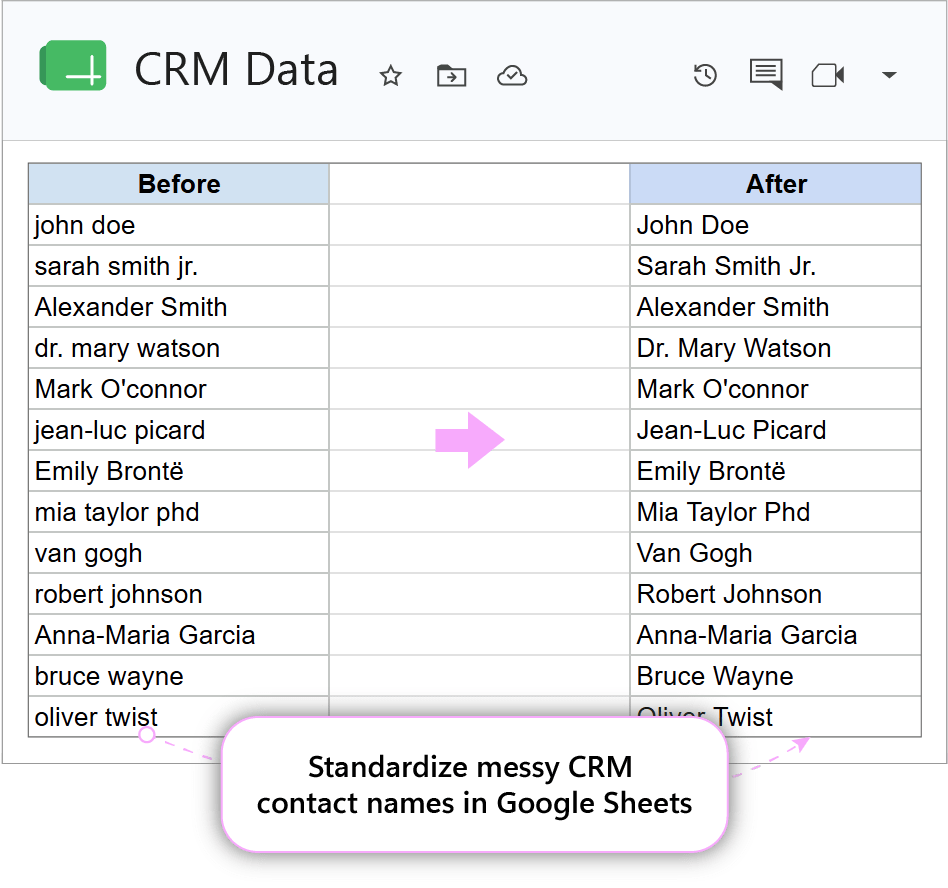
A sales manager has a CRM database with contact names imported from multiple sources. But names are inconsistently formatted: some are properly capitalized (“John Doe”) and some were mistakenly entered in lowercase (“john doe”). The goal is to standardize all contact names to proper case format.
Problem:
- Messy view: Names appear in different cases across the CRM, making it difficult to review contact lists by eye.
- Formula hassle: Standard Google Sheets formulas like
=PROPER()(opens in a new tab) require adding helper columns, dragging formulas down, and pasting them manually.
If you want to try out the PROPER function to change case manually (opens in a new tab), read one of our previous articles.
Solution:
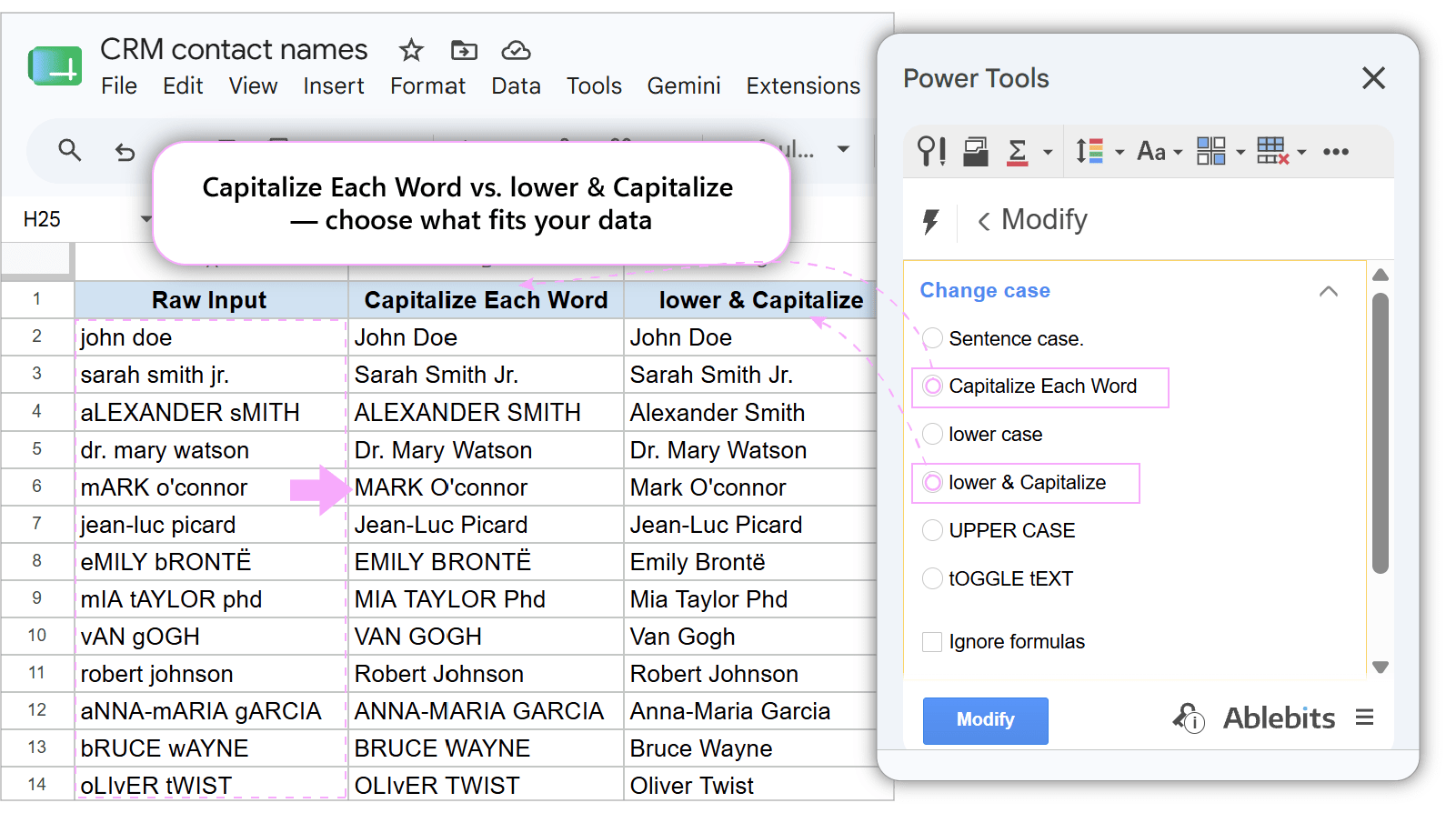
The Power Tools add-on has a utility to instantly format names in proper case using the Capitalize Each Word option.
How it works:
- Launch the add-on: Go to .
- Select your range: Highlight the column(s) with messy contact names.
- Choose the case type: Select Capitalize Each Word to make the first letter of every word in the selected cells capital.
If some names have inconsistent capitalization (e.g., “JoHN DOe”), use the lower & Capitalize option. It capitalizes each word and lowercases all other letters.
- Apply changes: Click Modify to transform the text.
To change text to proper case even faster, you can go to:
.
Key benefits:
- Professional presentation: Instantly turns chaotic raw input into uniform contact records.
- In-place editing: Bypasses the need to create temporary helper columns.
Case 2: Fix accidental Caps Lock entry in Google Sheets: Change UPPERCASE to lowercase
Scenario:
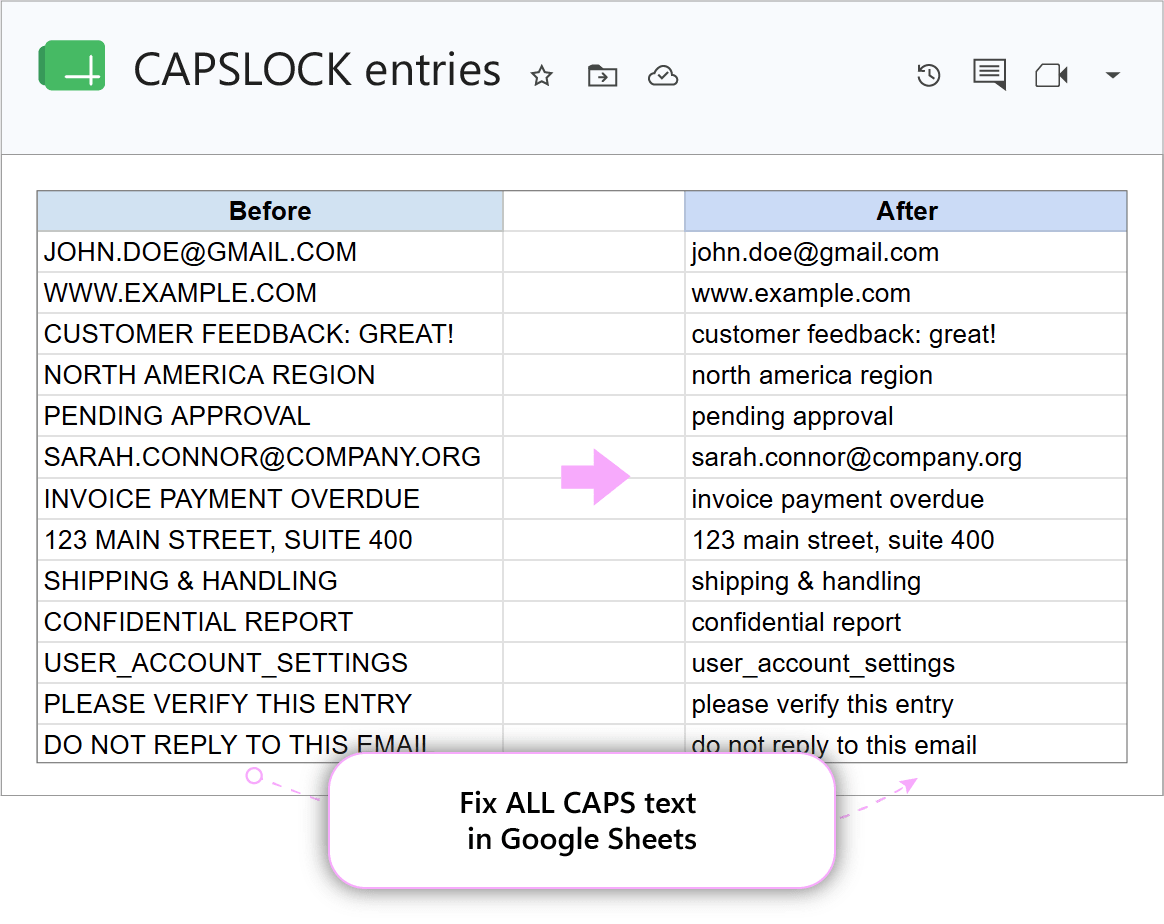
A data entry operator accidentally left Caps Lock on while filling out a spreadsheet and now entire text columns formatted in harsh UPPERCASE. The goal is to quickly convert these entries into clean lowercase text without retyping them manually.
Problem:
- Hard to read: Text written in ALL CAPS feels loud and looks messy.
- Formula clutter: Fixing this natively requires using
=LOWER()(opens in a new tab) in a separate helper column, dragging it down, and copy-pasting to overwrite the original data.
Solution:
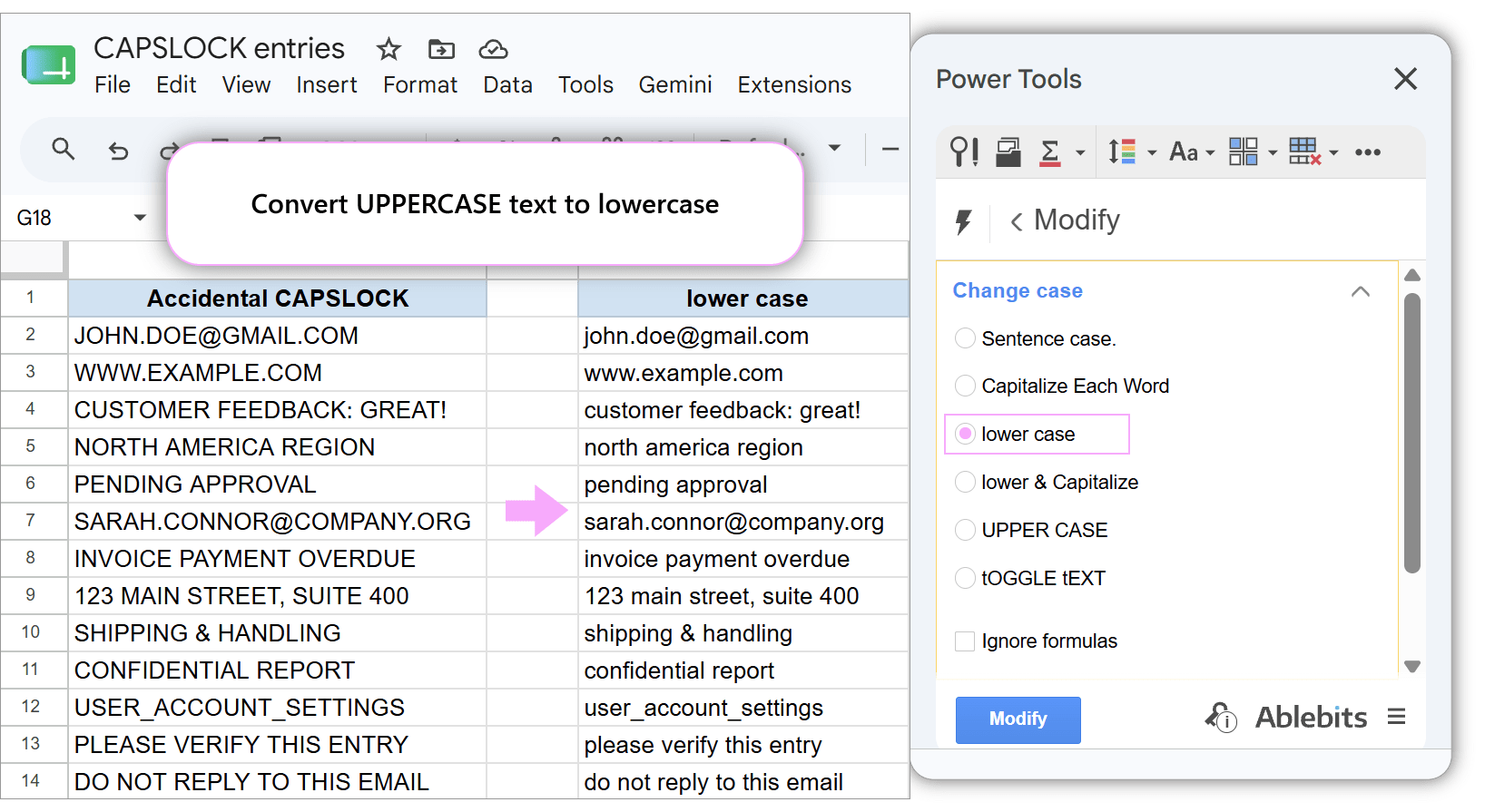
The Power Tools add-on allows you to instantly convert text from ALL CAPS to lowercase directly in place using the lower case option.
How it works:
- Launch the add-on: Go to .
- Select your range: Highlight the cells or columns containing the uppercase text.
- Choose the case type: Select lower case to convert all characters in the selected range to lowercase.
- Apply changes: Click Modify to transform the text instantly.
To change case even faster, go to:
.
Key benefits:
- Instant error recovery: Fixes accidental Caps Lock entries across thousands of cells in seconds instead of retyping data.
- No helper columns: Operates directly on original cells, saving you from creating and deleting temporary
=LOWER()formula columns.
Case 3: Capitalize all letters (UPPERCASE) in Google Sheets: Format SKUs
Scenario:
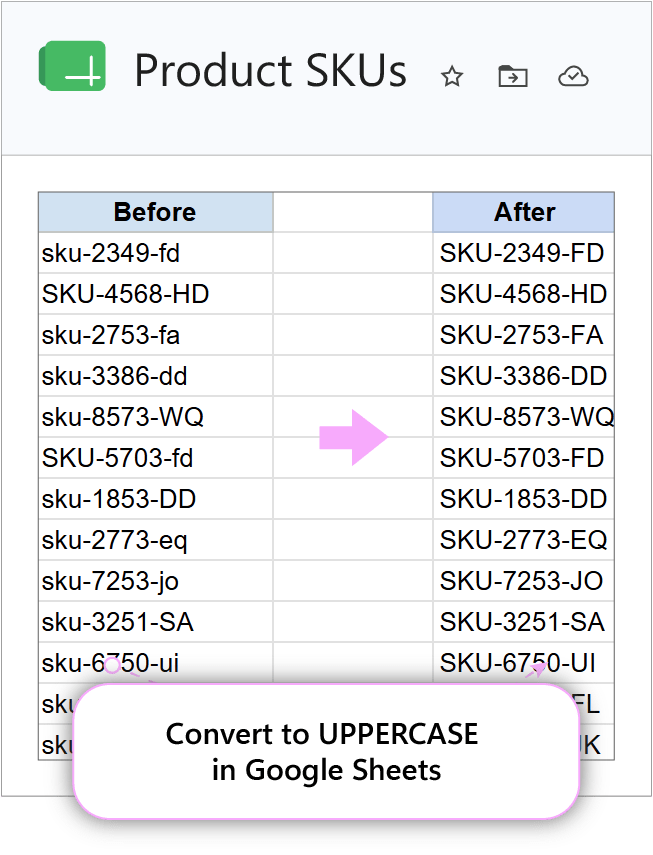
An inventory manager is updating a master product catalog in Google Sheets. But product SKUs look inconsistent: some are entirely lowercase (“sku-2349-fd”), some are capitalized (“SKU-4568-HD”), and others have random capitalization (“SKU-9021-hj”). All product codes must be written strictly in all caps (“SKU-9021-HJ”).
Problem:
- System errors: Many management systems and barcode scanners often fail or generate false duplicates when inventory codes do not follow a uniform uppercase standard.
- Formula hassle: Capitalizing code ranges using standard Google Sheets formulas like
=UPPER()(opens in a new tab) requires adding helper columns, dragging formulas down, and manually pasting values back.
Solution:
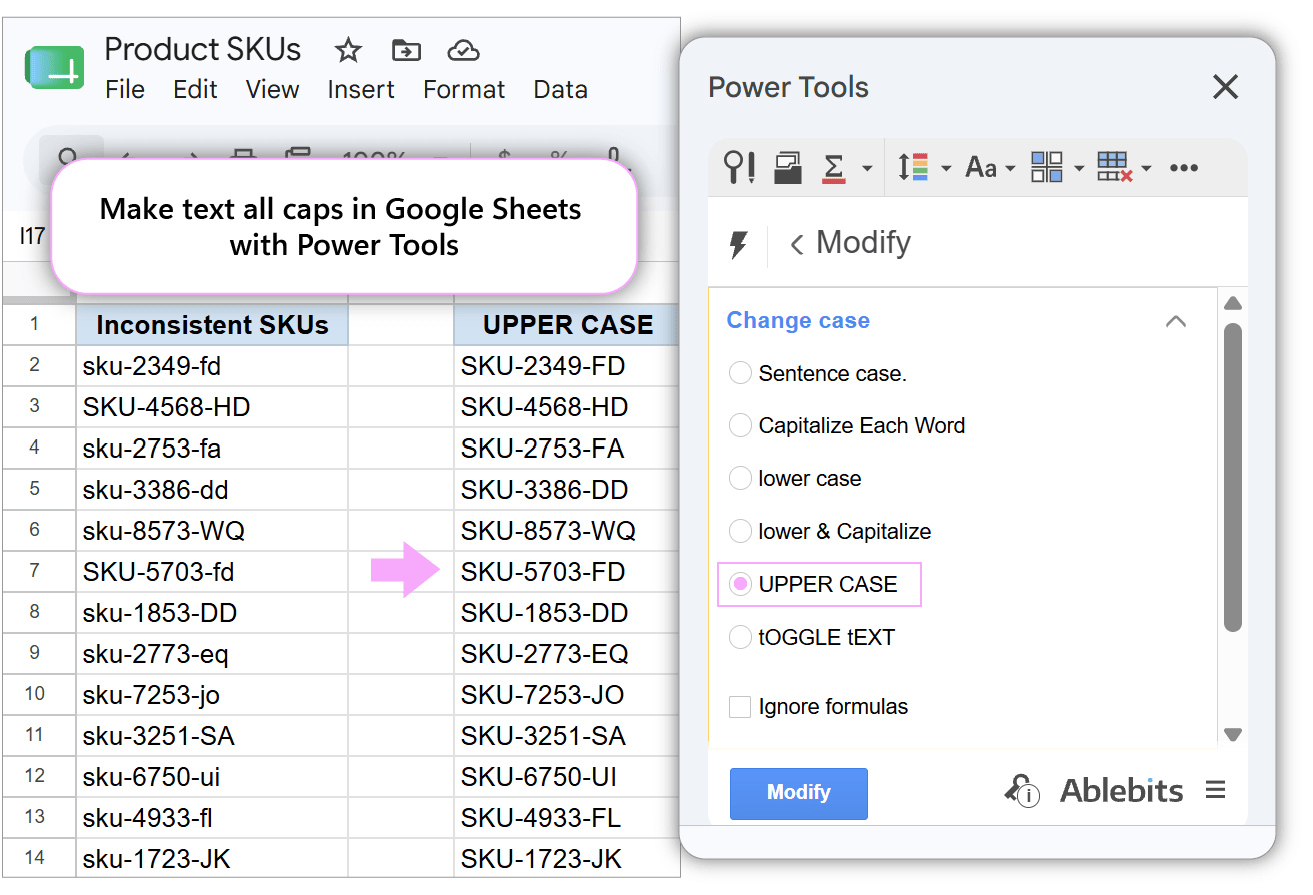
The Power Tools add-on provides a utility to instantly convert all letters to capital letters in Google Sheets using the UPPER CASE option without writing a single formula.
How it works:
- Launch the add-on: Go to .
- Select your range: Highlight the column(s) containing product SKUs (other inventory identifiers).
- Choose the case type: Select UPPER CASE to convert all letters in the selected cells to all caps.
- Apply changes: Click Modify to transform the text directly in your sheet.
To convert text to all caps even faster, go to:
.
Key benefits:
- ALL CAPS conversion: Standardizes thousands of product SKUs in a single click for seamless integration.
- In-place editing: Bypasses the need to create temporary helper columns or manually paste formula results.
Case 4: Clean up web-scraped data in Google Sheets: Convert to Sentence case
Scenario:
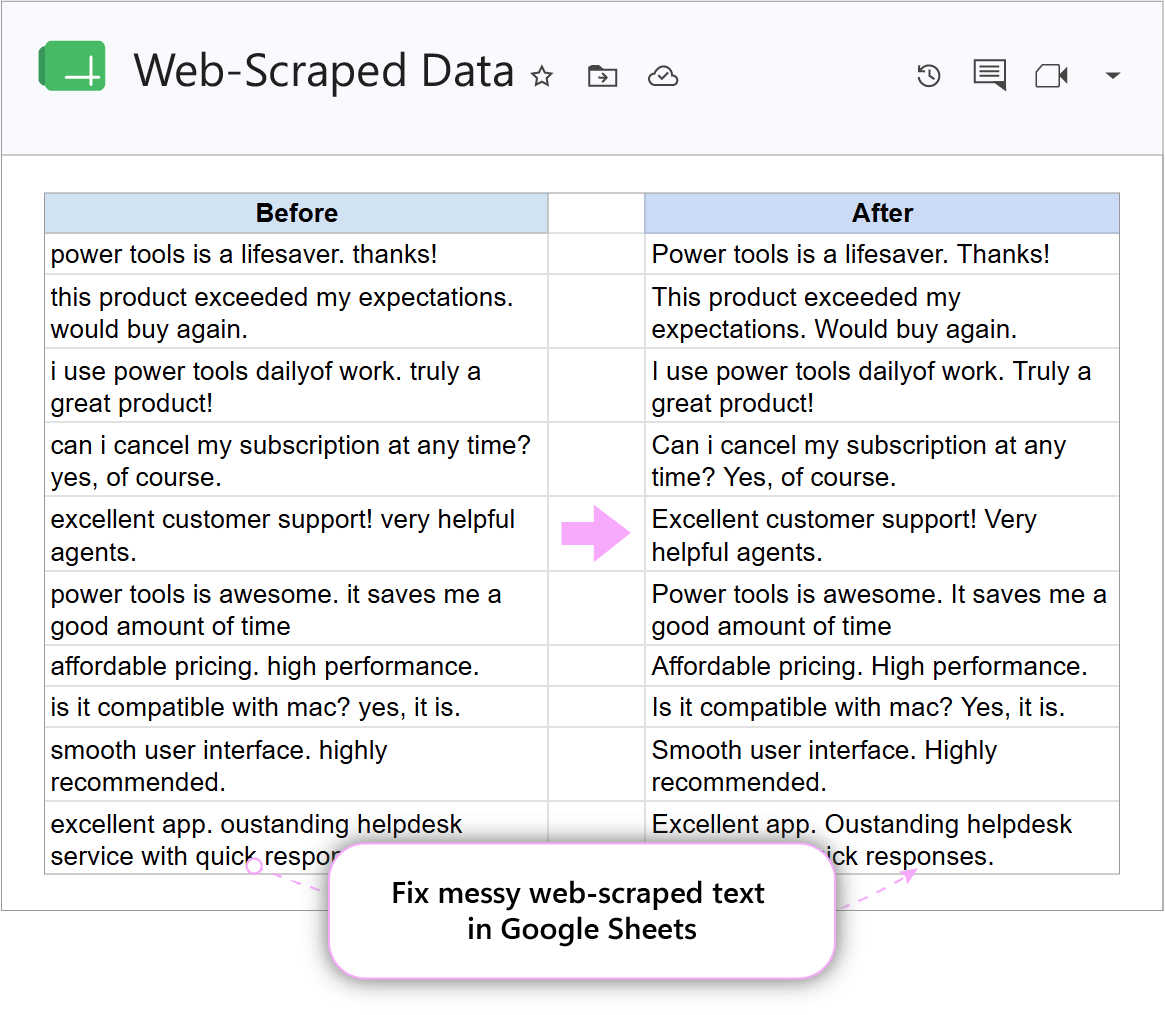
A research analyst or content manager copies product descriptions, articles, or survey responses from web pages into Google Sheets. The web-scraped text arrives with erratic CSS formatting, making it unreadable. So they need to clean up this raw text into sentence case, where only the first letter of each sentence is capitalized.
Problem:
- Formula limitations: Google Sheets lacks a native
=SENTENCECASE()function. Fixing sentence structures via formulas requires writing complex, fragile regex scripts.
Want to try your hand at writing complex formulas? Read our guide on converting to Sentence case in Google Sheets with formulas (opens in a new tab).
Solution:
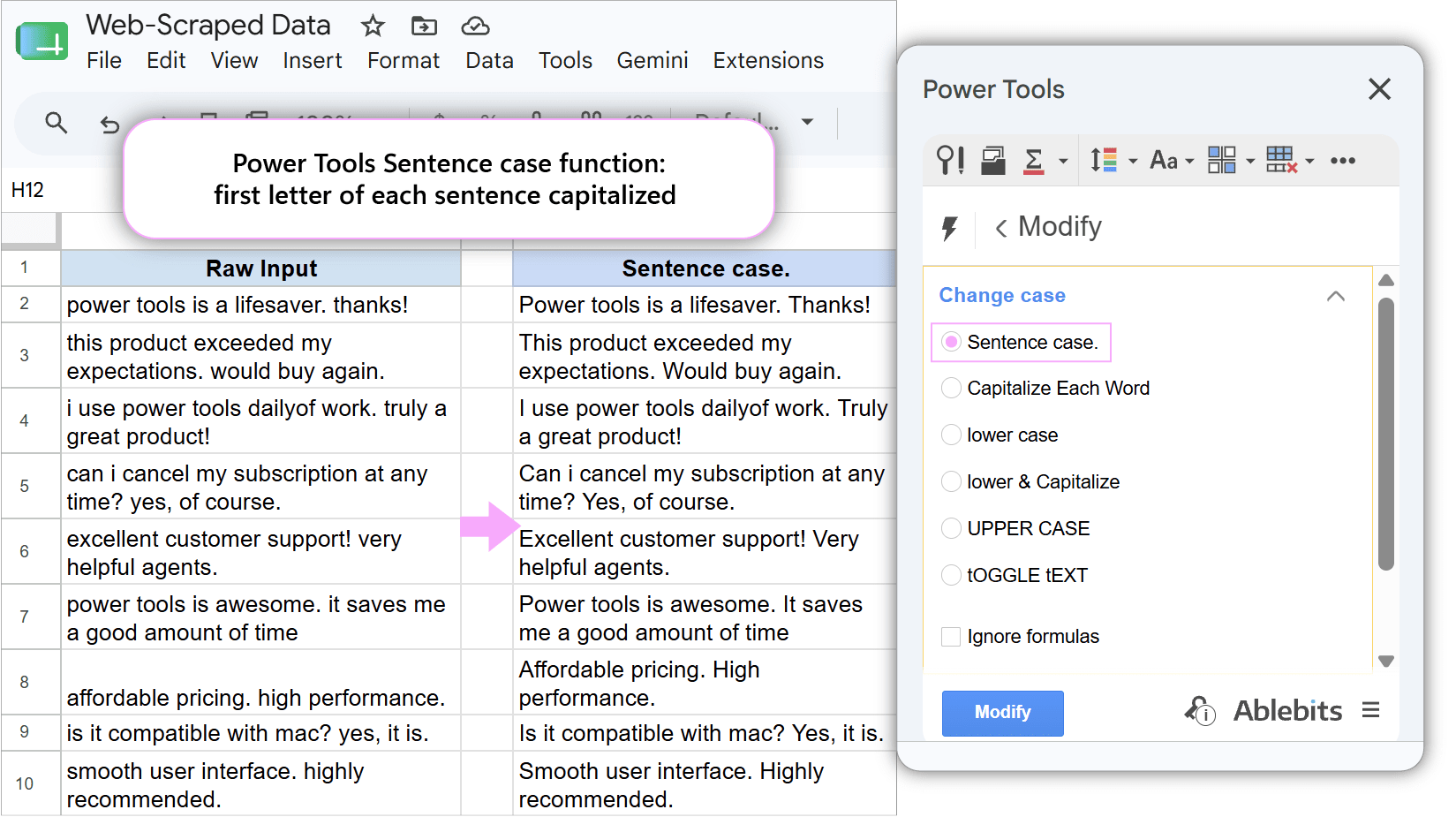
The Change Case tool in the Power Tools add-on cleans up pasted web content in a single click, applying Sentence case directly to original cells so the first letter of each sentence is capitalized.
How it works:
- Launch the add-on: Go to .
- Select your range: Highlight the column(s) containing web-scraped data.
- Choose the case type: Select Sentence case. to capitalize the first letter of each sentence.
If your text contains random uppercase letters or ALL CAPS text (e.g., GREAT quality ITEM), run lower case first, and then apply Sentence case.
- Apply changes: Click Modify.
To format sentences even faster, go to: .
Key benefits:
- Instant cleanup: Normalizes erratic scraped text into publication-ready paragraphs.
- No formulas required: Replaces multi-step formulas with a single click.
- In-place transformation: Cleans up large text ranges directly without creating extra helper columns.
Case 5: Fix inverted text case in Google Sheets: Toggle case
Scenario:
A team member accidentally typed a batch of entries while looking down at their keyboard with Caps Lock toggled on, resulting in inverted capitalization. Or maybe someone pasted data with inverted caps settings and now every letter in the sheet is the opposite case of what it should be. The goal is to quickly flip the case of all characters without manual retyping.
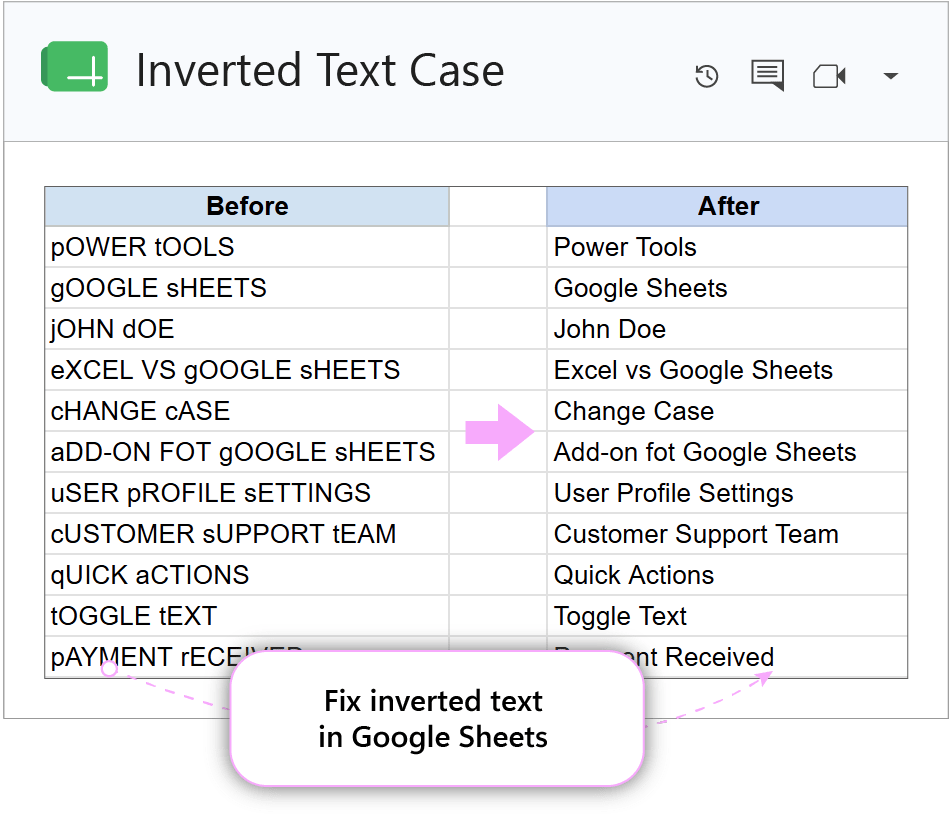
Problem:
- No simple formula solution: Google Sheets doesn’t have a built-in function to toggle or invert text case. It requires constructing custom Google Apps Script code or writing advanced regex arrays.
Solution:
The Change Case tool in the Power Tools add-on flips the case of every character in your selected range, swapping lowercase letters to uppercase and vice versa in a single click.
How it works:
- Launch the add-on: Go to .
- Select your range: Highlight the cells or columns containing inverted text.
- Choose the case type: Select tOGGLE tEXT to invert the character capitalization across the selection.
- Apply changes: Click Modify to flip the text instantly inside your original cells.
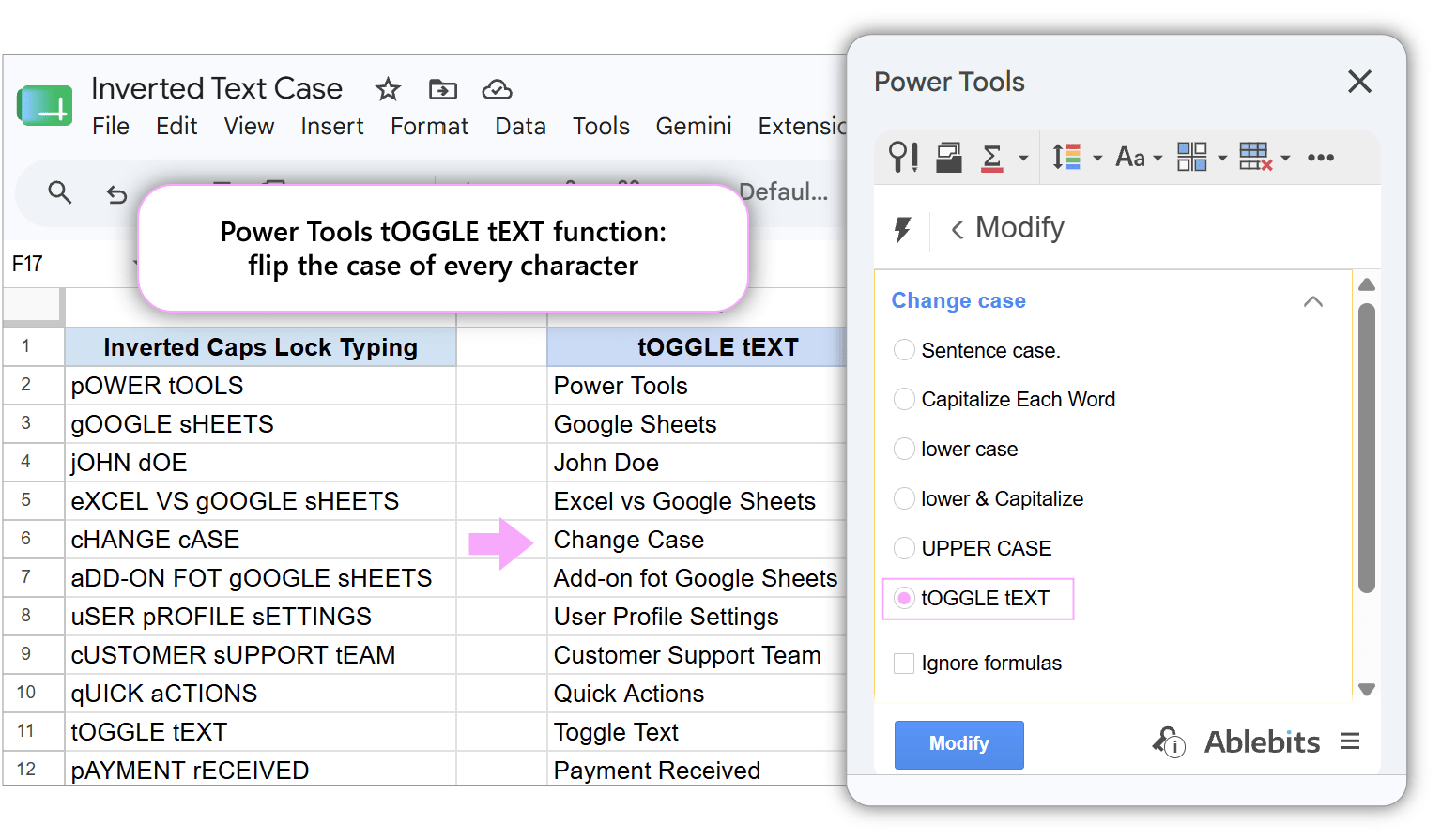
To toggle case even faster, go to: .
Key benefits:
- Instant correction: Fixes inverted Caps Lock typing errors in seconds.
- No coding required: Replaces complex Google Apps Script or regex workarounds with a single click.
How to choose the right Change Case option in Google Sheets
| Goal | Change Case (Power Tools) | Best for | Example |
|---|---|---|---|
| Make ALL CAPS | UPPER CASE | SKUs, product codes, system IDs | sku-4680-hr → SKU-4680-HR |
| Change to lowercase | lower case | emails, URLs, accidental CAPSLOCK entries | JOHN.DOE@GMAIL.COM → john.doe@gmail.com |
| Capitalize first word letters | Capitalize Each Word | Names, multi-word titles | john doe → John Doe |
| Capitalize each word + lower all other letters | lower & Capitalize | Product titles, headlines, names with bad casing | JoHN DOe → John Doe |
| Fix sentence capitalization | Sentence case | Web-scraped data, customer reviews | power tools is a lifesaver. thanks! → Power tools is a lifesaver. Thanks! |
| Fix inverted case | tOGGLE tEXT | Caps Lock typing errors | pOWER tOOLS → Power Tools |
Frequently Asked Questions (FAQ)
How do I change text case in Google Sheets without creating helper columns?
Google Sheets formulas (=UPPER(), =LOWER(), =PROPER()) require adding a new helper column. To change text case directly in place, use the Change Case tool from the Power Tools add-on.
What is the shortcut key for change case in Google Sheets?
Google Sheets does not have a built-in keyboard shortcut to change text cases. However, if you use the Power Tools add-on, you can run your case option via Quick actions ().
Is there a native SENTENCECASE function in Google Sheets?
No, Google Sheets doesn’t have a native =SENTENCECASE() function. To convert text to sentence case, you need to write complex formulas or custom Google Apps Script. Or you can use the Change Case tool in Power Tools to apply sentence case.
How to do switch case in Google Sheets?
If text was accidentally typed with Caps Lock enabled, Google Sheets has no built-in formula to invert it. You can use the tOGGLE tEXT option in the Change Case tool (Power Tools) to instantly flip uppercase letters to lowercase and vice versa.
How do I change caps to lowercase without retyping?
To change uppercase text to lowercase without retyping it manually, you can either use the =LOWER() formula in a separate helper column or use the lower case option in the Power Tools add-on.
