
How to Remove Duplicates in Google Sheets: Use Cases

To remove duplicates in Google Sheets, select your range and run the Remove Duplicates add-on — it finds, highlights, extracts or deletes repeated rows without formulas or Apps Script. Below are 5 real-world scenarios, from cleaning CRM exports to automating daily Forms cleanup.
Methods to find and remove duplicates in Google Sheets
Duplicates in Google Sheets are cells or rows that contain identical data across a specific range.
When cleaning up your spreadsheets, there are four main methods to find and remove duplicates:
- Built-in tool: Google Sheets does offer a native tool (opens in a new tab) to remove duplicates, but it is extremely basic. It deletes duplicate rows without offering a preview or backing up data.
- Google Sheets Formulas: Advanced users often turn to Google Sheets formulas (like
UNIQUE(opens in a new tab) orCOUNTIF(opens in a new tab)) to catch duplicate records. However, industry research (opens in a new tab) shows that fewer than 30% of spreadsheet users feel comfortable with formulas, and of those who try, many run into syntax errors, incorrect ranges, or broken case-sensitivity logic. - Apps Script: Some users write custom code to strip duplicate entries. But it’s not a working solution for the vast majority of users, to say the very least. A lot of non-technical users rarely even open the Script Editor, because it’s too complex and simply takes too much time compared to using no-code add-ons.
- Extensions: The safest, most efficient solution is using a dedicated workspace tool like the Ablebits Remove Duplicates (opens in a new tab) add-on for Google Sheets. It allows you to find, highlight, extract, or delete duplicates without writing code.
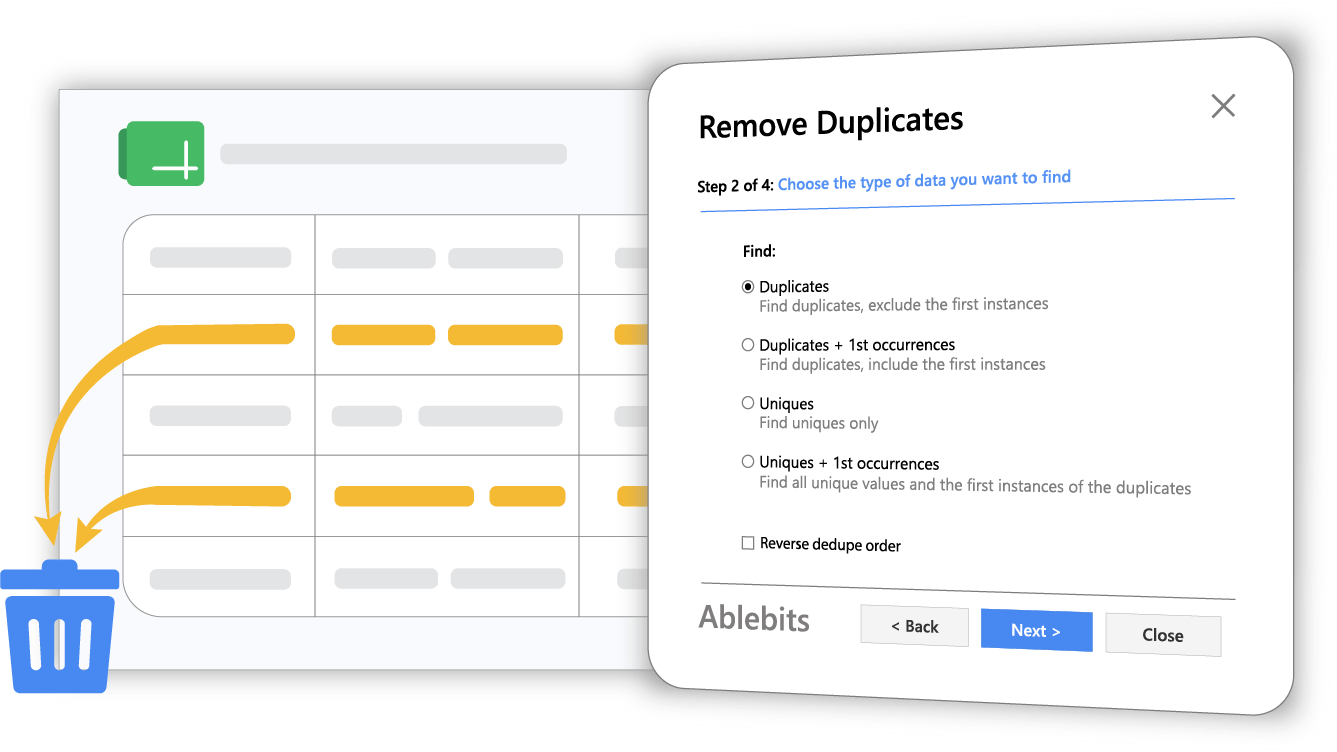
In this guide, we’ll walk through 5 practical, real-world scenarios to help you tackle duplicates based on your specific goals.
Quick summary: Which duplicate removal method to use?
Below is a quick map to help you find the ideal duplicate-removal scenario:
| Who you are | Your use case | Recommended scenario |
|---|---|---|
| Email marketers | Cleaning CRM exports before sending updates, follow-ups and newsletters. | Scenario 1: Clean email lists from CRM |
| Sales reps & admins | Merging contact lists from multiple forms, keeping the latest contact info. | Scenario 2: Deduplicate leads while keeping the newest entry |
| Data analysts | Checking duplicate customer records across shared databases without losing unique leads. | Scenario 3: Find duplicate clients in a shared database |
| Marketing managers | Finding customers who bought just once, so you can target them with a special re-engagement offer. | Scenario 4: Extract “one-time” buyers for re-engagement |
| Database admins | Automating daily cleanup tasks on continuous data streams (like Google Forms). | Scenario 5: Automated cleaning from Google Forms |
Case 1: Clean duplicate emails from CRM exports in Google Sheets
Scenario: Your CRM exported 50,000 contacts, but because prospects submitted multiple forms over time, the list is filled with repeated email addresses. You need to get a clean list with unique email addresses.
As we stated before, you can solve this problem in several different ways:
Way 1: Google Sheets built-in “Remove duplicates” tool:
- Select your dataset.
- Go to .
- Select the Email Address column.
You can select one primary column (like Email Address) or combine multiple columns (e.g., First Name + Email) for strict matching.
- Click Remove duplicates.
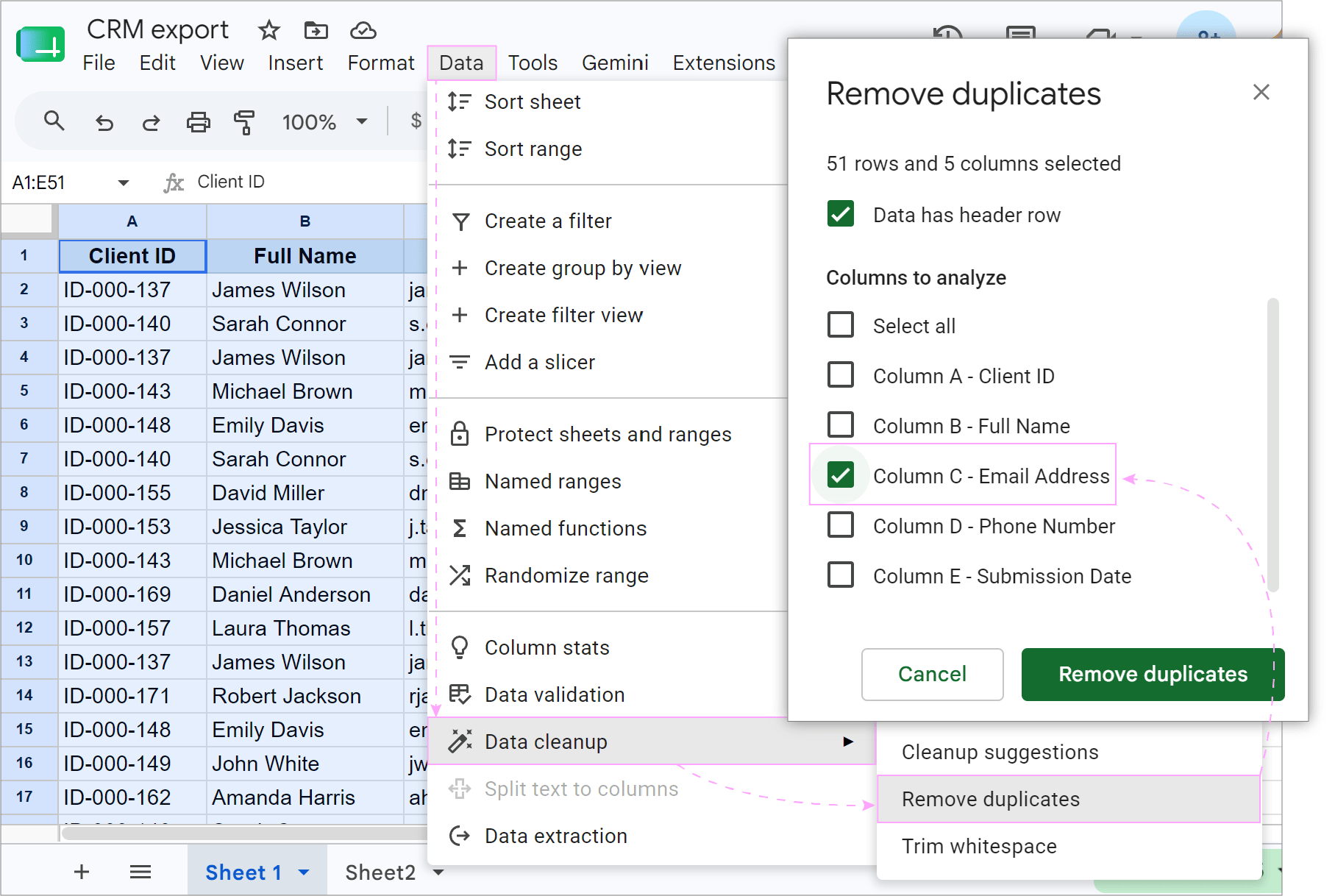
For a complete walkthrough of the built-in removal tool (opens in a new tab), check out our earlier article.
You’ll get a clean list with unique email addresses almost instantly. But you never know if the tool deleted true duplicates, or if you’ve lost some important contacts forever. You can’t preview what’s being removed, so you have to just trust the process.
Way 2: Remove duplicates using Google Sheets formulas (UNIQUE or COUNTIF):
- Enter
=UNIQUE(A1:E50000)into the cell where you want your deduplicated copy to start.
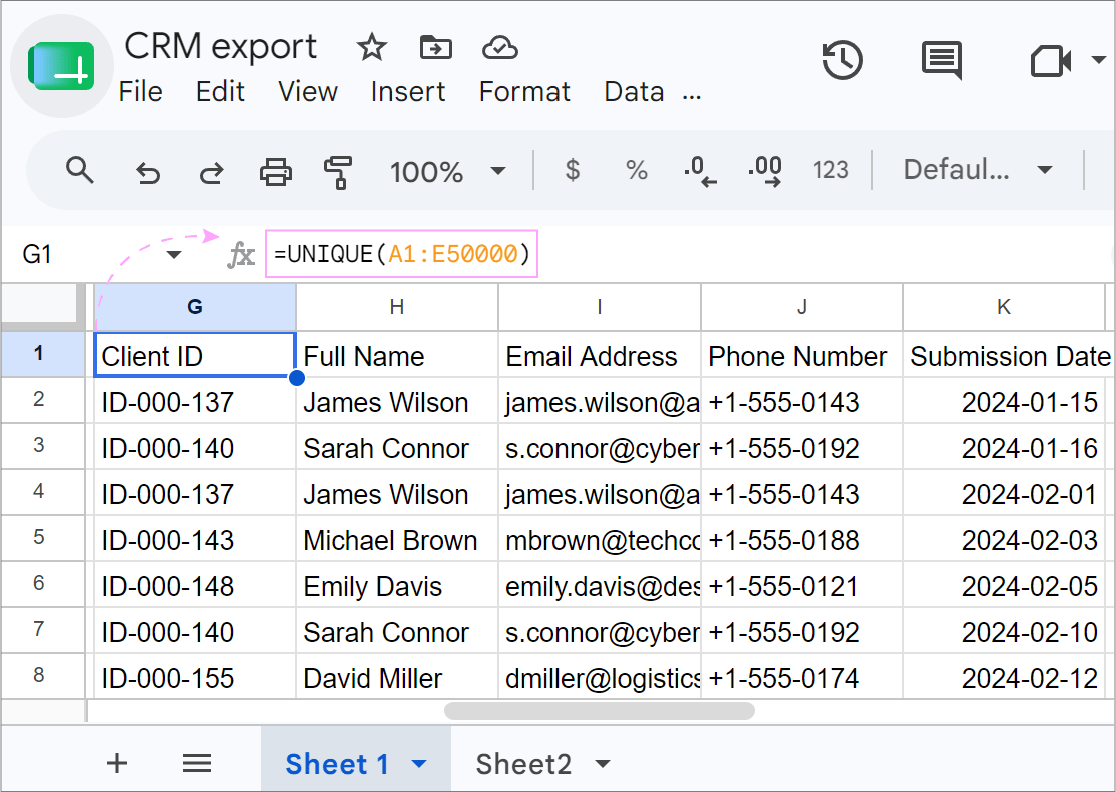
Learn more in our dedicated article on using UNIQUE (opens in a new tab) to understand the syntax.
- Use
=COUNTIF($A$2:$A$50000,$A2)>1with conditional formatting to highlight duplicates in one column.
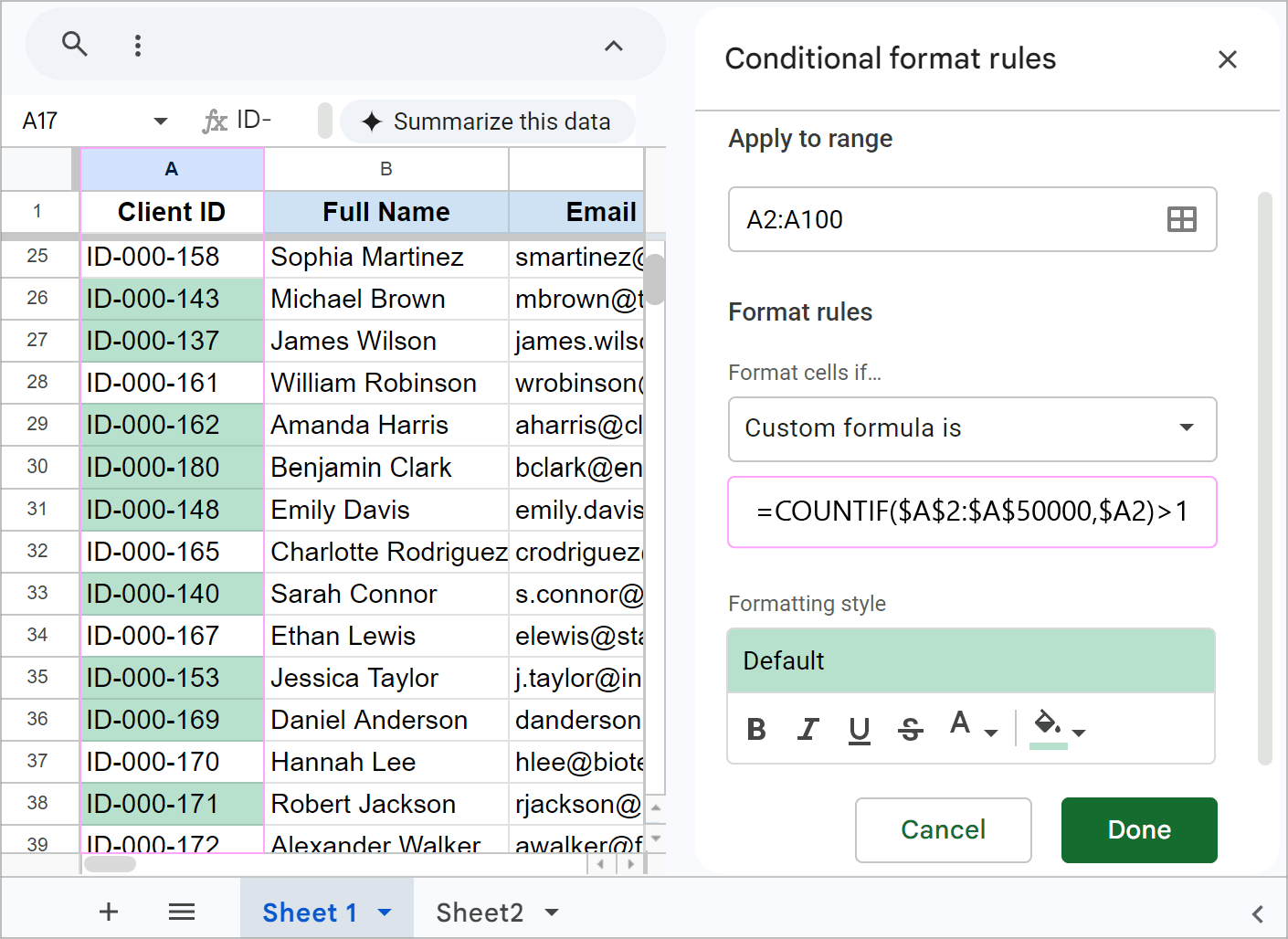
To highlight complete duplicate rows, you’ll need more complex formulas. We’ve also got a guide on using COUNTIF (opens in a new tab) in Google Sheets.
As you can see, these are working solutions. But again: formulas require syntax knowledge, time, and energy to use them.
Way 3: Ablebits Remove Duplicates extension for Google Sheets
- Launch Remove Duplicates and select your data range.
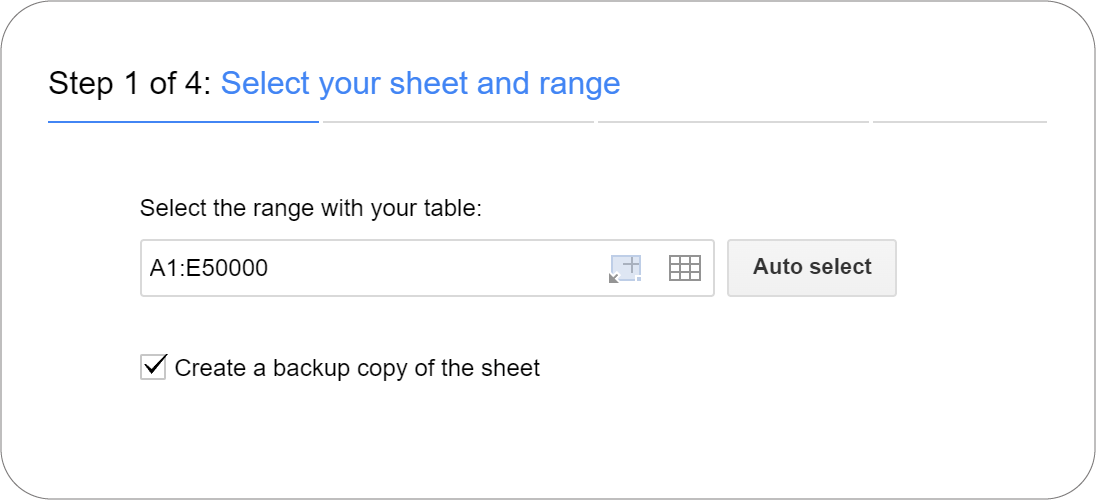
- Choose Duplicates as your search mode: this targets 2nd and subsequent copies, leaving your 1st entries intact.
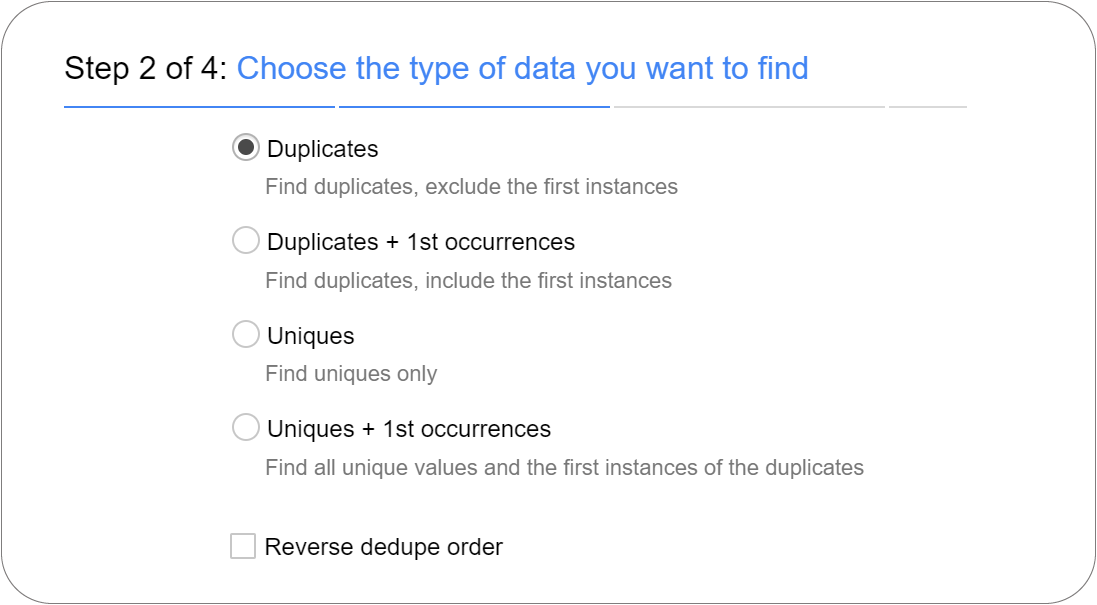
- Select the Email Address column as your key comparison column.
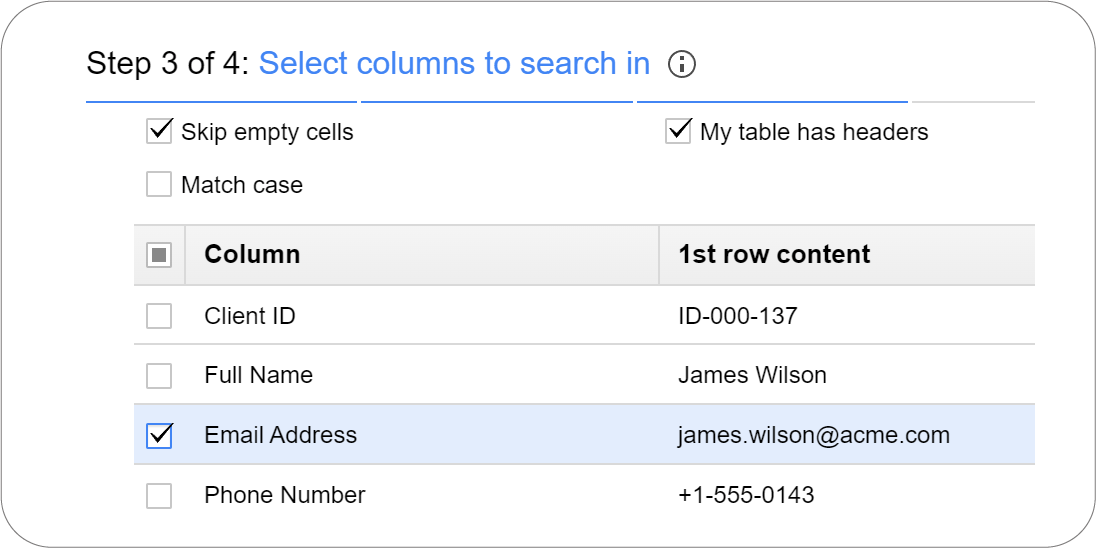
- Set your action to Delete entire rows from the sheet.
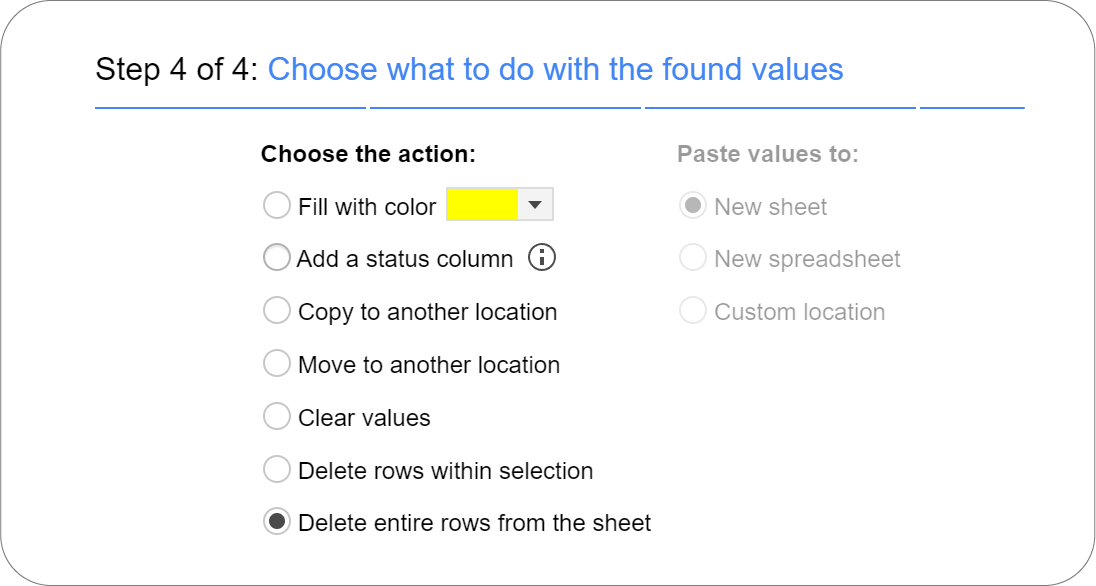
The Ablebits Remove Duplicates add-on cleans large lists without requiring any formula knowledge from you. You’ll get a single-entry contact list ready for future projects.
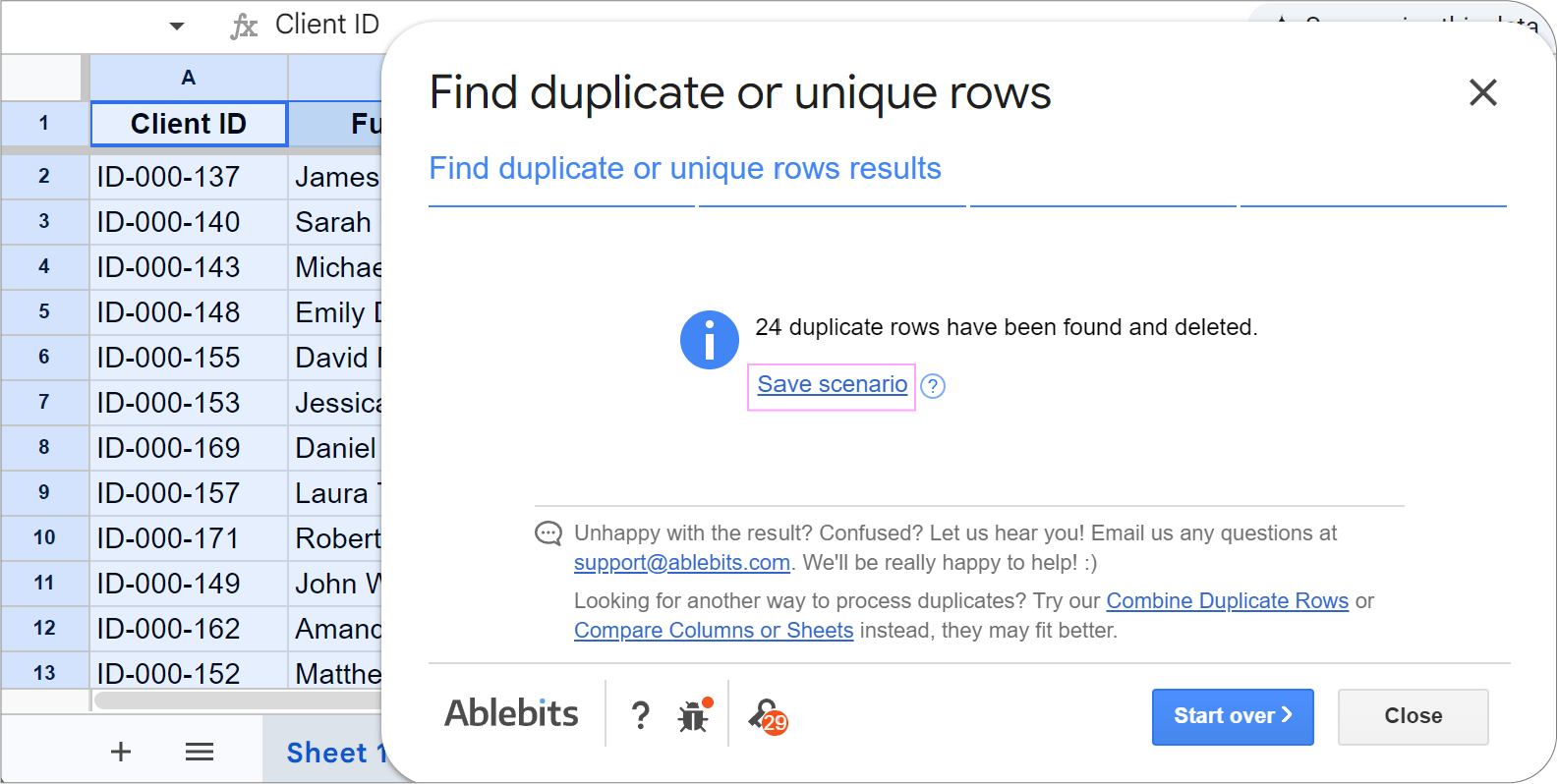
You can rerun this exact cleanup rule on new CRM exports — just click Save Scenario at the end of the process.
Case 2: Deduplicating leads while keeping the most recent entry
Scenario: A customer filled out a web form a year ago and submitted it again today with updated details (like a new phone number or job title). You need to keep only the latest contact information.
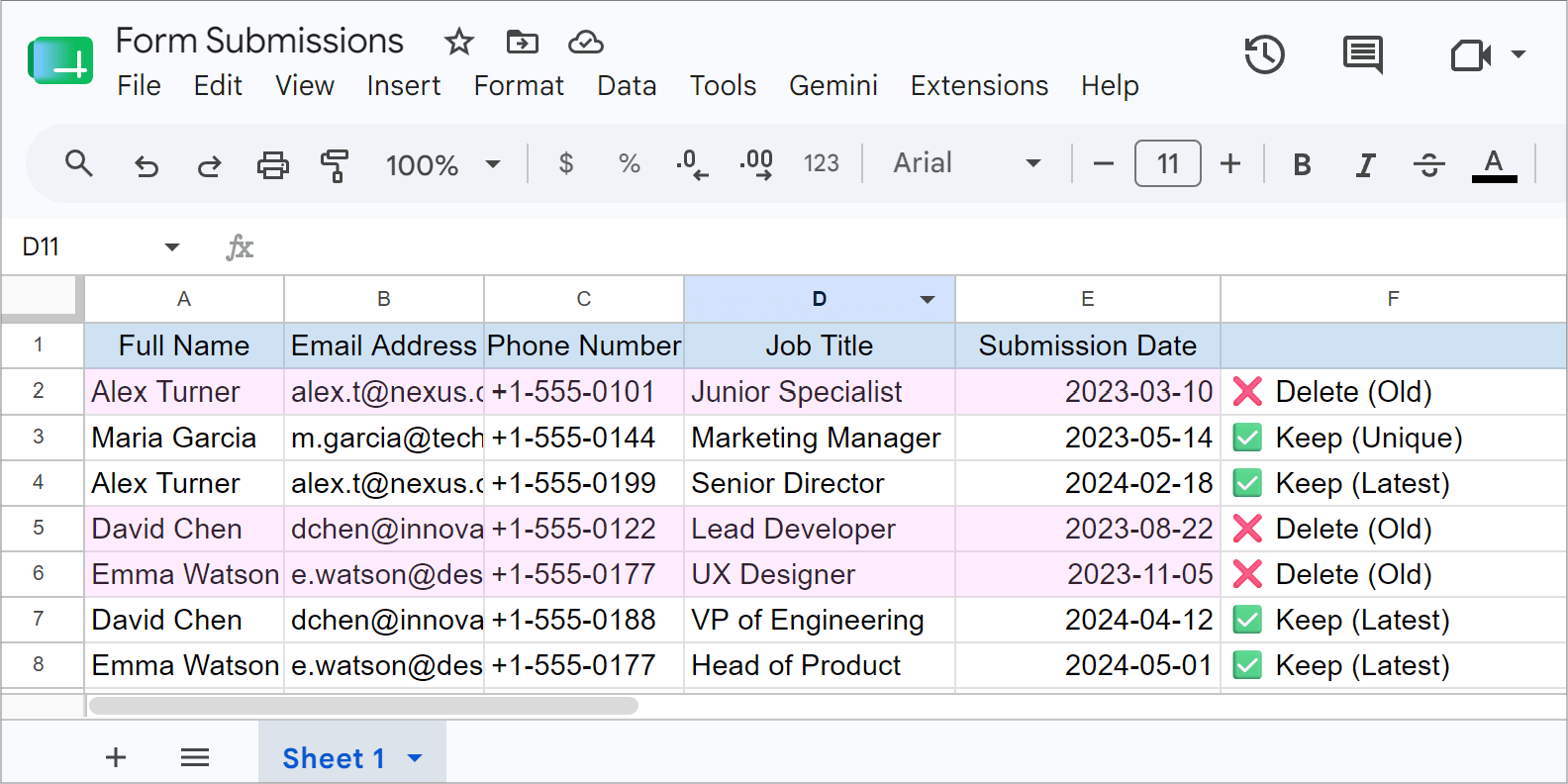
In this case, you can’t use the built-in “Remove Duplicates” tool because it always keeps the first occurrence (which is usually the oldest entry). If your sheet is sorted with the oldest records at the top, the native tool will keep them and delete all newer ones. Of course, you can isolate the latest records via formulas, but doing so requires complex nested functions (opens in a new tab).
So let’s move straight on to the most convenient method to remove duplicates with Ablebits:
- Launch Remove Duplicates and select your data range.
- Choose Duplicates as your search mode.
- Select the key comparison columns (e.g., Full name + Email Address).
- Tick the Reverse dedupe order checkbox: this tells the add-on to scan from the bottom up, identifying older top rows as duplicates.
- Set your action to Delete entire rows.
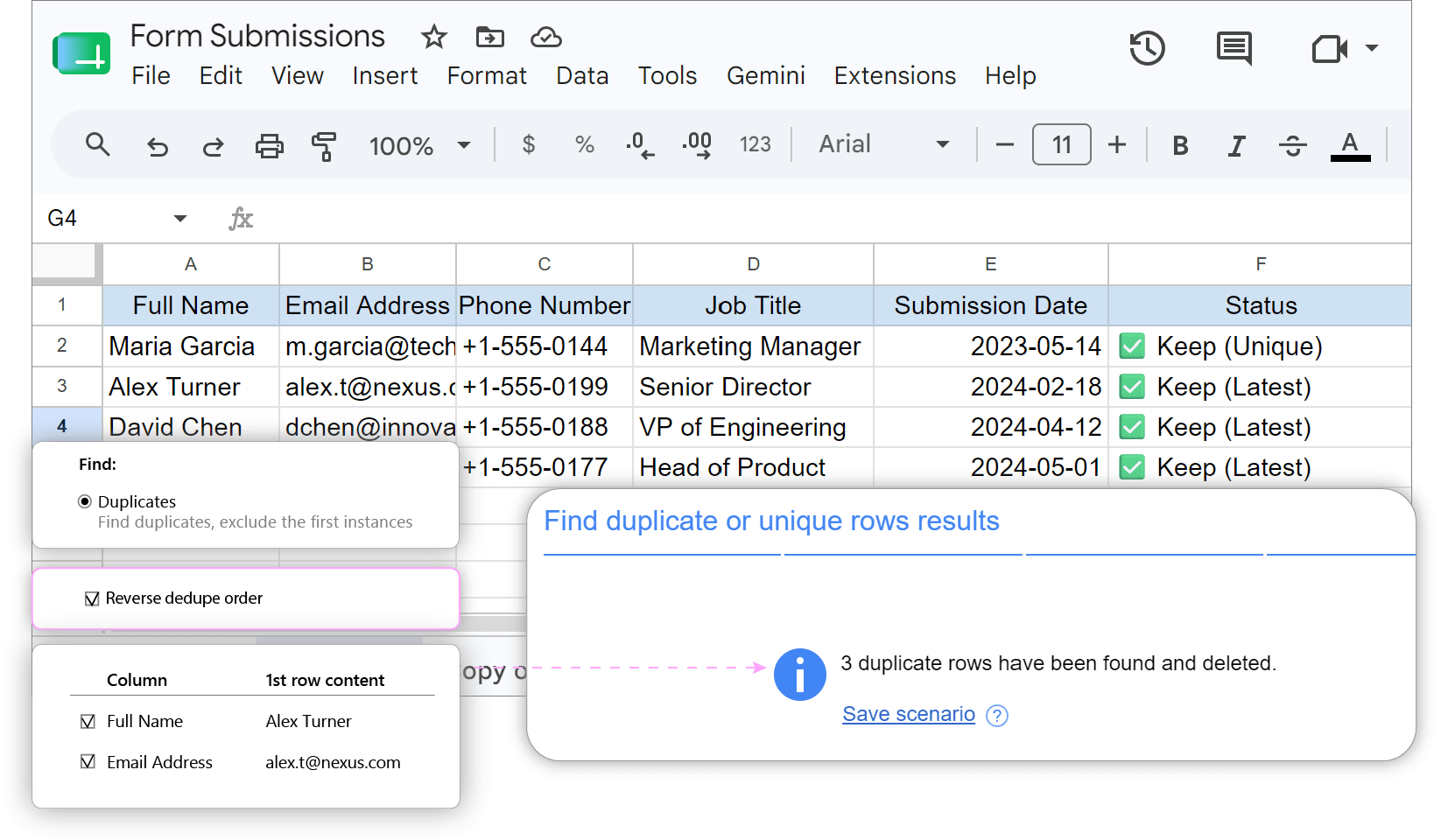
As a result, you’ll get an up-to-date contact list containing strictly the most recent form submissions.
Always check the Create a backup copy box, so you don’t have to worry about accidentally losing your data.
Case 3: Find duplicate clients in a shared database
Scenario: Multiple sales reps have been adding leads to the same shared database over time. As a result, the same client company appears multiple times with slight variations in the company name. You need to deduplicate the database without losing unique leads or overwriting active client accounts.
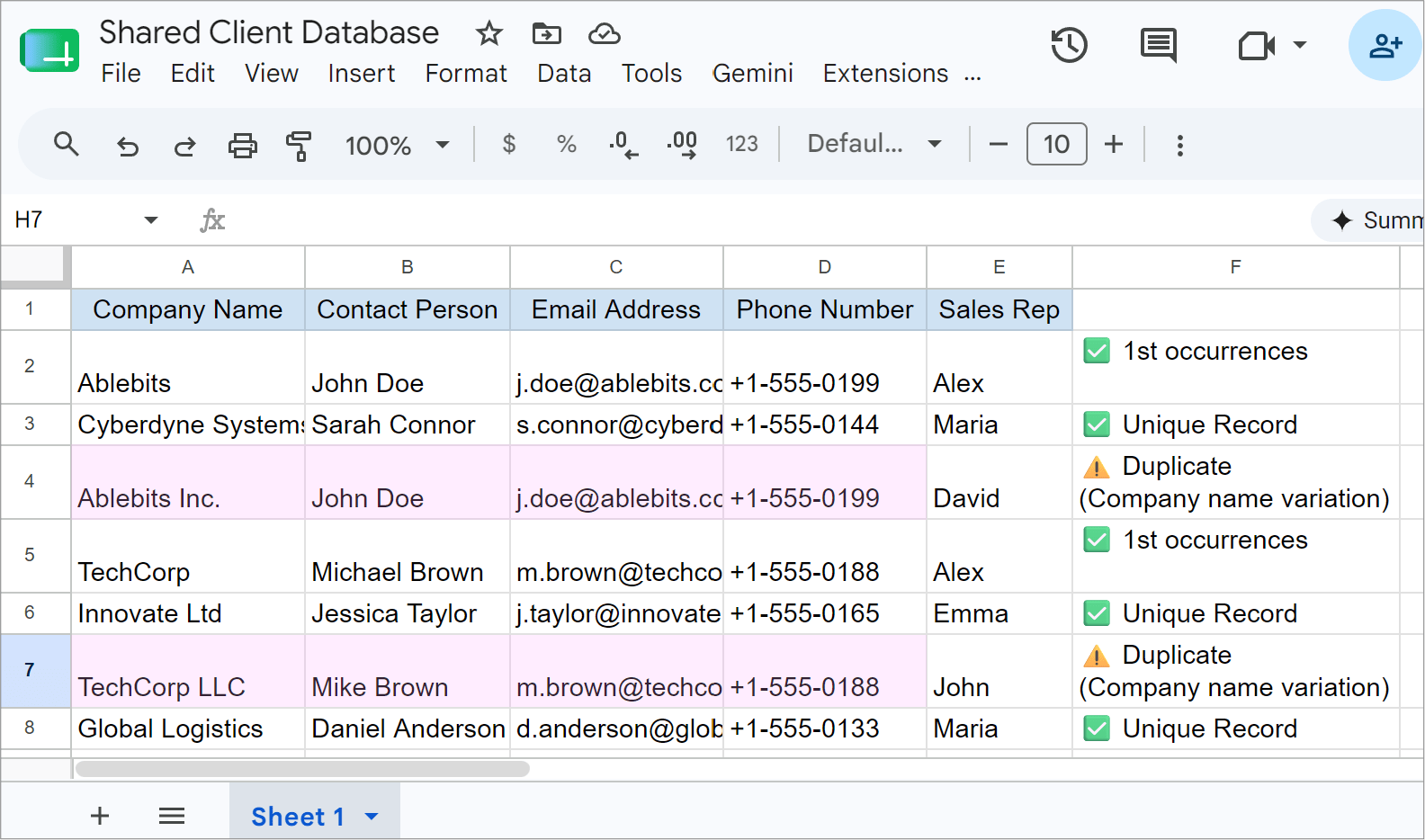
Google’s native tool wipes out rows blindly. If two reps added “Ablebits” and “Ablebits company” with the same phone number, selecting only Company Name will miss the duplicate, while selecting both Company Name and Phone will fail because the names don’t match exactly. Furthermore, building complex array formulas across a shared database can freeze the sheet for everyone working on it simultaneously.
To find duplicate clients in a shared database, use Ablebits Remove Duplicates:
- Launch Remove Duplicates and select your shared client database.
- Choose Uniques + 1st occurrences as your search mode.
- Check key identifying columns that remain constant across entries (e.g., Phone or Email).
- Set your action to Copy to another location (a new sheet or new workbook) to generate a deduplicated database.
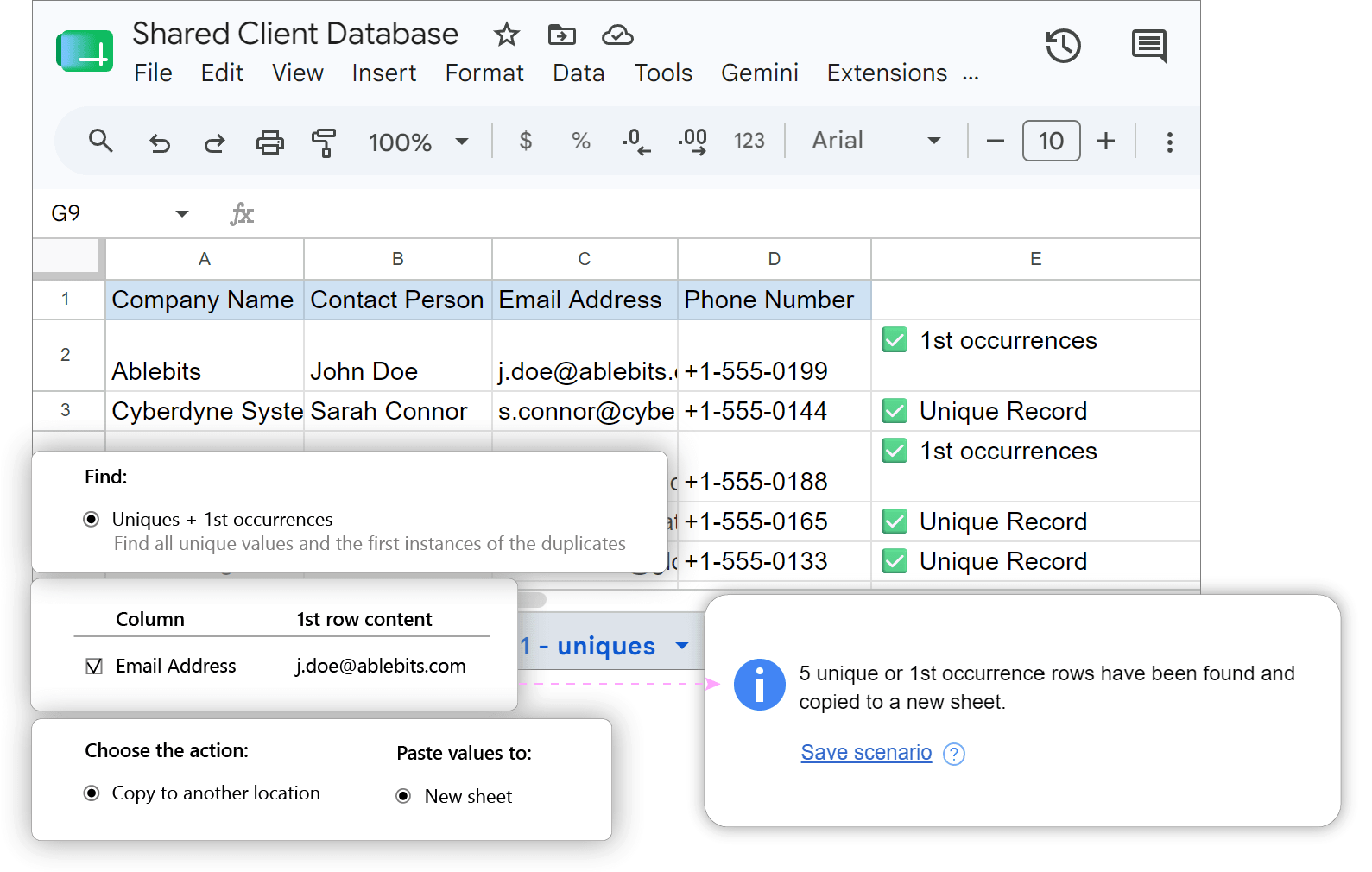
As a result, you’ll get a clean account list without accidentally deleting unique leads added by your team.
In shared databases, you can choose Fill with color or Add a status column as your action instead. This gives your team a chance to visually review flagged duplicates directly on the live sheet before making any permanent changes.
Case 4: Extracting “one-time” buyers for re-engagement
Scenario: Your marketing team wants to run a special re-engagement campaign targeting customers who have placed strictly one order. You need to pull a list of single-order customers from the table with sales data.
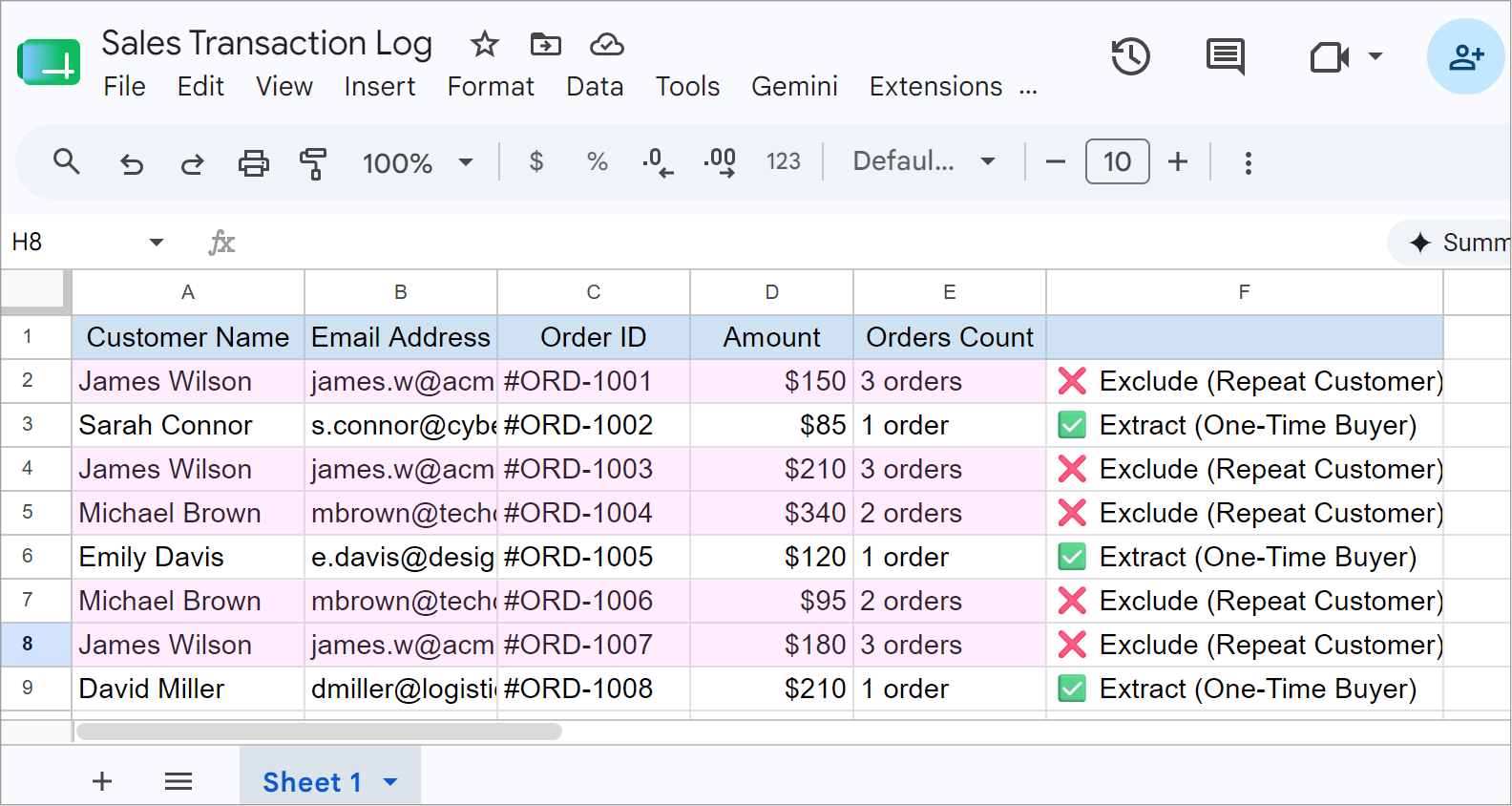
The UNIQUE() function fails here because it returns one instance of every customer. To isolate only non-repeating customers with formulas, you would have to combine FILTER, COUNTIF, and QUERY functions, which can be tricky to set up.
To extract strictly one-time buyers with Ablebits Remove Duplicates:
- Launch Remove Duplicates and select your sales transaction log.
- Choose Uniques as your search mode: this isolates entries that appear strictly once across the selected range.
- Select the key identifying column (e.g., Email or Phone number).
- Set your action to Copy to another location (a new sheet or new workbook).
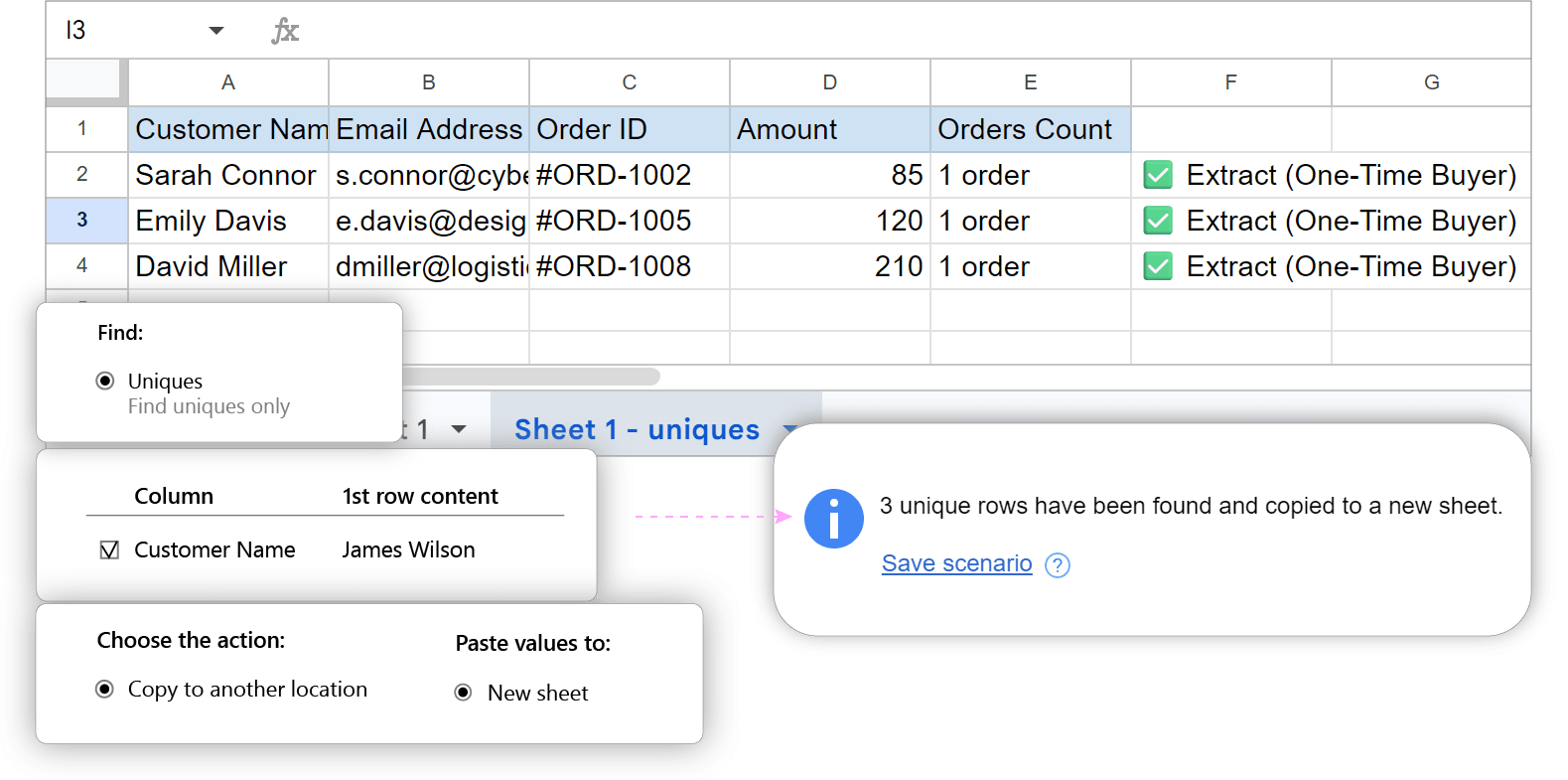
A list containing only one-time buyers is ready for targeted win-back campaigns.
If your main table with sales data contains multiple orders from the same customer placed under different email addresses, include Customer ID or Shipping Address as additional comparison columns.
Case 5: Automated duplicate removal from Google Forms
Scenario: Data streams continuously into your Google Sheet from a live Google Form (such as event registrations, daily check-ins, or feedback surveys). Because users sometimes submit the form more than once, duplicate entries build up in your sheet every day. You need a way to keep your form response sheet clean automatically without opening the file every day.
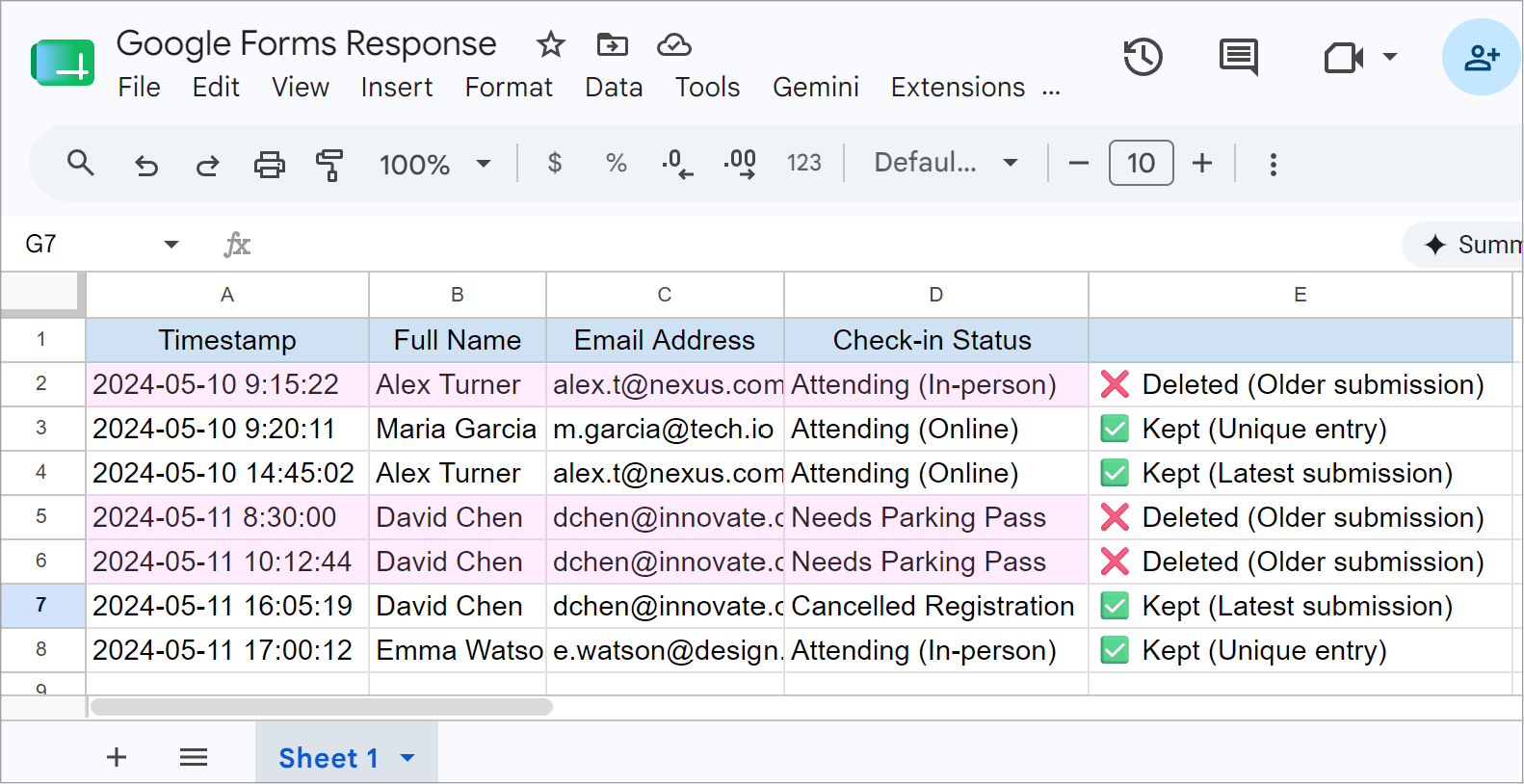
Google Sheets has no built-in “auto-clean” feature or any scheduled trigger to remove duplicates. Without an automated tool, you are forced to do it manually.
To automate duplicate removal with Ablebits Remove Duplicates:
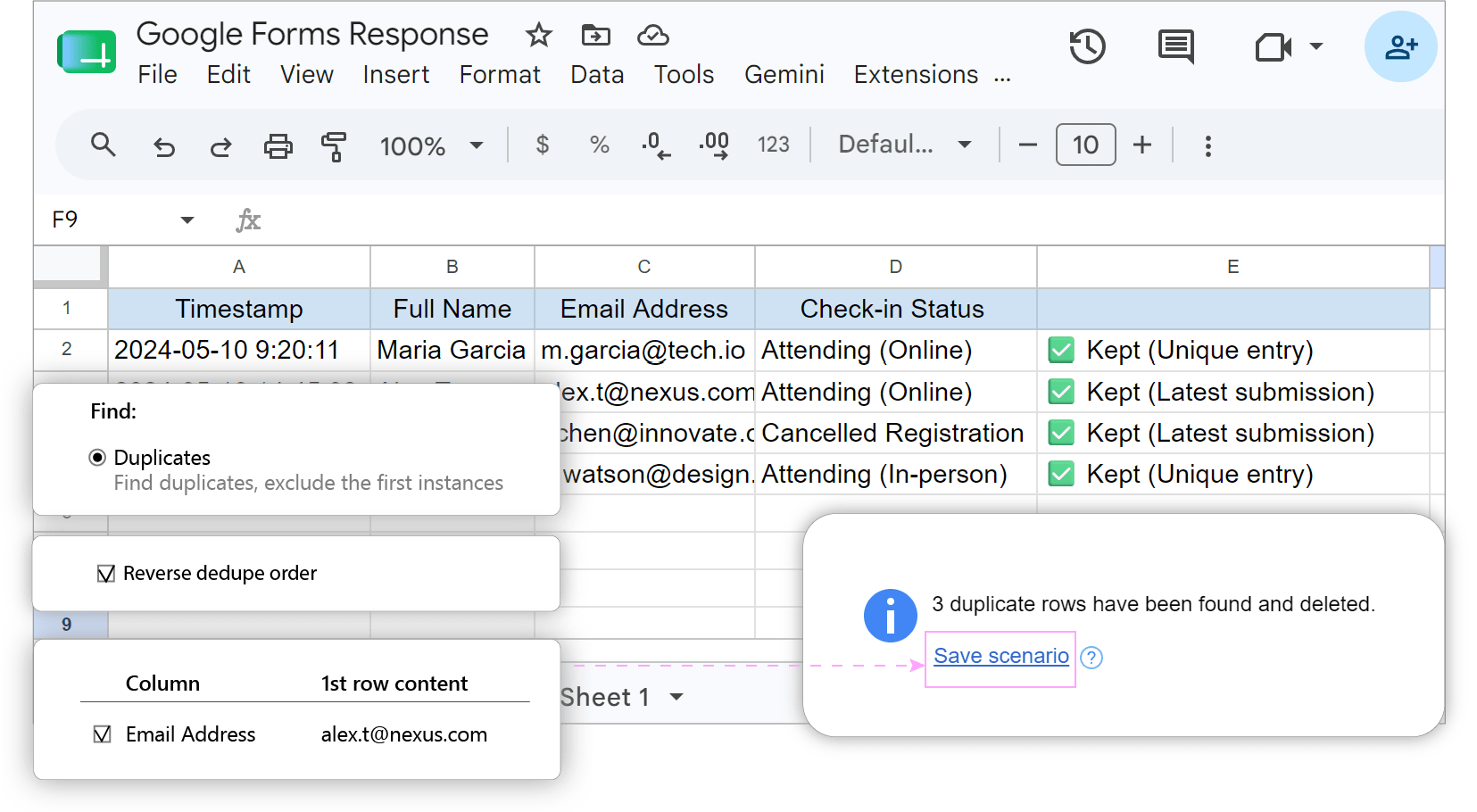
- Configure your cleanup rule:
- Launch Remove Duplicates on your Google Forms response sheet.
- Choose Duplicates search mode.
- Tick Reverse dedupe order (to keep the latest submission).
- Check key identifying columns (e.g., Email or User ID).
- Set your action to Delete entire rows from the sheet.
- Save and schedule the scenario:
Currently, scheduling scenarios is only available in the standalone Remove Duplicates add-on, not in the Power Tools (opens in a new tab) version.
- Click Save Scenario once the add-on completes the search.
- Enter a name for your rule (e.g., “Scheduled Deduplication”).
- Check the Run on Schedule box and select your preferred frequency under the Schedule autostart section.
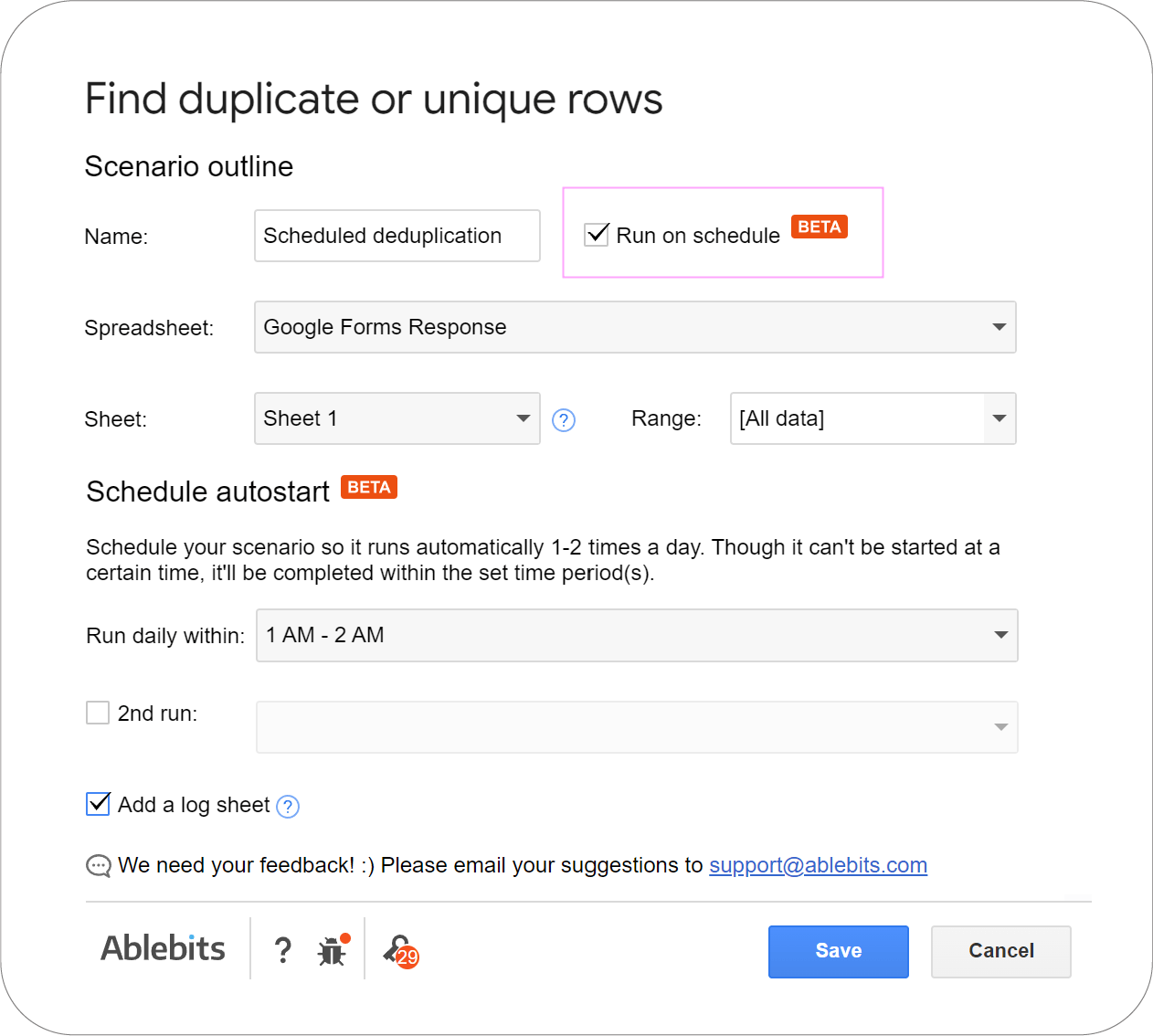
Your Google Sheet will automatically clean itself in the background, keeping strictly the latest submission per user.
You can review all automated runs anytime in the execution log sheet. Check it periodically to ensure your scheduled scenarios are running smoothly.
Find & remove duplicates in Google Sheets easily
As you can see from the use cases above, the Remove Duplicates extension for Google Sheets is ideal for dealing with duplicated data.
Use this cheat sheet to quickly match your business goal with the right settings:
| Business goal | Search mode in Remove Duplicates | Action to apply | Key feature |
|---|---|---|---|
| Simple cleanup | Duplicates | Delete entire rows | — |
| Keep newest records | Duplicates | Delete entire rows | Reverse dedupe order |
| Review before deleting | Duplicates + 1st occurrences | Add status column / Highlight | Visual check |
| Build a clean master list / reference table | Uniques + 1st occurrences | Copy to another location | Clean reference table |
| Extract new or single-entry records | Uniques | Copy to another location | Isolate non-repeaters |
| Automatically find & remove | Any search mode | Save Scenario | Schedule autostart |
Check out our other tools:
- Compare Sheets for Duplicates (opens in a new tab) – for cross-sheet comparison.
- Combine Duplicate Rows (opens in a new tab) – to merge data from duplicate records.
- Quick Dedupe (opens in a new tab) – for a one-step version.
Frequently Asked Questions
What counts as a duplicate?
Only complete matches across the selected columns. Partial matches (e.g., “Ablebits” vs “Ablebit”) are NOT considered duplicates.
How do I quickly delete duplicates in Google Sheets?
For a simple cleanup, you can use Google Sheets’ built-in feature: select table > go to . To keep the newest records, review before deleting, copy uniques to another location, or save automated scenarios, use a dedicated tool like Ablebits Remove Duplicates.
Does Remove Duplicates remove the first or second entry?
By default, most deduplication tools (including Google’s native tool) keep the first entry and delete the second or subsequent copies. However, with the Ablebits Remove Duplicates add-on, you can enable the Reverse dedupe order feature to keep the newest entry and delete the older ones above it.
How do I remove duplicates in Google Sheets without removing the original data?
To protect your original data, avoid deleting rows directly. Instead, you can:
- Use the
=UNIQUE()formula on a new sheet to generate a separate deduplicated list. - Use Ablebits Remove Duplicates with the action set to Copy to another location or Add status column / Fill with color.
Can Google Sheets detect duplicates automatically?
Google Sheets does not continuously scan or detect duplicates in real time by default. However, you can set up a conditional formatting rule with =COUNTIF() to visually highlight duplicates as you type, or use the Ablebits Remove Duplicates add-on with Schedule autostart to detect or clean incoming duplicate rows automatically on a recurring schedule.
Is my data safe with Ablebits Remove Duplicates?
Yes, absolutely. The add-on processes your data directly inside your Google Sheets workspace. We never store your data on our servers. Plus, you can always check the Create a backup copy box before running any action for additional data safety.
Can I share automated rules to remove duplicates with my team?
Yes! With Ablebits, you can save your deduplication rules as a Scenario, export the scenario configuration file, and share it with your teammates so they can run the exact same cleanup rules.
Ready to automate your Google Sheets cleanup?
Try Ablebits Remove Duplicates to safely preview, extract, or delete repeated data with full backup protection:
